Connect ChatGPT, Claude or another AI Assistant
On this page
An AI Assistant is the AI app you already use, such as Claude or ChatGPT, connected to your Faronto account. Once it is connected, you can ask it things like “Which clients have an open action due this week?” or “Add an action for Sanne.” The connection uses a standard called MCP (Model Context Protocol), which is why the settings page is named MCP access.
Faronto does not supply the AI. You use your own account with the AI app, on its own plan and under its own terms. The AI Assistant is also separate from the AI features in Faronto, such as the session briefing. Switching those off under Enable AI features does not disconnect your AI Assistant.
Which apps work
Faronto lists six apps with steps for each. Any app that supports MCP with an OAuth sign-in can connect with the same address.
| App | What to know |
|---|---|
| ChatGPT | Custom connections are available on ChatGPT Business, Enterprise and Edu workspaces. A workspace admin sets them up. Not on Plus or Pro. |
| Claude | Add a custom connector in Claude’s settings. |
| Gemini | Custom apps are available on personal Google accounts in the United States only. In Gemini Enterprise, your admin sets up the connection. |
| Claude Code | You run one command in a terminal, then sign in. |
| Cursor | You add a short configuration, then sign in. |
| GitHub Copilot | The MCP client inside VS Code. You add a short configuration, then sign in. |
If your plan with the AI app does not allow custom connections, you cannot connect it. Faronto cannot change that.
Connect your AI Assistant
- Open Settings, then MCP access.
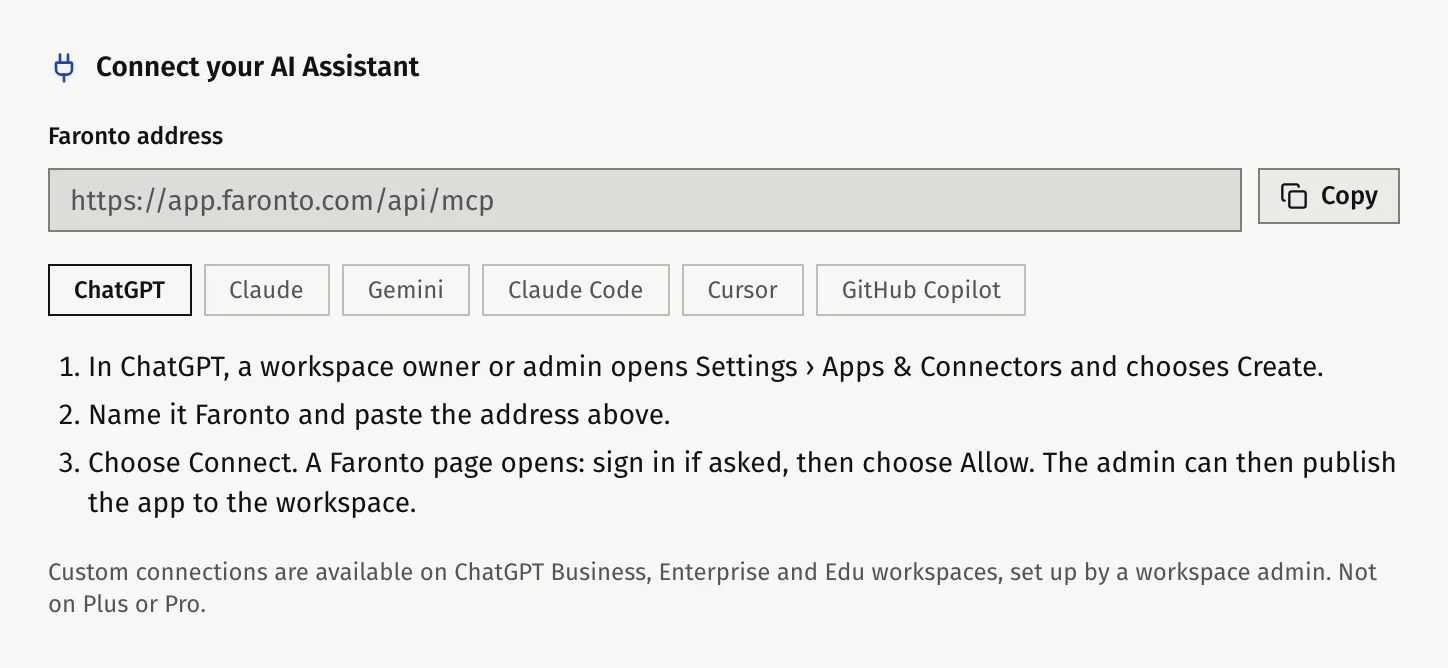
- Under Connect your AI Assistant, press Copy the address. This copies the Faronto address.
- Choose the tab for your app under AI Assistants.
- Follow the three steps on the tab, in your AI app. For ChatGPT, Claude and Gemini you name the connection Faronto and paste the address. For Claude Code, Cursor and GitHub Copilot you press Copy the configuration and paste the configuration where the tab says.
- When the AI app opens a Faronto page, sign in if Faronto asks.
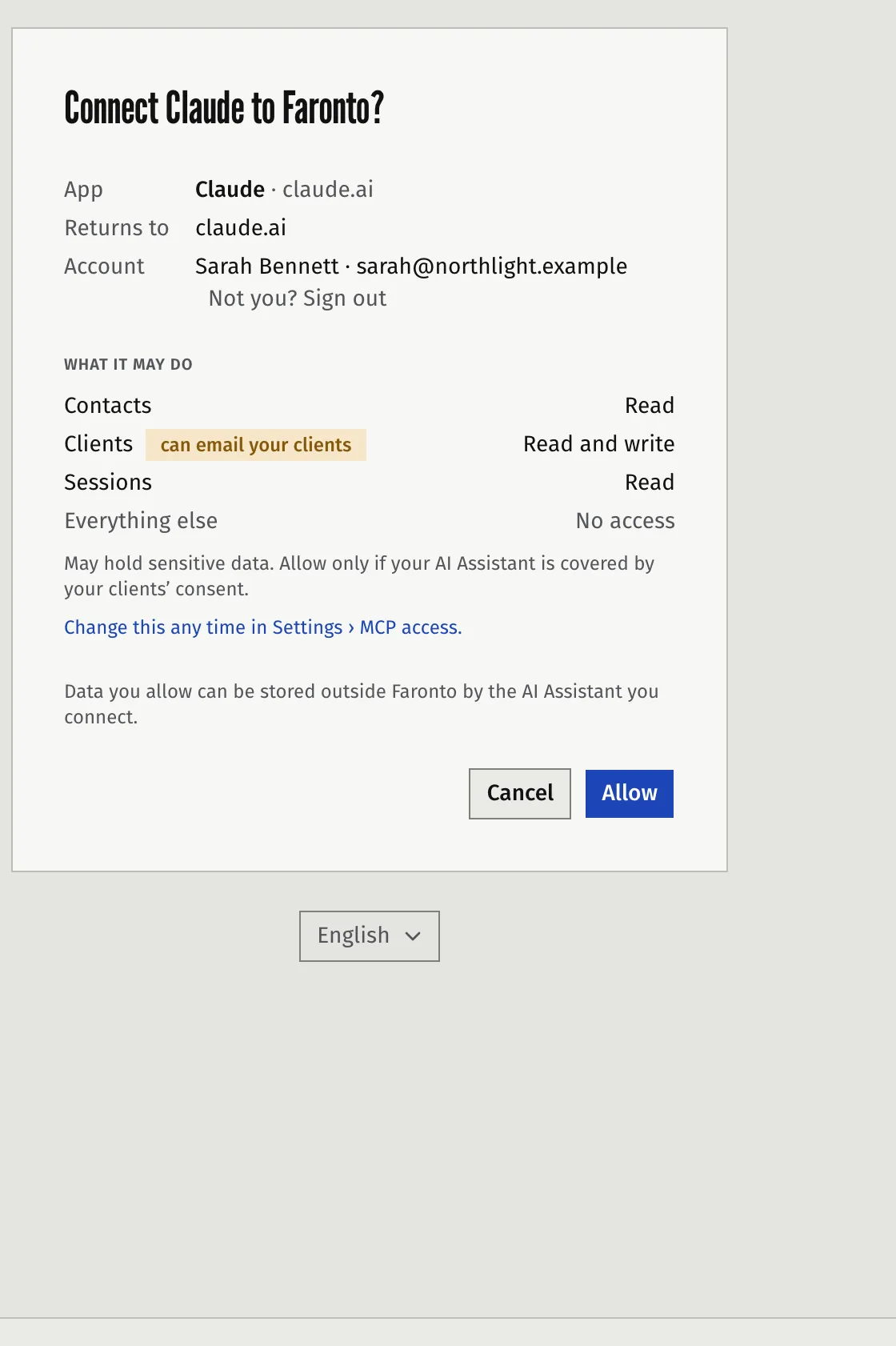
- Check the page. It shows the app’s name, where your browser returns to and the account you are signing in with. Under What it may do it shows what you currently allow.
- Press Allow. To stop, press Cancel.
The sign-in is the only credential. There is no key or token to copy, store or keep secret. You sign in to Faronto the same way you always do, and Faronto gives the AI app a connection you can switch off at any time.
Set what it may do
A new app gets the access you have already set under MCP access, and a new coach starts with none. Check What it may do on the consent page before you press Allow. After you connect, decide what your AI Assistant may see and change. See Choose what your AI Assistant can see and change.
If the connection fails
- ”This connection request is not valid.” Nothing was connected. Close the page and start again in your AI app.
- The page shows the wrong account. Press Not you? Sign out and sign in with the account you use for coaching.
- A warning says the app runs on your computer. This is normal for Claude Code, Cursor and GitHub Copilot. Continue only if you started the connection yourself a moment ago.
- The page says the app calls itself one name but sends you back to another host. Cancel unless you expect that.
Was this article helpful?