Languages in Faronto
On this page
Faronto has three language settings. One is for you, one lists the languages you coach in, and one belongs to each client. This article says where each one lives and what it controls. The supported languages are English, Deutsch, Nederlands, Français and Español.
The three settings
| Setting | Where | What it controls |
|---|---|---|
| Your language | Settings, Profile, Language | The app you use, the emails and notifications Faronto sends you |
| Coaching languages | Settings, Profile, Coaching languages | Which languages you can choose for a client |
| A client’s language | On the client’s page (you), or in their portal profile (the client) | Their portal and emails, and the AI-written text about them |
Change your language
- Open Settings, then Profile.
- Under Language, choose a language.
It saves the moment you choose it. Your new language also becomes one of your coaching languages, so you can choose it for a client straight away. Your earlier language stays one too. There is no save button. Changes apply right away across the app. Your clients are not affected. Their language is a separate setting.
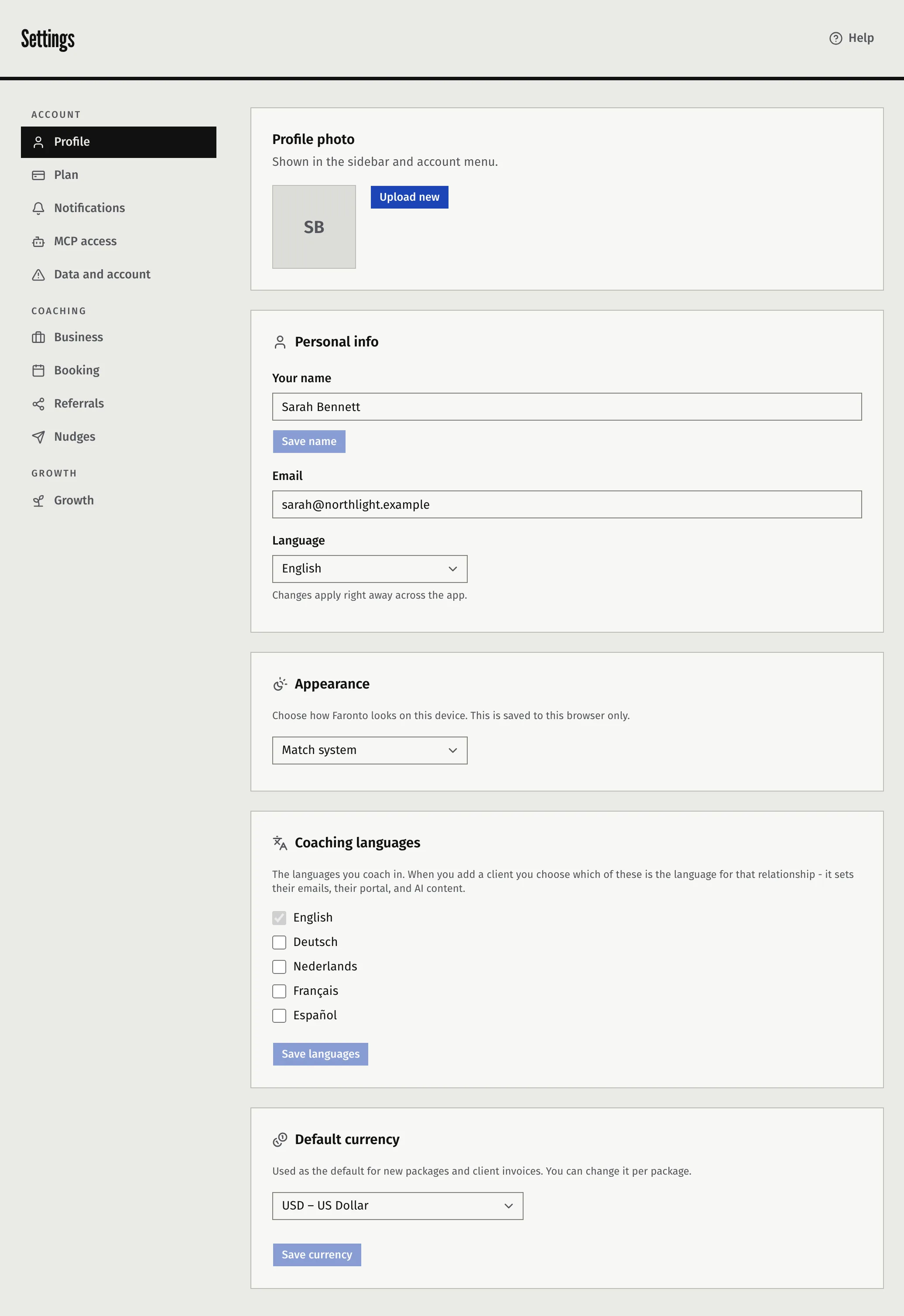
Choose the languages you coach in
Tick the languages you coach in. These are the choices you get when you add a client or turn a contact into a client.
- Open Settings, then Profile.
- Under Coaching languages, tick the languages you coach in.
- Press Save languages.
Your own language is always ticked and you cannot untick it. If you tick only one, Faronto gives it to every new client and does not ask. If you tick more than one, you must choose one for each new client. See Set up your practice in Faronto and Add a client and invite them to the portal.
A client’s language
A client’s language is set when you add them. After that, Faronto uses it for everything about that client.
- Faronto asks you to choose one of your coaching languages when you coach in more than one language.
- Your client can change it themselves. In the portal, under their profile, they see Language. It only shows when you coach in more than one language, and only offers your coaching languages.
- You can change it yourself. On the client’s page, press Edit and choose Coaching language. It shows when you coach in more than one language and offers your coaching languages. Their emails use the new language at once, and their portal from their next page. Your AI Assistant can change it too, with Clients on Read and write.
What each language controls
| What | Whose language it uses |
|---|---|
| The app, its menus and buttons | Yours |
| Emails and notifications Faronto sends you | Yours |
| The client portal | The client’s |
| Emails to a client: the portal invite, session confirmations and reminders, shared session notes, follow-up nudges | The client’s |
| A session briefing | The client’s |
| Notes and actions pulled from a transcript | The client’s, even when the recording is in another language. Faronto translates it. |
| A Draft message for a coaching client | The client’s |
| A Draft message for a contact who is not a client | Yours |
| Your booking pages | The visitor’s. They see the page in their browser’s language and can switch it. |
| Emails to a person who books a call with you | The language they used on the booking page |
The words your clients see for goals, such as “outcomes” or “intentions”, come from Your coaching words, which has one field per language you coach in. See Set up your practice in Faronto.
Times are shown in the viewer’s timezone
Language does not set time. Every time in Faronto shows in the timezone of the person looking.
- You see times in the timezone you set under Settings, Business, Time zone. So do the emails Faronto sends you.
- Your client sees a session in the timezone saved with that session. If none was saved, they see your timezone.
- A date without a time, such as the due date of an action, shows the day as entered.
Was this article helpful?