Add a client and invite them to the portal
On this page
Adding a client creates their profile. Inviting them gives them access to their client portal, where they see their goals and actions and book sessions. You can add a client now and invite them later.
Add a client
- Open Clients.
- Press Add Client.
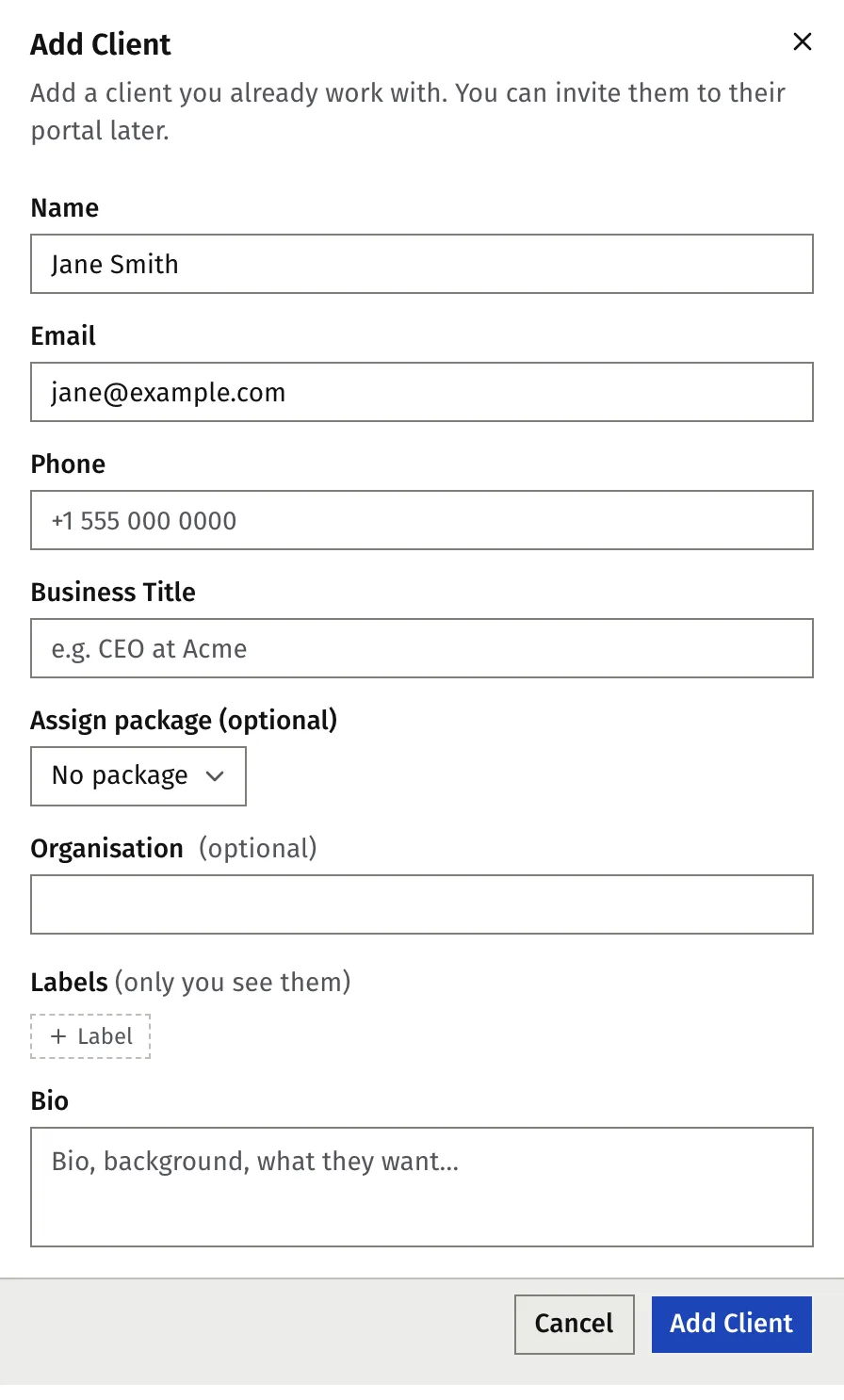
- Enter Name and Email. Both are required.
- If you coach in more than one language, choose the Coaching language. You must choose one. It sets the language of this client’s emails, portal and AI-written content.
- Optional: add Phone, Business Title, Organisation, Labels, Bio and a package under Assign package (optional). The package list appears only when you have an active package.
- Press Add Client.
Faronto opens the new client’s page. If you coach in one language only, that language is set for you.
Faronto does not email the client when you add them. They only hear from Faronto once you invite them.
Invite a client to the portal
- Open the client’s page.
- Open the More actions menu and choose Invite to portal.
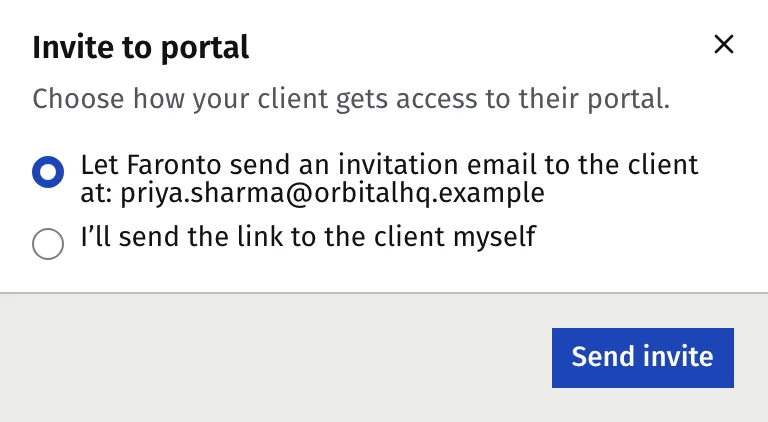
- Choose how to send it:
- Let Faronto send an invitation email to the client at: …
- I’ll send the link to the client myself
- Press Send invite for the first option, or Get link for the second.
- If you chose to send the link yourself, press Copy, send it, then press Done.
The client’s status changes from Not invited to Invited (pending). It becomes Portal active once they sign in.
What your client receives
If you let Faronto send it, your client gets an email titled “[your name] invited you to your coaching portal”. It is in their coaching language and says:
- You set up a private coaching portal for them on Faronto.
- It’s where they set their goals, see notes after each session, track their actions and book new sessions. The email uses your own coaching words, such as outcomes instead of goals, if you set them under Business. See Set up your practice in Faronto.
- The button “Sign in to your portal” takes them to the sign-in page. They enter their email there and Faronto sends them a one-time sign-in link. There is no password.
If they haven’t signed in after 3 days, Faronto sends one reminder. It sends the reminder only when Faronto sent the invite. If you sent the link yourself, Faronto sends no reminder.
If you change a client’s email after they have portal access, Faronto sends a new invite to the new address (Email changed - a new portal invite was sent.).
See the portal as your client sees it
- Open the client’s page.
- Press View as client.
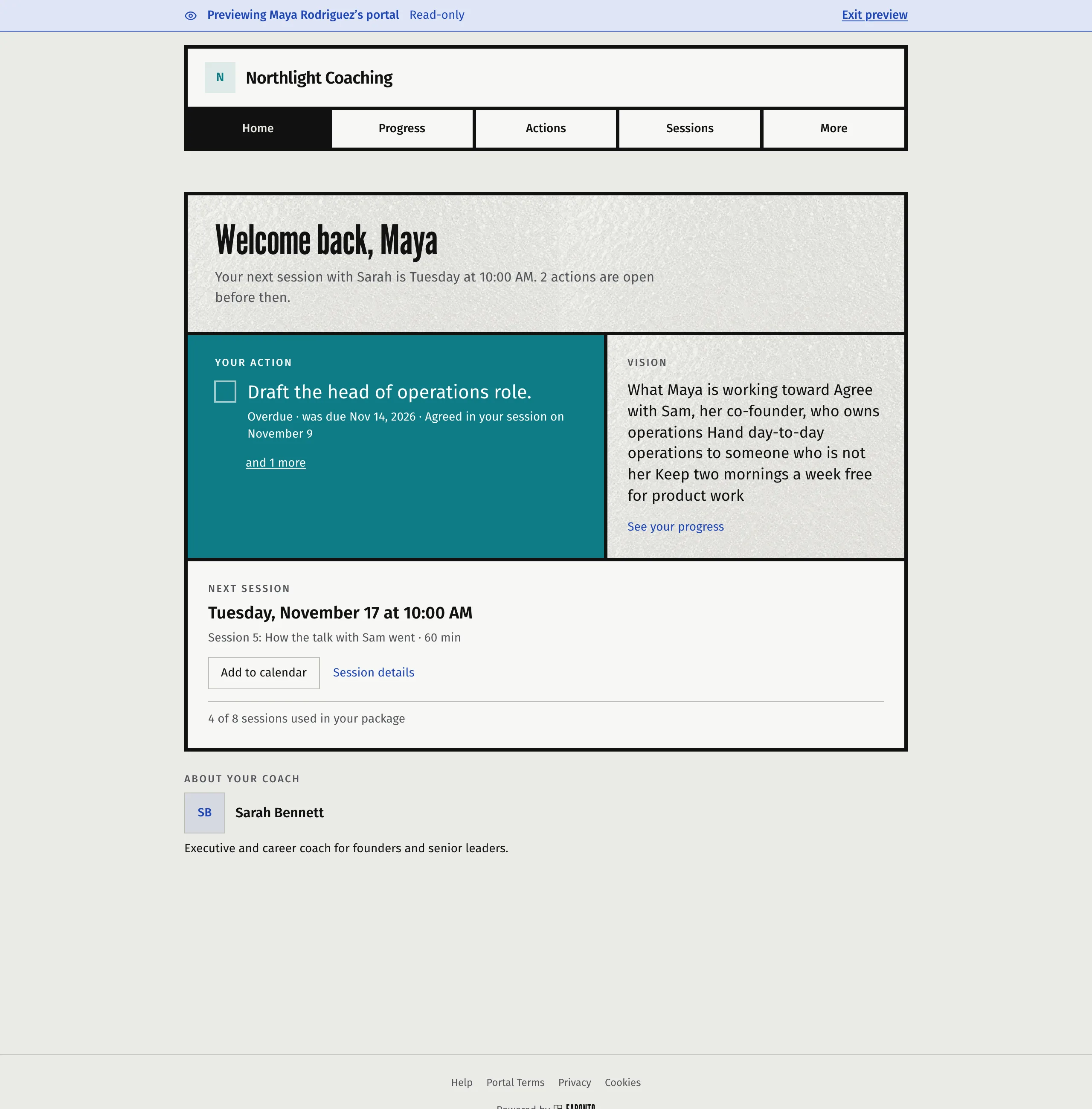
The preview opens in a new tab. It shows the banner “Previewing …’s portal”. It is read-only, so nothing you click changes the client’s data. Press Exit preview when you are done.
Take away access
To stop a client from signing in, open the More actions menu and choose Revoke portal access. The client loses access straight away and gets an email about it. You can invite them again later.
Was this article helpful?