Move your clients from another tool
On this page
There are two ways to bring your clients into Faronto. The first moves the people. The second can also move their goals and open actions. Neither one invites anyone to the portal, so you can check everything before your clients see it.
Which way to choose
| Import, then Make client | Your AI Assistant | |
|---|---|---|
| Brings in | Names, emails, phones, roles, companies | The same, plus each client’s goals and open actions |
| You do | Import a file, then make each person a client yourself, one at a time | Connect your AI Assistant, give it access, hand it the export |
| Best when | You have a list of names and little else | You have goals and actions written down in the old tool |
Way 1: import as contacts, then make them clients
- Export your clients from the old tool as a .csv file.
- Import the file as contacts. See Import your contacts from LinkedIn, your phone or a spreadsheet.
- Open each person from Contacts and press Make client. Choose Coach … in Faronto. See Turn a contact into a client.
Faronto imports on the website only. Your AI Assistant cannot import a file for you. Goals and actions do not come across with this way. You add them on each client’s page.
Way 2: let your AI Assistant create them
Your AI Assistant reads the export in its own app, then asks Faronto to create each client.
Before you start
- Connect your AI Assistant. See Connect ChatGPT, Claude or another AI Assistant.
- Under MCP access, set Contacts and Clients to Read and write. Without Clients on Read and write, it cannot create a client.
- Get your old tool’s export. A spreadsheet, a CSV or a copied list all work, as long as your AI app can read it.
When you give the export to your AI app, you share your clients’ details with that app’s provider. Faronto does not control what it does with them. See AI and your data.
Ask for the move
Attach the export to a chat with your AI Assistant and ask for what you want. For example:
For each person in this file, create a client in Faronto with their name and email. Add each goal as a goal for that client and each open item as an action, with its due date. Do not invite anyone. Tell me who you could not create.
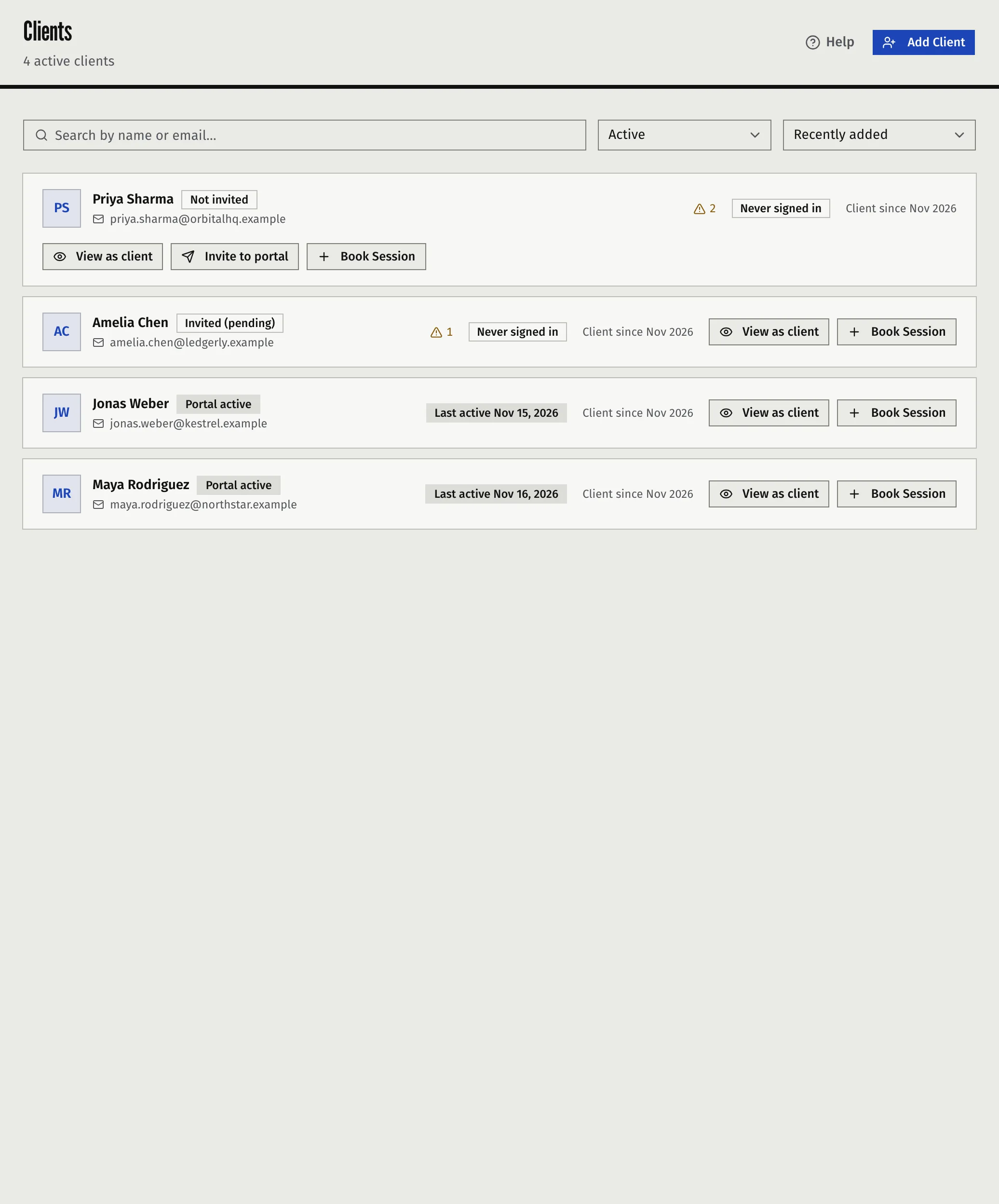
Check the result in Clients before you continue.
What your AI Assistant does
For each person, it:
- Adds them as a contact in Growth. A client is always created from a contact.
- Makes the contact a coaching client. Faronto needs an email address for this, because a client signs in with it. If a client with that email already exists, it links the contact to that client instead.
- Adds each goal to the client. A goal can have a description, a status, a target date and a progress percentage.
- Adds each open action to the client. An action can belong to the client or to you, can have a due date, and can be tied to a goal.
Nothing is sent to the person. No portal invite goes out until you send it yourself. A client gets no notice about a goal or action until they have portal access. See Add a client and invite them to the portal.
Limits to know
- Free plan. Creating a coaching client counts toward the 2 active clients on Free, the same as adding one yourself. When you reach 2, the rest fail. See What’s in Free and Starter.
- 20 clients an hour. Faronto allows 20 contacts to be made clients per hour. For a larger list, ask your AI Assistant to work in batches, or come back in an hour.
- Email is required. A person without an email address stays a contact.
- Language. If you coach in more than one language, tell your AI Assistant each client’s language. Otherwise Faronto refuses that client.
- Not included. This way does not bring in past sessions, session notes, files or payment records.
Was this article helpful?