Log a message, call or meeting
On this page
Logging is how Faronto knows what has happened with each person. You write down a message you sent, a reply, a call or a meeting, and Faronto uses it to decide who to remind you about. It only records what happened. Nothing is sent from Faronto, and Faronto does not read your inbox, LinkedIn or WhatsApp. You log by hand.
Log an interaction
- Open the contact from Contacts.
- Press Log interaction.
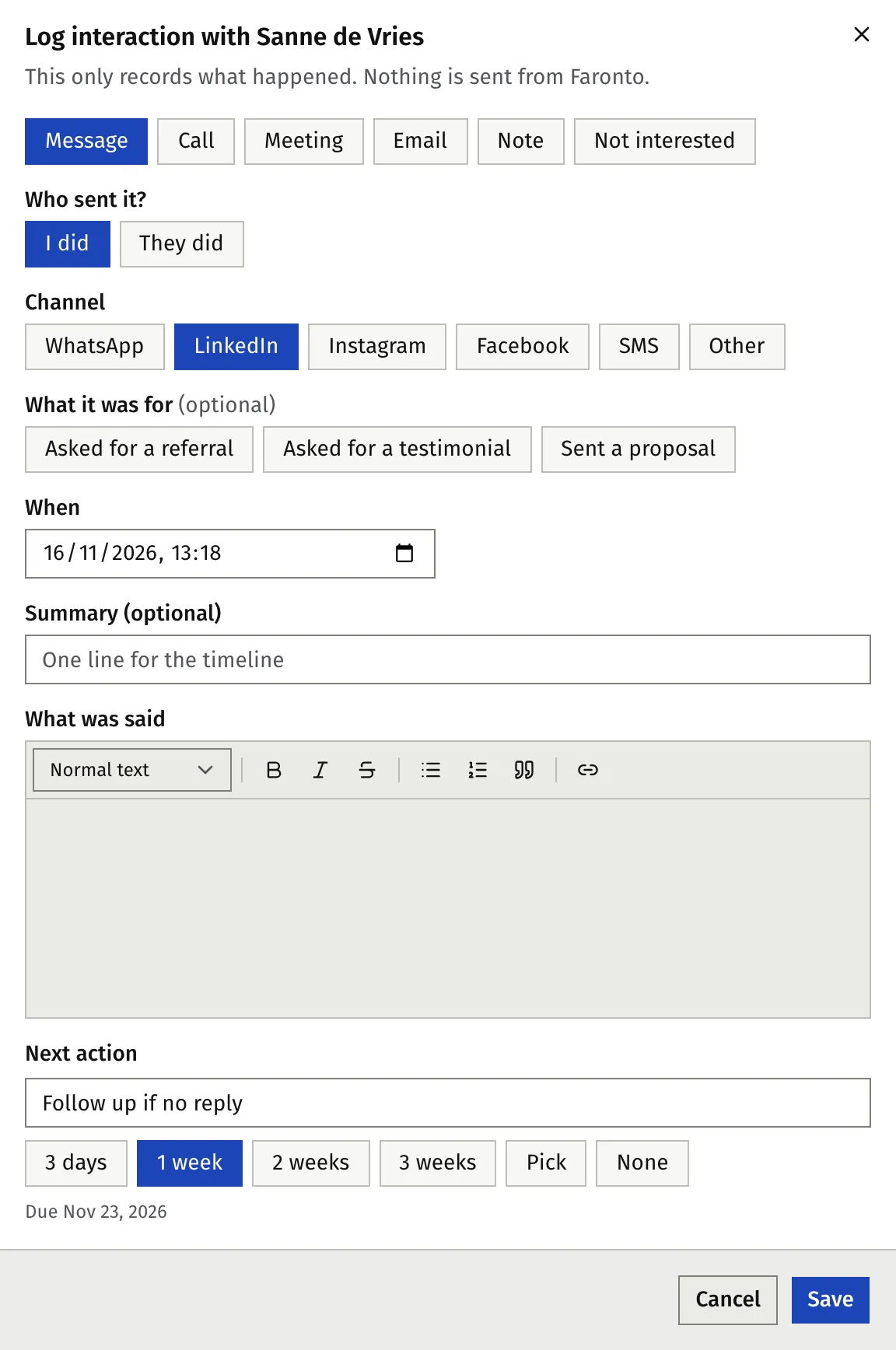
- Choose the Type: Message, Call, Meeting, Email, Note or Not interested. For a message, an email, a call or a meeting, What it was for marks an ask or a proposal.
- For a message or an email, choose Who sent it?: I did or They did.
- Choose the Channel where the type has one. A message can be WhatsApp, LinkedIn, Instagram, Facebook, SMS or other. A meeting can be in person, phone, video or other. For a call or a meeting, enter the Duration (minutes) too.
- Set When. It starts at the current time. You can set an earlier time.
- Optional: add a Summary (optional) of one line for the timeline, and Add what was said. You can paste the message thread or the email there. When AI features are on, Draft reads what you paste here when it writes to this person. See Let Faronto draft a message in your voice.
- Choose the Next action and when it is due. See below.
- If the person’s next action is due, the form shows Mark the next action done: …, already ticked. Leave it ticked when this log finishes that action. Untick it if the action is still open.
- Press Save. With the box ticked, the timeline also records Next action done: …, and the person leaves Today. Press Undo in the message that appears to take back both.
You can also log from a row under Today with Log. That short form is for an ask or for their answer. It shows the same tick box when the person’s next action is due. See Ask for referrals and testimonials.
Set the next action
A contact has one next action: the one thing that happens next with this person. It appears under Today when it is due.
After a message that you sent, Faronto suggests Follow up if no reply after your follow-up time. The default is 1 week. Change it under Settings, Growth. You can pick another date or choose None.
On the contact’s page, the Next action card lets you press Done, Change or Set next action. You don’t have to go there first: logging what you did marks a due next action done for you (step 9 above).
When they answer
Log their reply as a message and choose They did for who sent it. After a reply from someone at the Contact stage, Faronto offers “Move to …”. You decide.
Plan a call or meeting
A call or a meeting can be in the future, up to two years ahead.
- Press Log interaction and choose Call or Meeting.
- Set a date and time in the future.
- Press Save.
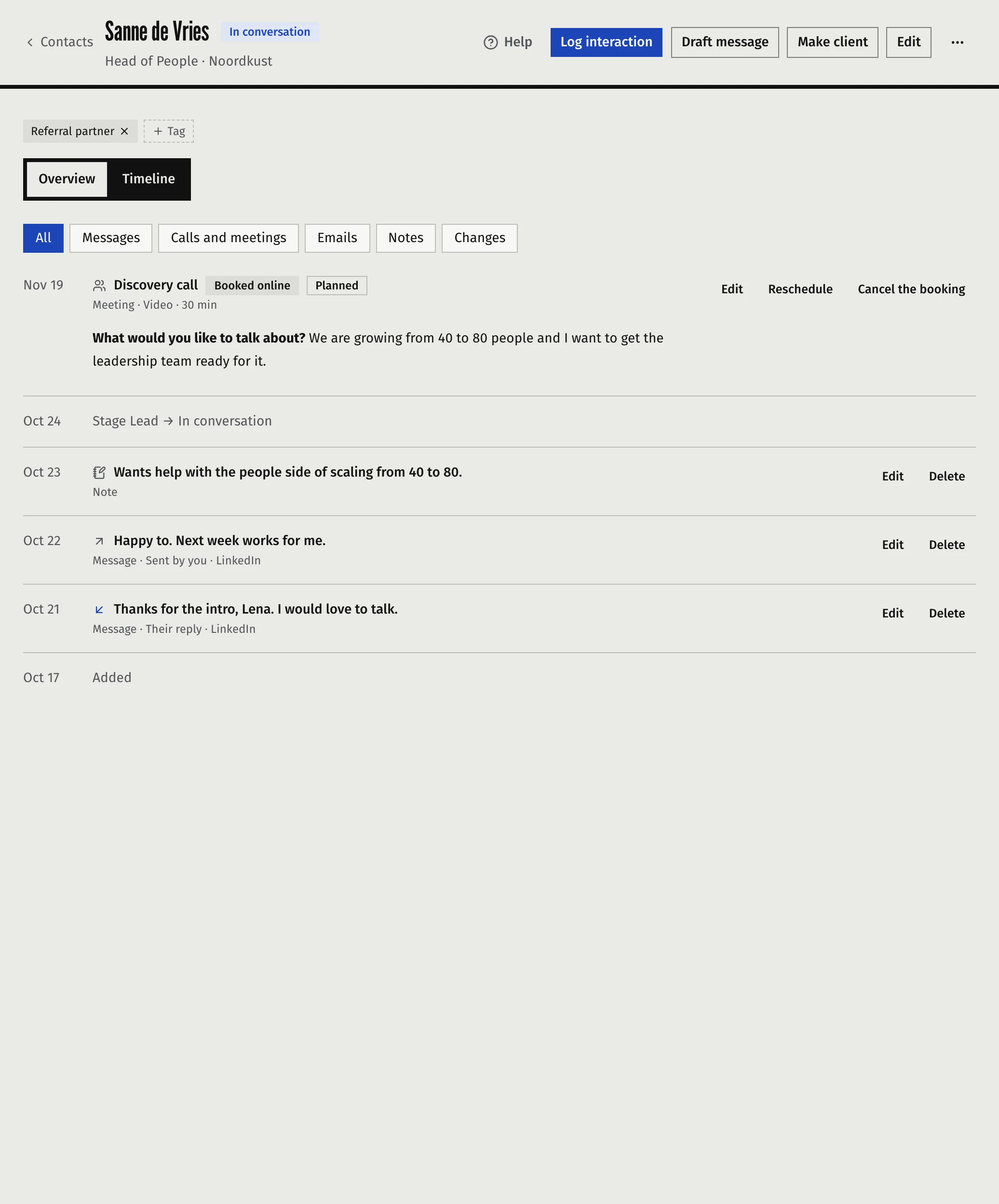
The entry shows as Planned on the timeline. It becomes the contact’s next action, for example “Meeting with Sanne” on the day. It blocks that time in Scheduling, where it appears as a Growth block, so a session you book on top of it gets an overlap warning. After its time has passed it counts as an interaction. A message, email or note cannot be dated in the future.
If a person books a call through your booking page, it is planned for you. See Let people book a free call from your page.
What counts as an open
An open is a message or an email you send to someone you had not been in touch with for 90 days or more, who is not a current client (someone you made a client with the choice A client for something else counts as one). This week counts them as people messaged after 3 months or more without contact. A coaching session you held in the last 90 days counts as contact.
Read and edit the timeline
The Timeline tab shows everything for one person, newest first. Filter it with Messages, Calls and meetings, Emails, Notes, Changes and Coaching.
- Entries you wrote can be edited or deleted. Deleting is permanent.
- Entries that Faronto wrote, such as a stage change, a consent change or an import, stay as they are.
- For a contact linked to a coaching client, the timeline also shows held sessions, booked sessions and sent nudges. They are read-only, and each links to the client’s page.
Was this article helpful?