What your client sees in the portal
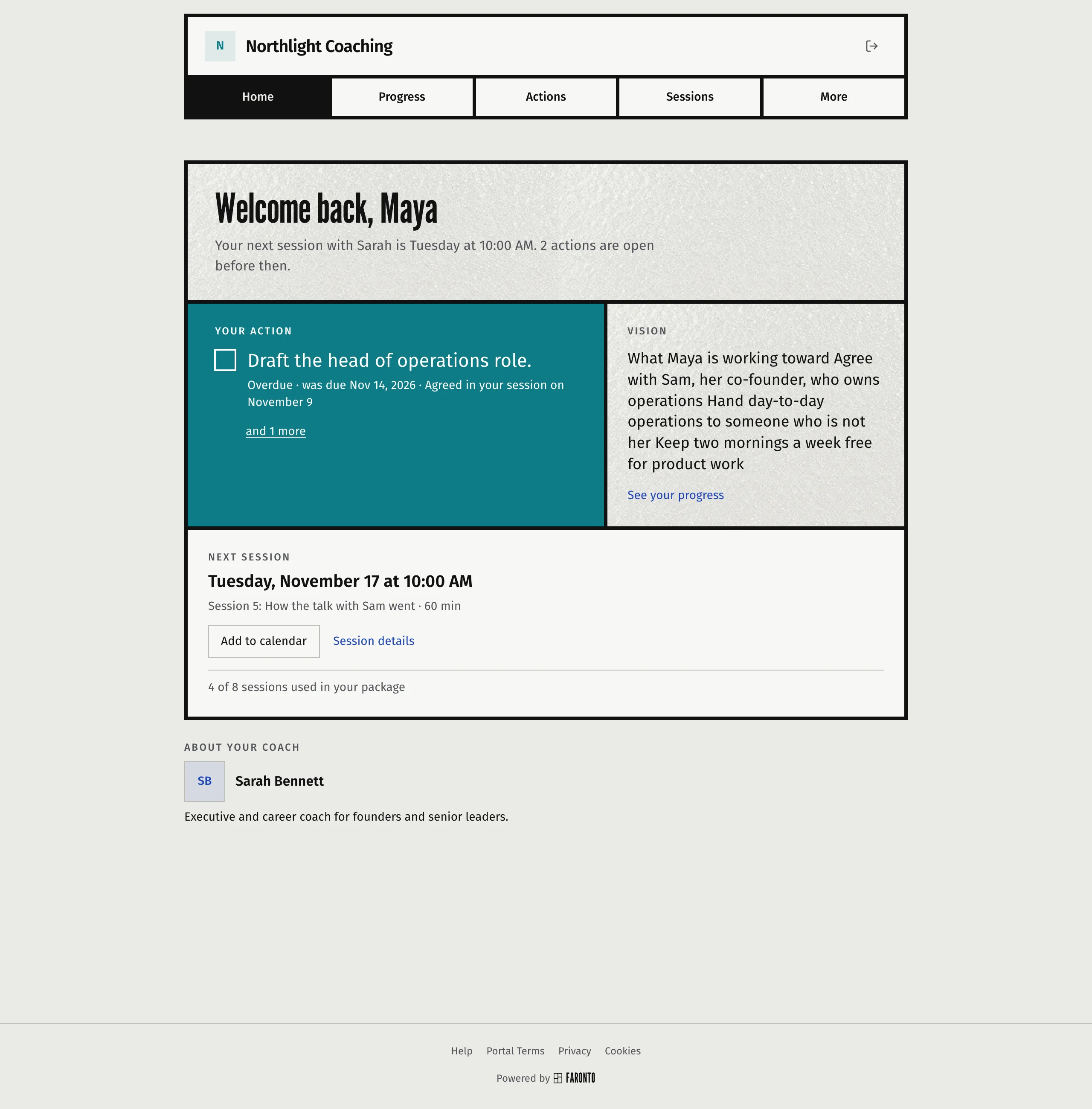
The client portal is where your client sees their goals and actions, books sessions, reads your resources and checks their package. It carries your business name, logo and colour, and it speaks your client’s language. This article is a tour of what is in it and when each part appears.
Your branding
- Header. Your business logo and business name lead every page. Without a logo, your client sees the first letter of your business name in a square tinted with your accent colour. The portal uses your logo, not your photo.
- Colour. Your accent colour tints the active tab and other highlights.
- About your coach. The Home page shows your photo, your name and your bio.
- Footer. A link to Help, and links to the Client Portal Terms, the Privacy Policy and the cookie settings, and “Powered by Faronto”. You cannot remove it.
You set the logo, name, bio and accent colour under Settings, Business. See Set up your practice in Faronto.
Faronto’s name shows in two more places. The sign-in page is Faronto’s, with the same page for coaches and clients. Emails to your client come from “[your name] via Faronto”. They carry your business name at the top and “Powered by Faronto” at the bottom.
The tabs
A tab appears once it has something to show, so a new client sees a short list. Home is always there.
| Tab | What your client finds | It appears when |
|---|---|---|
| Home | Their action, their goals, their next session and your bio. | Always |
| Progress | Their goals, with progress, and their vision if you use one. | They have a goal, or you use a vision and it has text |
| Actions | Actions from you and their own. | There is an action they can see |
| Resources | Articles and worksheets you assigned. | You assigned a published resource |
| Sessions | Upcoming and past sessions, and the button to book. | They have a session, or you turned on client booking |
| Packages | Their packages and sessions left. | They have a package |
| More | Notifications, Profile and Help. | Always |
The bar holds Home and three more tabs, then More. Any tab that does not fit moves into More. An empty Progress and Actions wait in More, because that is where a new client adds a first goal or action.
Some details:
- Actions. A client sees the actions they made themselves, actions that belong to no session, and actions from a session once you share it with them.
- Session notes. Your notes on a session show only after you share them. Your private notes are never shown.
- Resources. A number on the tab counts what is waiting for the client. See Share articles and worksheets with your clients.
- Booking. The client books against their package. See Book, move or cancel a session and Create packages and track session credits.
Language
The portal, and the emails your client gets, use the client’s coaching language. You choose it when you add the client, under Coaching language. Faronto has five: English, German, Dutch, French and Spanish.
If you coach in more than one language, your client can change their own language on their profile page. They can pick only from the languages you coach in.
Your coaching words
The words you pick under Your coaching words replace “goals” and “vision” in the portal. If you choose “outcomes”, the Progress page asks the client to add an outcome. If you choose no vision, the vision card is not shown. Titles, tabs and menus use your own word for each language, if you gave one. Buttons and sentences use the word you picked from the list. See Set up your practice in Faronto.
View the portal as your client
Press View as client on a client’s page to open their portal in a new tab. The steps are in Add a client and invite them to the portal. This is what the preview does:
- It is read-only. Controls that would change something are disabled, with a hint that says so. The banner and hints use your language. Everything else uses the client’s.
- It works before you invite the client. The banner then tells you the client’s state: Not invited yet, Invited, never signed in, Past client or Terms not accepted.
- It does not count as a visit by your client, and it has no sign-out button. Press Exit preview to leave.
- The unread count and tabs are the client’s real ones.
When you assign a resource from a client’s page, the confirmation offers See it in their portal. It opens that client’s Resources page in the preview.
A past client
If you keep a past client’s portal open for reading, they see the same portal, read-only. A banner tells them their coaching has ended and that they can still read everything. They cannot book, tick off actions, or edit anything. See End a coaching relationship.
Was this article helpful?