Choose your notifications
On this page
Faronto tells you what your clients do in two places: on your Dashboard and by email. You choose which client activity also sends an email. Some emails, such as payment problems, always come. This article lists all of them.
Where you see notifications in the app
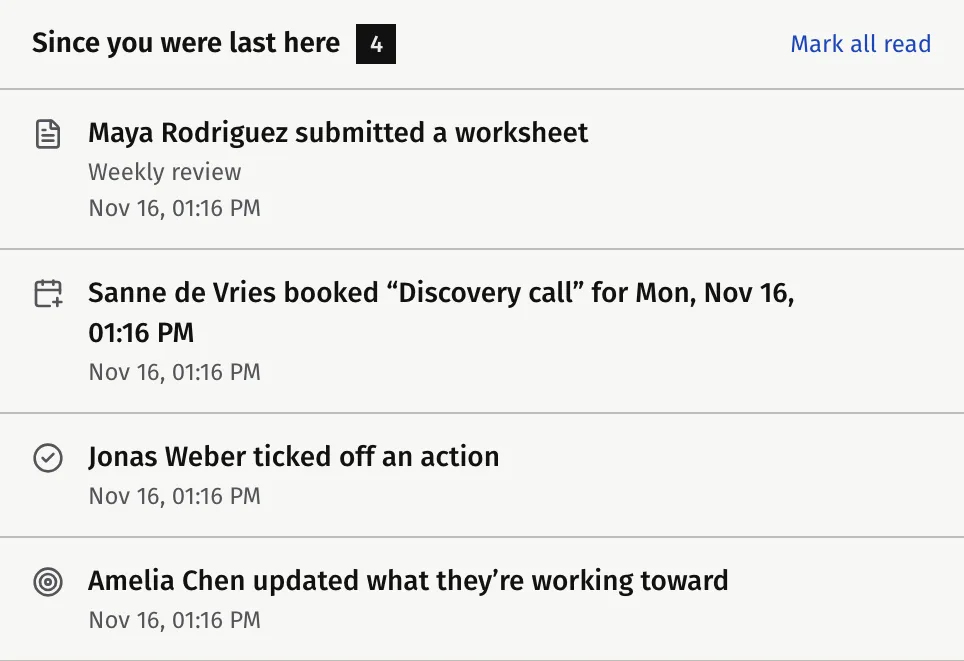
Your Dashboard has a card called Since you were last here. It lists what happened since you last looked, with unread items first. The Dashboard item in the sidebar shows how many are unread.
- Open an item to read it. It is marked as read and takes you to the client or the session.
- Press Mark all read to mark every item as read.
- The card shows the 6 most recent items. Unread ones come first.
Switching off an email never removes the item from this card. Everything in the table below shows up here.
Your own actions never create a notification in the app. If you book or move a session yourself, nothing appears on this card.
What Faronto notifies you about
| What happened | In the app | By email | Can you switch the email off? |
|---|---|---|---|
| A client submits a worksheet | Yes | At once | Yes: Worksheet submitted |
| A client changes their goals | Yes | One summary, about 30 minutes after the first change | Yes: the goals switch (named with your own word, for example Goals updated) |
| A client ticks off an action | Yes | One summary, about 30 minutes after the first one | Yes: Action completed |
| A client books, moves or cancels a session | Yes | See the next section | In part: Booking changes |
| Someone books, moves or cancels a call on your booking page | Yes | See the next section | In part: Booking changes |
| A client rates a session | Yes | No email | Not applicable |
| Your payment fails, your plan is paused or your subscription ends | Yes | At once | No |
Several changes inside the 30-minute window arrive as one email that counts them, so a busy afternoon does not fill your inbox.
Booking emails with or without a connected calendar
What you get when a client or a person on your booking page changes a booking depends on your calendar. See Connect your Google or Microsoft calendar.
| Calendar connected | No calendar connected | |
|---|---|---|
| The booking | Faronto puts it straight in your calendar | Faronto emails you the booking as a calendar file |
| Notification email from Faronto | A short email: “booked a session”, “rescheduled” or “cancelled” | None, because the calendar-file email already told you |
| Booking changes switch | Turns the short email off | Does nothing: the calendar-file email still comes |
| In the app | Yes | Yes |
The switch’s hint says the same: A short email when a client or a prospect books, moves or cancels a call. Without a connected calendar, you always get the email with the calendar file.
Switch emails off
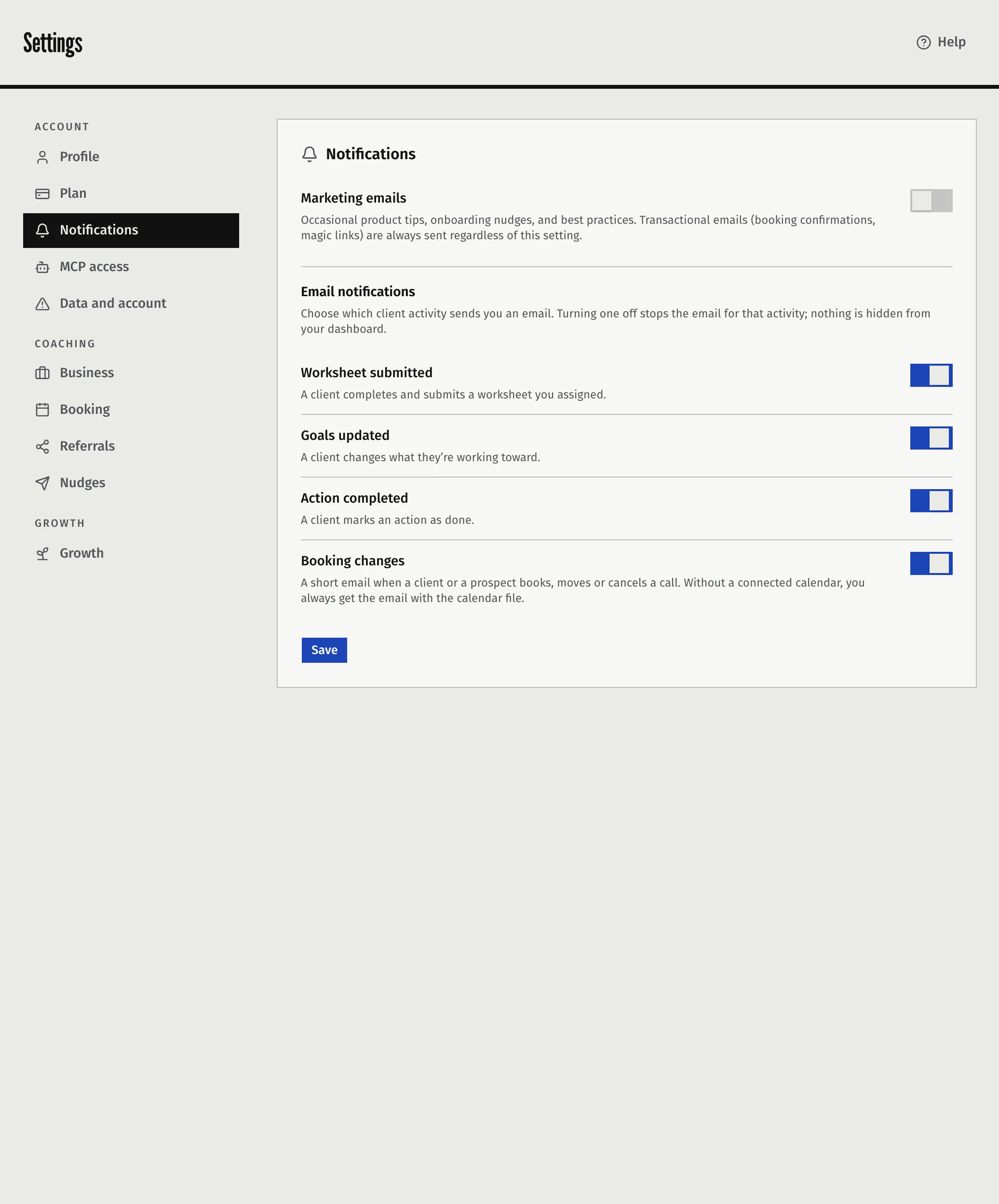
- Open Settings, then Notifications.
- Under Email notifications, switch off the activity you do not want an email about.
- Press Save.
All four switches are on until you change them. Turning one off stops the email for that activity. It does not hide the item from your Dashboard.
Marketing emails
At the top of the same page, Marketing emails controls Faronto’s own messages to you: product tips, onboarding emails and product updates. Occasional product tips, onboarding nudges, and best practices. Transactional emails (booking confirmations, magic links) are always sent regardless of this setting.
- This switch is on only if you ticked the box when you signed up, or turned it on here. Faronto never turns it on for you.
- If you opted in at sign-up, you get a short run of onboarding emails in your first week. Turning the switch on later does not start that run. With it on, one more email comes when you reach the 2-client limit on Free.
- Every one of these emails has an unsubscribe link. It opens a page, and you press the button there to confirm. This also turns the switch off. You can turn it on again here.
- This switch saves as soon as you press it. It has no save button.
Emails that always come
You cannot switch these off, because they are part of running your account.
- Sign-in links. The email with your link to sign in.
- Plan and payment emails. The confirmation when you subscribe, and the alerts for a failed payment, a paused plan or an ended subscription. See Upgrade, pay and cancel your plan.
- Calendar-file emails. The booking, move or cancellation file when you have no calendar connected.
- Account emails. The email when your data export is ready, and the emails about deleting your account. See Export your data or delete your account.
- Referral emails. When someone signs up through your link, and when your free month is applied. See Refer another coach.
- Service notices. An email to every coach when the Terms, the Privacy Policy or the Data Processing Agreement change in a material way. These have no unsubscribe link.
- A warning before a Resource is deleted. An archived Resource is deleted for good 90 days after you archive it. Faronto emails you 7 days before.
- Nudges to review. If you let Faronto’s AI draft follow-up nudges for you to approve, you get at most one email a day when new drafts are waiting or some expire within 24 hours. See Send follow-up nudges you approve. If you switch off Enable AI features, this email stops.
Was this article helpful?