Create packages and track session credits
On this page
A package is a set number of sessions that you give a client. Each session you book for the client uses one credit from it. Faronto keeps count, so you and your client always see how many sessions are left. Faronto does not collect payment for a package or track whether it was paid. You agree and collect payment with your client yourself.
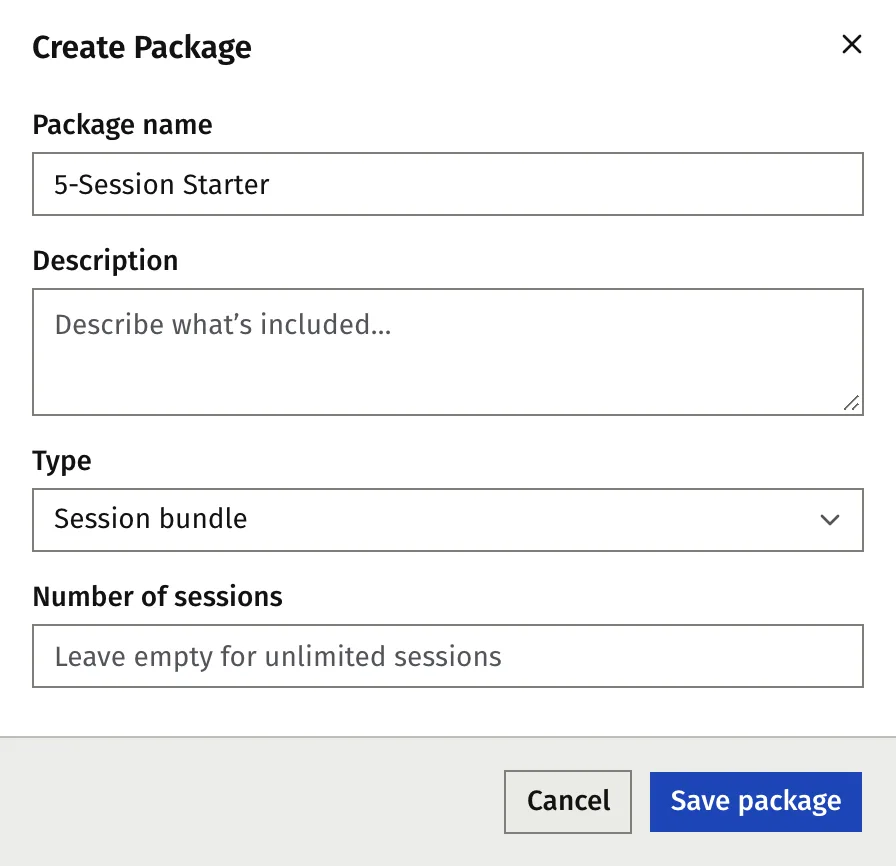
Create a package
- Open Packages.
- Press Create Package.
- Enter a Package name, for example “5-Session Starter”. It is required.
- Optional: add a Description.
- Choose the Type: Session bundle, Single session or Recurring subscription. A subscription has no session count: it runs until you end it. Choose its Billing interval, Monthly or Annual.
- Enter the Number of sessions. Leave it empty for an open-ended package that never runs out.
- Press Save package.
The list shows each package with its number of sessions. It starts on Active. Use the filter to switch to Inactive or All, or search by name or description.
To change a package, press Edit on its row. A change reaches only the clients you assign it to afterwards. A package you already assigned keeps the number of sessions it had when you assigned it.
To stop offering a package, press Archive and confirm. New clients can no longer get it, and clients who already have it are not affected. Press Restore to bring it back.
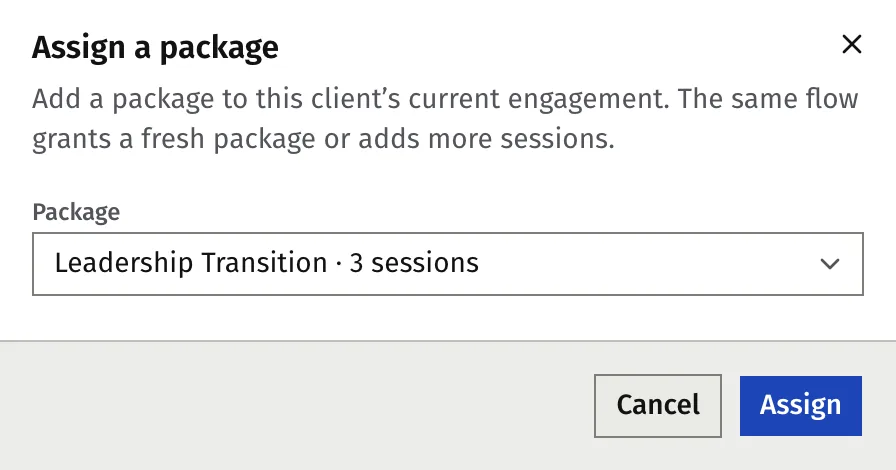
Assign a package to a client
- Open the client’s page.
- Open the Packages tab.
- Press Assign a package.
- Choose the Package.
- Press Assign.
The package is active straight away and the client can book against it. You can also pick a package when you add a client, under Assign package (optional).
To add sessions later, assign another package. You cannot change the number of sessions on a package you already assigned. The client’s sessions left is the total of their active packages.
The assign button is off when the client’s page shows a coaching period that has ended.
When a session uses a credit
A booking uses one credit through one rule. Only these moves change a credit:
| What happens | The credit |
|---|---|
| Your client books a session in their portal | One credit is used. |
| You book a session for your client | One credit is used. Tick Book without a package credit to book without using one. |
| You log a past session | One credit is used if you tick Count this session against the client’s package. |
| Your client moves a session to another time | Nothing changes. |
| Your client cancels before your cancellation cutoff | The credit goes back. |
| You cancel before the cutoff | The credit goes back. |
| You cancel inside the cutoff | Your setting decides. See “Late cancellations and no-shows” below. |
| You mark a session as a no-show | Your setting decides. See below. |
| You delete a session that is still scheduled | The credit goes back. |
| You delete a completed or no-show session | Nothing changes. |
A client cannot cancel or move a session inside your cutoff. They have to contact you. See Book, move or cancel a session for what they see.
If you cancel a session whose time has already passed, the credit goes back. Use Mark as no-show for a session the client missed.
Which package is used first
- Only packages with the status Active are used. A Paused package is skipped.
- When a client has more than one, the package with the fewest sessions left is used first, so a top-up is used up before a longer package.
- An open-ended package is used only when no other package has sessions left. It never counts down.
- When the last session of a package is used, its status becomes Completed. If that credit goes back, the package becomes Active again.
When a client has no credit left
A client with no active package, or none with sessions left, cannot book in their portal. They see a page that tells them to contact you. There are two ways around it.
- Book for them. When you book a session for a client with no credit left, the Book Session dialog warns you that they have no sessions left in a package. Tick Book without a package credit to go ahead without one.
- Let them book anyway. In Settings, Booking, Booking settings, switch on Clients with no sessions left can still book. A client who still has a credit uses it. A client with none books without a package, and the session is not linked to one.
Late cancellations and no-shows
Two settings decide what happens to a credit when a session does not go ahead. Find them in Settings, Booking, Booking settings, under Session credits.
| Setting | When it is on | Default |
|---|---|---|
| A cancellation inside the cutoff uses the session credit | The credit is kept when you cancel inside the cutoff. | Off |
| A no-show uses the session credit | The credit is kept when you mark a no-show. | On |
The cutoff is the Cancellation cutoff on the same page. It is 24 hours until you change it. You can choose none, or 2 to 72 hours before the session. See Set your availability and booking rules.
You can override the setting for one session. When you press Cancel session inside the cutoff, Faronto says how close the session is and shows a box to return the session credit to the client’s package. Clear it to keep the credit. For a no-show, the box Use the session credit shows how many sessions are left in the package. Clear it to give the credit back. A no-show sends the client no email.
Pause, resume or cancel a package
On the client’s Packages tab, open Package actions on a package.
- Pause: the client cannot book against it. Only an active package can be paused.
- Resume: makes it active again. It does not work when no sessions are left. Assign a new package instead.
- Cancel package: the client can no longer book the sessions that remain. You cannot undo it. Assign a new package if you need to.
A session that is already booked stays booked when you pause or cancel a package.
On the Free plan
On Free, a coach with more than 2 active clients cannot assign a new package until they are back down to 2 or upgrade. Packages already assigned keep working. See What’s in Free and Starter.
Was this article helpful?