Send follow-up nudges you approve
On this page
A nudge is a short email from you to a client between sessions. Faronto’s AI drafts one when a client has gone quiet or has reached a goal. You read it, change it if you like, and approve it. Nothing the AI drafts is sent unless you approve it. You can also write a nudge yourself.
Where nudges are
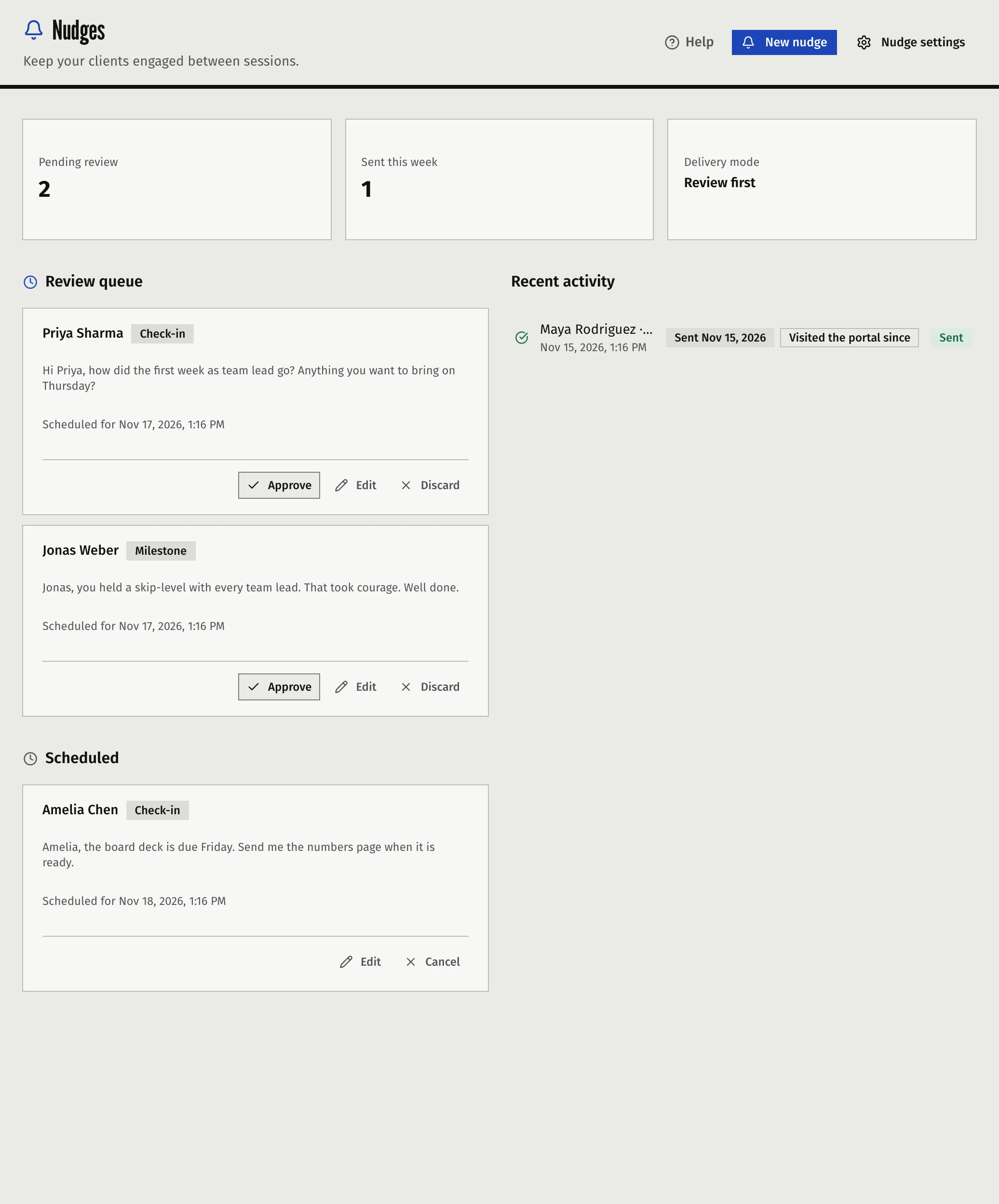
Open Nudges. The page shows:
- Pending review, Sent this week and your Delivery mode
- Review queue: drafts waiting for you
- Scheduled: approved nudges that have not been sent yet
- Recent activity: what was sent, and what was not
Drafts waiting for you also show on the Dashboard, in Needs attention, with Review.
When Faronto drafts a nudge
You do not have to set anything up. With Enable AI features on, Faronto checks your clients once a day and drafts a nudge when one is due. It drafts only for a client with a current coaching engagement, and never for a past client. There are three kinds:
- Check-in. A client’s sessions have a usual gap, worked out from their completed and booked sessions. A check-in is due when the time since the last session is about half that gap, or two fifths on Active. Clients you see more often than every 14 days on Light, 6 days on Balanced or 4 days on Active get no check-ins. Faronto does not draft one that would go out within 24 hours of the client’s next session. Because a draft is set at least 48 hours ahead, none appears when that session is less than about 3 days away.
- Re-engagement. The client has no session booked and the time since the last one is well past their usual gap. A client can get at most two in one quiet stretch, and the second waits twice as long.
- Milestone. The client reached a goal in the last 21 days. Each goal is celebrated once.
A draft is set to go out at least 48 hours from now, inside your Delivery window (09:00 to 19:00 in your timezone unless you change it). If you do not approve it before that time, it expires and is not sent. Once a day Faronto emails you when new drafts are waiting or one is about to expire.
How eagerly Faronto drafts depends on Nudge intensity. It also sets the least time between two drafts for the same client:
| Nudge intensity | Least days between two nudges to one client | Re-engagement once the gap is longer than |
|---|---|---|
| Light | 12 | 2 times the usual gap |
| Balanced (the default) | 6 | 1.75 times the usual gap |
| Active | 4 | 1.5 times the usual gap |
Every nudge counts towards the spacing, including one you discarded or one that expired. If you discard a draft, the next one for that client waits. A milestone draft is not held back by this spacing.
Approve, edit or discard a draft
- Open Nudges.
- Read a draft in the Review queue. It shows the client, the kind, the subject, the start of the message and Scheduled for.
- Choose what to do:
- Approve sends it as it stands, at the scheduled time.
- Edit lets you change the Subject, the Message and the time under Send at. Then press Save & approve.
- Discard removes it for good, after you confirm.
An approved nudge moves to Scheduled. Until it goes out you can still Edit it and press Save changes, or Cancel it. A send time you set must be in the future and no more than a year ahead.
Click a nudge in Recent activity to read it. A nudge that could not be sent shows Failed.
Write your own nudge
- On Nudges, press New nudge.
- Choose the Client.
- Add a subject if you want one (up to 255 characters).
- Write the Message (up to 2,000 characters).
- Check the email under Preview the email.
- Press Send. It goes out straight away.
This works with AI off too. Your own nudges are labelled Custom.
To ask for one draft for one client, open the client’s Actions tab and press Generate a nudge now in the Nudges card. A check-in draft lands in your Review queue. This ignores the spacing above, but it counts towards the daily limits below.
What your client receives
An email from your own name, with your inbox as the reply address, so a reply reaches you. It is signed with your name and carries your business name at the top, in the client’s coaching language. The subject is yours, or a default one if you left it empty. It is a message from you, so it has no unsubscribe link.
The AI that drafts it reads the client’s first name, their goals, their open actions, recent notes and the nudges already sent. It does not read the surname, email address, phone number or your private notes. See AI and your data.
Set your tone and instructions
- Your tone and how you write. Nudges use the Tone and How you write you set under Settings, Business, Your voice, the same ones Draft uses. Describe how you write rather than pasting an old message. See Let Faronto draft a message in your voice.
- Instructions for nudges. Open Settings, then Nudges. Under Nudge instructions, write what the AI should keep in mind, for example to always end with a question. It takes up to 1,000 characters. Press Save settings.
The same page holds Enable nudges, Delivery mode (Review first or Manual only), Nudge intensity and the Delivery window. The old address /nudges/settings opens it. The Nudge settings button on Nudges does too.
For one client, the Nudges card on their Actions tab lets you turn nudges off for them and choose their own intensity. Use my default puts them back on your settings.
Turn nudges off
| To stop | Do this |
|---|---|
| Nudges for one client | On their Actions tab, untick AI nudges for this client |
| Faronto drafting for anyone | Under Settings, Nudges, untick Send automated nudges to clients. Or choose Manual only to keep sending your own and get no drafts. |
| All AI, nudges included | Switch off Enable AI features under Business and confirm. Drafts already in your queue are discarded when their time comes. Your own nudges still go out. |
Turning nudges off also discards Faronto’s drafts you already approved but that have not gone out yet. A nudge you wrote yourself still goes out when it is due, also while nudges are off for that client. A nudge for a past client is not sent, not even one you wrote.
Limits
- Not part of Free’s 2 AI uses. Nudges never use your daily AI uses on any plan. See What’s in Free and Starter.
- Daily and weekly limits. For your whole practice, Faronto drafts at most 20 nudges in any 24 hours and 60 in any 7 days. A draft that failed still counts. The limits are the same on Free and Starter. They count only AI drafts, not the nudges you write. If you reach one, new drafts wait until older ones fall out of the window, and Generate a nudge now shows You’ve reached today’s limit for AI nudges. It resets tomorrow.. A normal practice has only a handful of nudges due on a day.
- Spacing for each client. The days in the table above, from the last nudge to that client.
Was this article helpful?