Book, move and cancel a session
On this page
You book sessions for your clients yourself, from Scheduling or from a client’s page. Your clients can also book through their portal, inside your weekly hours (see Set your availability and booking rules). You are not held to those hours: you can book, move or cancel any session at any time.
Book a session
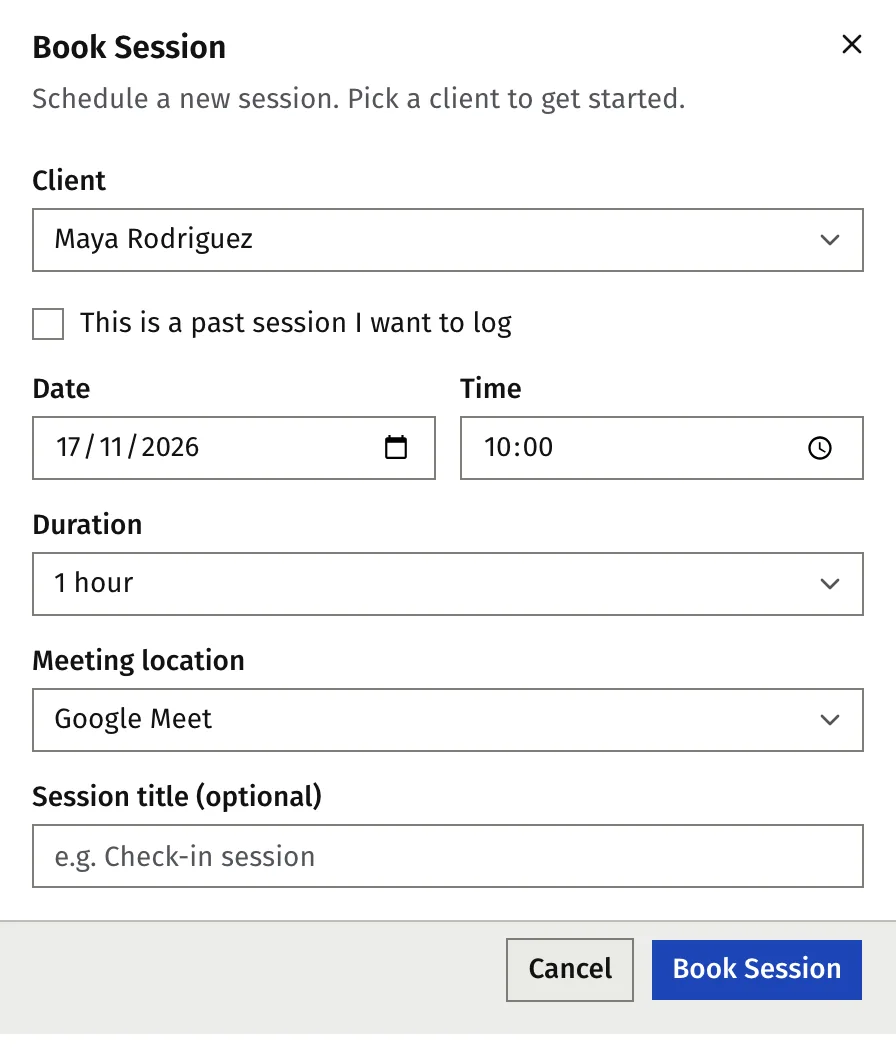
All entry points open the same dialog, Book Session:
- Scheduling, with the Book Session button. Click an empty hour in the week or day view and the dialog opens with that date and hour filled in.
- The Book Session button on the Dashboard, on Sessions, on a client’s row in Clients and on the Sessions tab of a client’s page.
- Open the dialog.
- Under Client, choose the client. The list holds active clients only. From a client’s page the client is already chosen.
- Set Date and Time. The time must be in the future. Faronto reads these in your time zone, Time zone under Business, as Scheduling does. On a trip, the times stay those of your business.
- Choose Duration, from 15 minutes to 4 hours in steps of 15 minutes. It starts at 1 hour.
- Choose Meeting location. The list shows the places you offer in your booking settings, plus Custom Location. For a custom location you must fill in Custom location with a link or a place. For In person the dialog shows your address.
- Add a Session title (optional) if you want one.
- Press Book Session.
Google Meet and Microsoft Teams appear only when you offer them and your primary calendar belongs to that provider. See Connect your Google or Microsoft calendar.
A client without an active package has no credit to draw on. See the Credits section below.
What your client receives
The client gets the session by email or as a calendar invitation, and a reminder 24 hours and 1 hour before it starts. Which one depends on your calendar:
| A calendar is connected and set as primary | No calendar | |
|---|---|---|
| Where the session lands | In Faronto and as an event in your calendar, with the client as a guest | In Faronto only |
| What the client receives | The invitation from your Google or Microsoft calendar | A confirmation email from Faronto with a calendar file |
| What you receive | Nothing extra: the event is in your calendar. When a client books, you also get a Faronto notification by email | An email with a calendar file to add it yourself |
| Meet or Teams link | Made for you if you chose it | Not available: choose in person or a custom location |
The email and the invitation are in the client’s language and carry the link to the session in their portal. See Connect your Google or Microsoft calendar for the rest of the calendar behaviour.
The confirmation email, the calendar invitation and the reminders also carry your cancellation policy and no-show policy, if you wrote them. See Set your availability and booking rules.
Book outside your availability
Your weekly hours, buffers, minimum notice, booking window, daily and weekly limits and the busy times in your calendar decide which times a client sees. They do not apply to you. You can book 7 a.m. on a Sunday, or a time your calendar shows as busy.
Turn on Show external calendars on Scheduling (week and day view) to see your other calendar events next to your sessions while you choose a time.
When the time overlaps another session
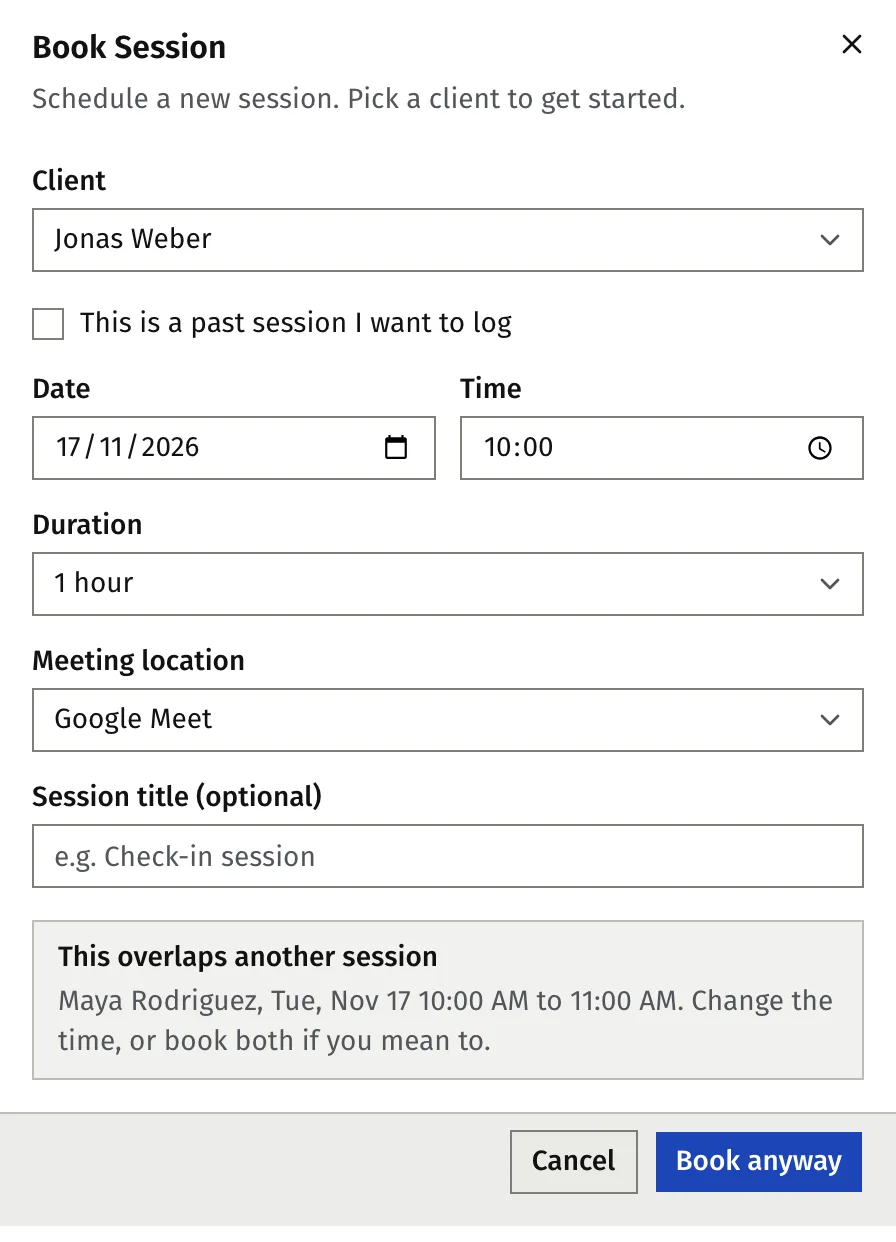
Faronto does not double-book you by accident. If the time overlaps another session you have scheduled, or a planned call or meeting from Growth, the dialog does not book. It shows This overlaps another session and names the other one with its day and time. The button changes to Book anyway.
- Press Book anyway to book both.
- Or change the date, time or duration. The warning goes away and Faronto checks again.
Sessions that touch end to start do not overlap. A client who books through the portal can never overlap another session: that time is not offered to them.
Credits
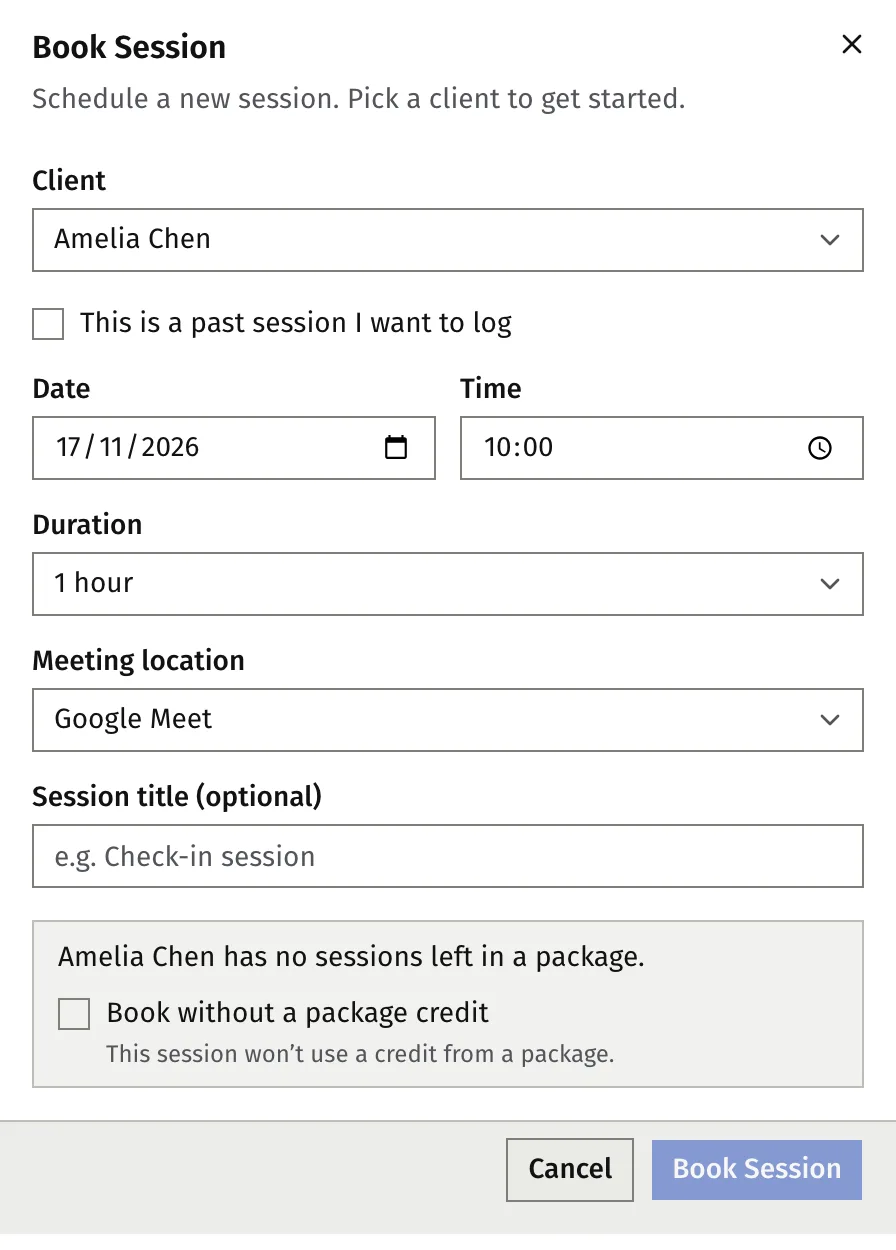
Booking uses one session from the client’s package, unless you choose otherwise. If the client has no session left, or no package, the dialog tells you so and the Book Session button stays off. Tick Book without a package credit to book anyway. The session then links to no package.
The full rules for credits, including what a no-show and a late cancel do, are in Create packages and track session credits.
Move a session
- Open the session: click it on Scheduling, or open it from Sessions or the client’s page. This opens its preparation page.
- Press Reschedule.
- Change the date, time or duration. For a session with a custom location you can also edit the link or place. The dialog shows the session’s time in your time zone and reads the new one there.
- Press Confirm reschedule.
The same overlap check applies, and the button reads Move anyway after the warning. The client is told of the new time, by your calendar’s update or by an email from Faronto, and the reminders move with it. Only a session that has not started yet can be moved.
If you disconnected your calendar after booking, Faronto emails the client and you instead, with a calendar file. The old event stays in your calendar until you remove it.
If you move or delete the event in your Google or Microsoft calendar, Faronto follows. See Connect your Google or Microsoft calendar.
Cancel a session
- Open the session, as above.
- Press Cancel session.
- Press Yes, cancel session.
The client is notified by email, or by the cancellation from your calendar. If you disconnected your calendar after booking, Faronto emails the client and you instead, with a calendar file. The old event stays in your calendar until you remove it.
The credit goes back to the client’s package. The exception is a cancellation inside your cancellation cutoff. Then the dialog tells you the session starts inside the cutoff and shows Return the session credit to …’s package. The tick starts from your setting under Booking, and you can change it for this session. Your client’s own cancellation cutoff is explained in Set your availability and booking rules.
When a session did not happen
Once a session’s time has passed you can no longer cancel it. Open it and you get Mark as no-show next to Write the review. The dialog has a tick, Use the session credit, that starts from your setting. Faronto does not email the client. See Create packages and track session credits.
Log a session that already happened
To record a session that took place before you used Faronto, or that you did not book here, open the same dialog and tick This is a past session I want to log. Choose a date and time that has already passed, then press Log session. Faronto sends no email and no invitation for a logged session, and takes you to its review page. If the client has a package with sessions left, the dialog also asks whether to count the session against it. See Take notes and review a session.
What Faronto does not do
- It does not book a past client. Mark as past client first stops new bookings for that client. See End a coaching relationship.
- It does not book several sessions at once or repeat a session. Book each one.
- It does not stop you booking outside your hours.
- It does not charge for a session. Packages carry the credits. See Create packages and track session credits.
Was this article helpful?