Keep track of the people you know
On this page
A contact is a person you know who might become a client, send you a client, or already is one. Contacts is where you keep them, so you always know where each relationship stands and who to talk to next.
Contacts are not clients
A contact has no portal, no sessions and no package. They do not count toward your plan’s active client limit. A contact becomes a coaching client only when you choose to make them one. See Turn a contact into a client.
Add a contact
- Open Contacts.
- Press Add contact.
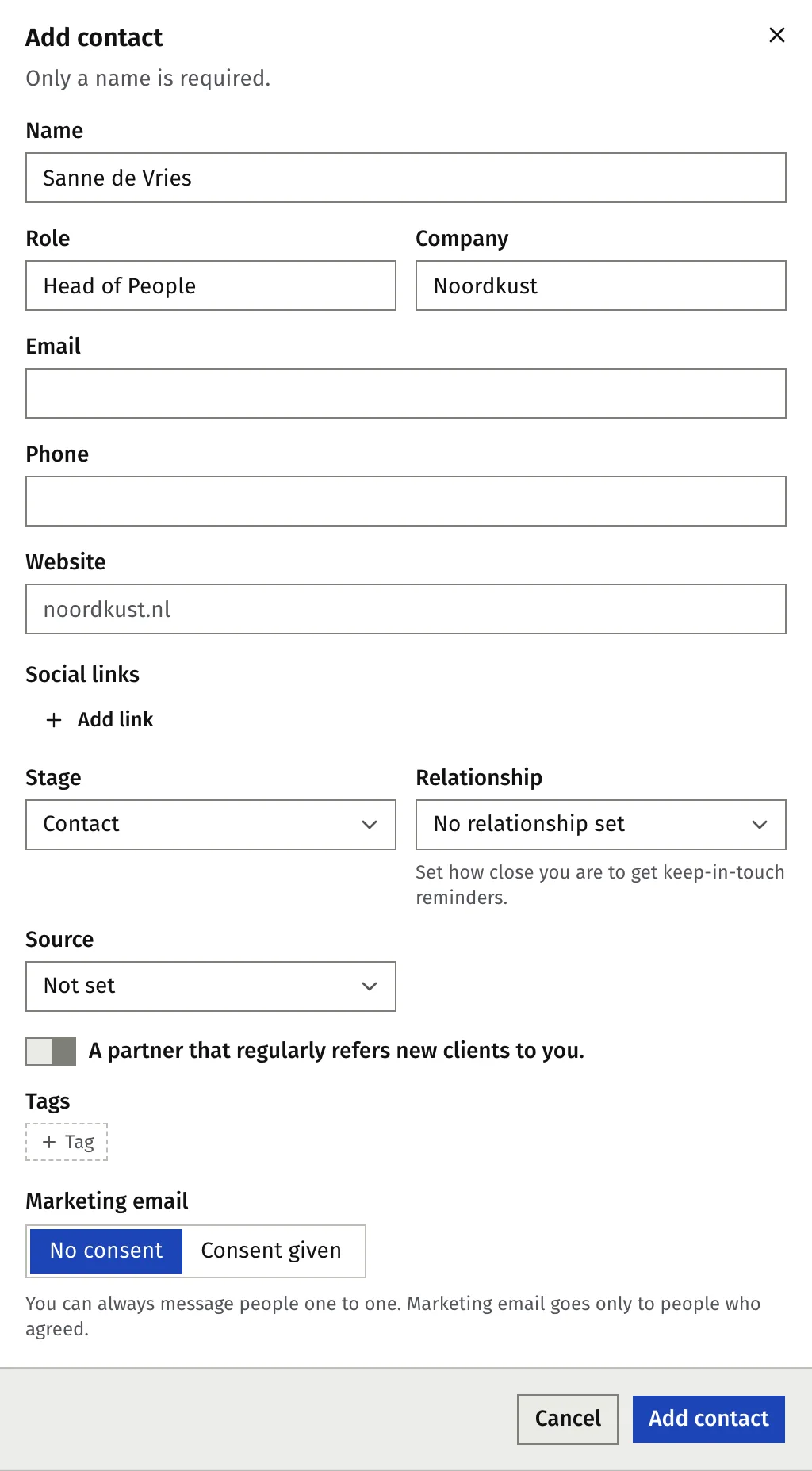
- Enter a Name. Only the name is required.
- Add what you know: Role, Company, Email, Phone, Website and Social links.
- Choose a Stage, a Relationship and a Source.
- Press Add contact.
If the email already belongs to a contact, Faronto offers Open that contact. If it belongs to one of your clients, it offers to link the contact to that client.
To bring in many people at once, see Import your contacts from LinkedIn, your phone or a spreadsheet.
The five stages
A stage says where someone is with you.
| Stage | Meaning |
|---|---|
| Contact | In your network. Nothing going on right now. |
| Lead | You see a fit and you’re warming them up. |
| In conversation | You’re talking about working together: a discovery call or a proposal. |
| Client | Someone you work with now: a coaching client in Faronto, or a client for something else. |
| Past client | Worked with you before. Your best source of referrals. |
Stages move only when you move them. Logging a message never changes a stage. After a reply, or after you plan a call, Faronto offers the next stage in one click, for example “Move to …”. You can ignore it.
To change a stage, open the contact and use the Stage field on the Overview tab. A contact linked to a coaching client shows the client’s status and you cannot change it here.
For a past client from before Faronto, you can add Client until, the month your work ended. Today then suggests a check-in around that month each year.
Relationship: how close you are
Relationship says how close you are. It sets how often Faronto reminds you to get in touch.
| Relationship | How often (default) |
|---|---|
| Close | Every 4 weeks |
| Warm | Every 8 weeks |
| Distant | Every 13 weeks |
| Cold | Never. No reminders and no suggestions. |
Change the weeks under Settings, Growth. A contact with no relationship gets no reminders, unless they are a coaching client. See Set how often to stay in touch.
Sources, referral partners and who referred whom
- Source records where someone came from: for example Personal network, Workshop or Podcast. It feeds Where clients come from. See Ask for referrals and testimonials.
- Referred by links a contact to the person who sent them. When you add a contact, the field appears after you choose Referral partner or Referral (other) as the source. When you edit a contact, it is always there.
- My referral partner is a switch for a partner who regularly refers new clients to you. You can filter your list by it.
Tags
Tags group contacts your way: a network, an event, a sector. Only you see them.
- Open a contact and press Edit, or use the Add contact form.
- In Tags, find a tag or create a new one.
- To rename or delete tags, open Filters, choose Tags, then Manage tags….
Deleting a tag removes it from the contacts. The contacts stay.
Find and update many contacts
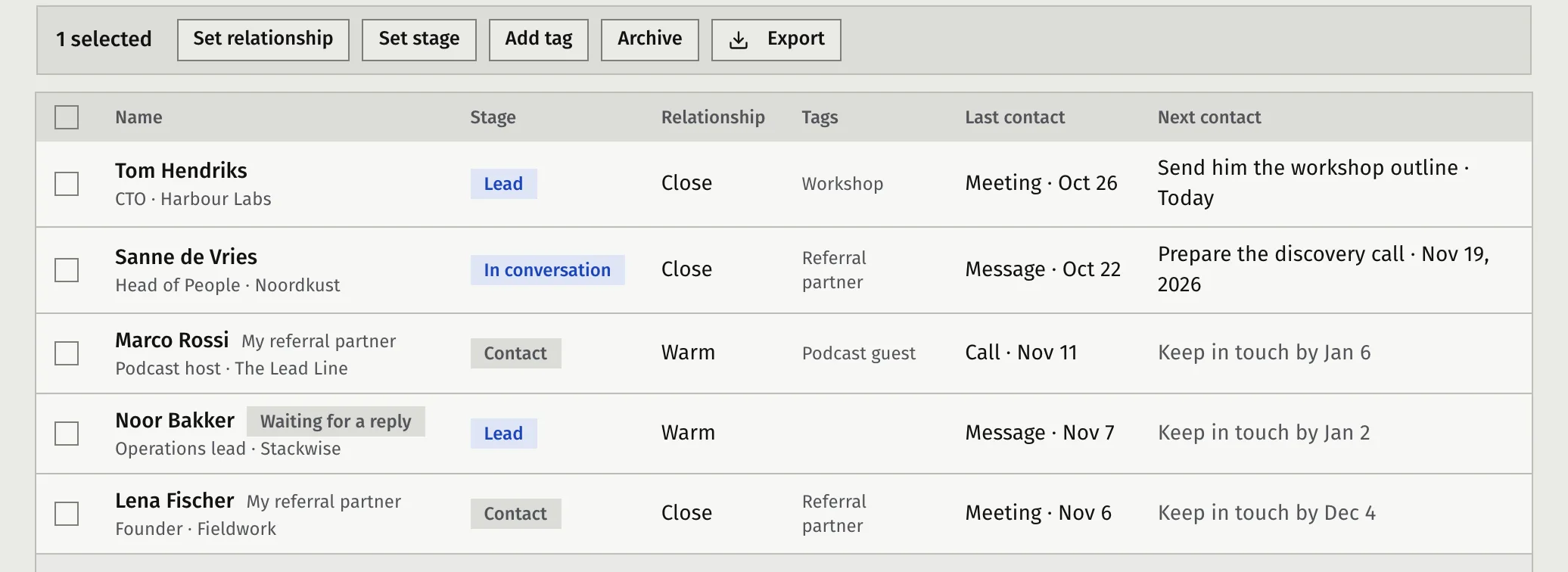
The list has tabs for All, Leads, In conversation, Clients and More. More holds Contacts, Past clients and Archived. Search by name, company or email. Use Filters for Relationship, Tags, Source and My referral partner.
Tick several rows to change them together with Set relationship, Set stage, Add tag or Archive.
Marketing email consent
Each contact has a Marketing email setting. It records whether this person agreed to get marketing email from you, such as a newsletter or an invite to a workshop. You can always message people one to one. Marketing email goes only to people who agreed.
Faronto sends no marketing email to your contacts. The setting is there so you know who agreed, and how. If you send a newsletter from another tool, you can export the people who agreed and use that list there.
- Record consent. Open the contact and press Record consent. Under How did they agree?, say how they agreed. Only record it when they really did. When you add a contact, the form has the same choice.
- Withdraw consent. Press Withdraw consent when someone asks you to stop.
- The proof. Both are kept on the person’s timeline, with the date.
To export the people who agreed:
- Open Contacts.
- Press Import and export, then Export this list.
- Open the CSV file in a spreadsheet. Keep the rows where Marketing consent says Given.
The file holds the list you are looking at, so pick a tab or filter first if you want fewer people. It also has Consent method and Consent recorded on.
Archive or delete
- Archive takes a person out of every list and count. Their history is kept and you can restore them. Open the contact, then the More actions menu, then Archive. A reason is optional. Asked not to be contacted also records that they withdrew marketing consent.
- Delete removes the contact and their whole timeline for good. It cannot be undone. Faronto asks you to confirm and offers Archive instead.
Was this article helpful?