End a coaching relationship
On this page
When you finish working with a client, mark them as a past client. Their history stays, they stop counting toward your plan, and you decide whether they keep reading their portal. Deleting a client is a different, permanent step, covered at the end.
Mark a client as a past client
- Open the client’s page.
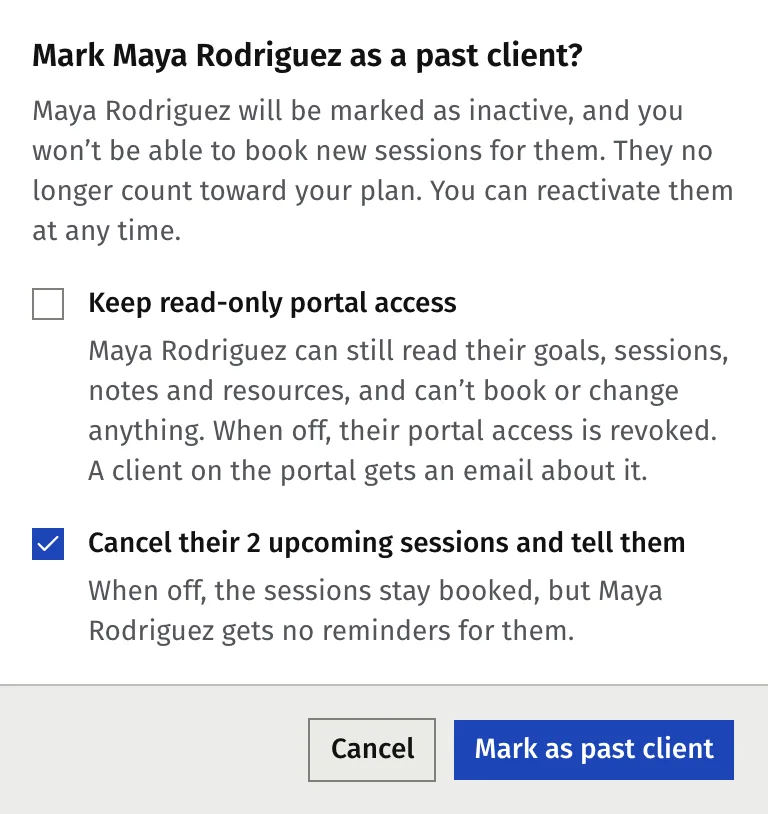
- Press the three-dot button, More actions, then Mark as past client.
- Decide on Keep read-only portal access. It is off unless you tick it. See Their portal below.
- If the client has sessions booked ahead, Cancel their … upcoming sessions and tell them is ticked. Leave it on to cancel them, or untick it to keep them. See Their booked sessions below.
- Press Mark as past client to confirm.
What changes:
- The client is no longer active. They do not count toward your plan. See What’s in Free and Starter.
- You cannot book new sessions for them. They are missing from the client list in the booking dialog.
- Their sessions, notes, goals, actions and resources stay as they were. The client page shows a banner that they are a past client.
- In Clients, find them with the Past clients filter. The default filter shows active clients only.
- Past clients get no session reminders.
Their portal: read-only or revoked
| Keep read-only portal access off | Keep read-only portal access on | |
|---|---|---|
| Portal | Access ends immediately. They are signed out. | Stays open, read-only |
| What the client can do | Nothing. They cannot sign in. | Read their goals, sessions, notes and resources. They cannot book, change or add anything. |
| What the client sees | Nothing, except an email telling them their access has been withdrawn | A note at the top that their coaching has ended, and they get an email about it |
| A client who never had portal access | No email | No change: there is no portal to keep |
Choose read-only if you want the client to keep their goals and notes. Choose the other if the work is over and you want their access closed.
Their booked sessions and package
- Upcoming sessions. With the tick on, Faronto cancels each one as a cancel from you would: the event leaves your calendar, the client is told, and the credit goes back to their package, also inside your cancellation cutoff. With the tick off, the sessions stay booked and in your calendar, but the client gets no reminders for them.
- Their package is untouched, apart from those returned credits. Unused sessions stay on it, nothing is refunded, and nothing expires. A past client cannot be booked, so unused sessions stay unused unless you reactivate them. See Create packages and track session credits.
Revoke portal access without ending the relationship
For a client who is still active, press More actions, then Revoke portal access, then Revoke access. The client loses access immediately and gets an email. You can invite them again later with Invite to portal. A past client who kept read-only access can be revoked later the same way, with Revoke portal access.
Reactivate a client
- Open the past client’s page.
- Press More actions, then Reactivate client.
- Press Reactivate client to confirm.
The client counts toward your plan again. If you are at the limit on the Free plan, Faronto says so and offers an upgrade instead. See What’s in Free and Starter. You can book them again.
What happens to their portal:
- If their access had been revoked and they had been invited before, Faronto restores it and sends them the portal invitation again.
- If they kept read-only access, they get full access again. No new email is sent.
- If you never invited them, nothing happens.
Start a new engagement instead
Sometimes the work does not end. A client comes back for a second block of coaching. For that, press More actions, then Start new engagement. It closes the current engagement and opens a new one. The vision, goals and resources start blank in the new one, and the closed one stays as a read-only record. Faronto will not close it while there are upcoming sessions in it, and warns you about unused sessions, which are forfeited. Until you add anything to the new engagement, you can reopen the old one.
Delete a client
Use this only to remove a client for good, for example one you added by mistake.
- Open the client’s page.
- Press More actions, then Delete Client.
- Type the client’s name to confirm.
- Press Yes, permanently delete.
This deletes the client and everything that belongs to them: sessions, notes (including your private notes), goals, actions, packages, shared resources with any worksheet answers, session files and their photo. It also removes their portal sign-in, unless that sign-in is used by another client or coach. It happens at once. There is no waiting period and no way to undo it. Faronto sends the client no email about the deletion itself.
If the person is also a contact in Growth, the contact stays and loses its link to the client.
If you want to keep their history, mark them as a past client instead. It costs you nothing, and it takes them off your plan limit too.
Was this article helpful?