Share articles and worksheets with your clients
On this page
Resources are the articles and worksheets you share with your clients. An article is something to read, with files and videos if you want. A worksheet is a set of questions your client answers in their portal. Your client sees a resource only after you publish it and assign it to them.
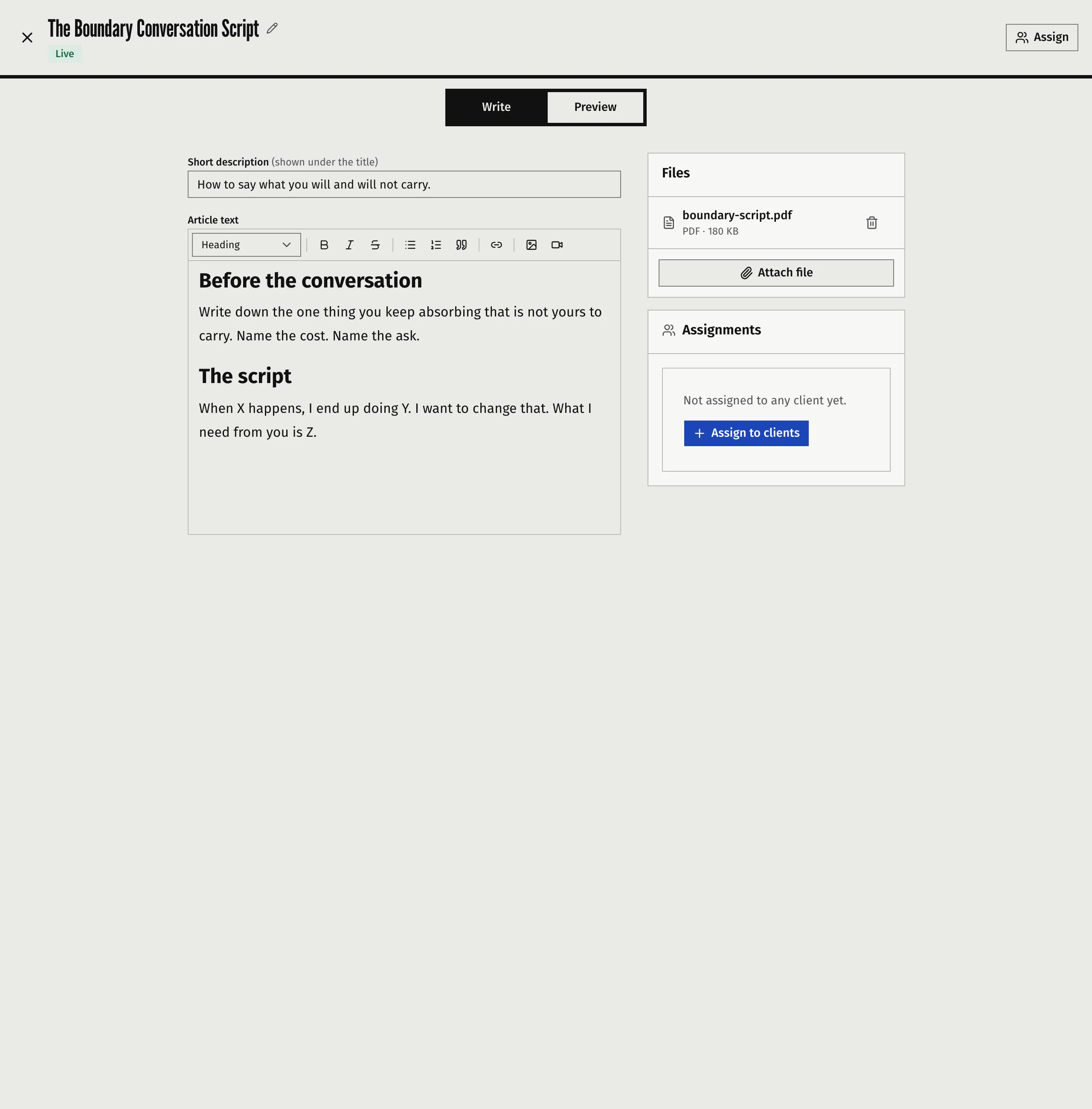
Write an article
- Open Resources.
- Press New, then New Article.
- Enter a Title. Faronto saves nothing until the article has a title.
- Optional: add a Short description. It shows under the title.
- Write the Article text. Use the formatting bar for headings, lists, quotes and links.
- Optional: press Attach file to add files under Files.
Faronto saves as you type and shows “Saved …”. Press Preview to see what your client will see.
What you can add:
- Images. Press Insert image and upload the image. An image that comes from another website is left out. Download it and upload it instead.
- Videos. Press Embed video and paste a YouTube link. Other video sites do not work.
- Files. The file picker takes .pdf, .docx, .xlsx, .png, .jpg and .jpeg files, up to 50 MB each. One resource holds up to 50 files.
- Text length. One resource holds at most 200,000 characters of text. Past that, Faronto stops saving and shows “Too long to save: shorten it to … characters or fewer.”
Pasted HTML is not supported. Your client sees any HTML tags as literal text.
Build a worksheet
- Open Resources.
- Press New, then New Worksheet.
- Enter a title and, if you want, a Short description.
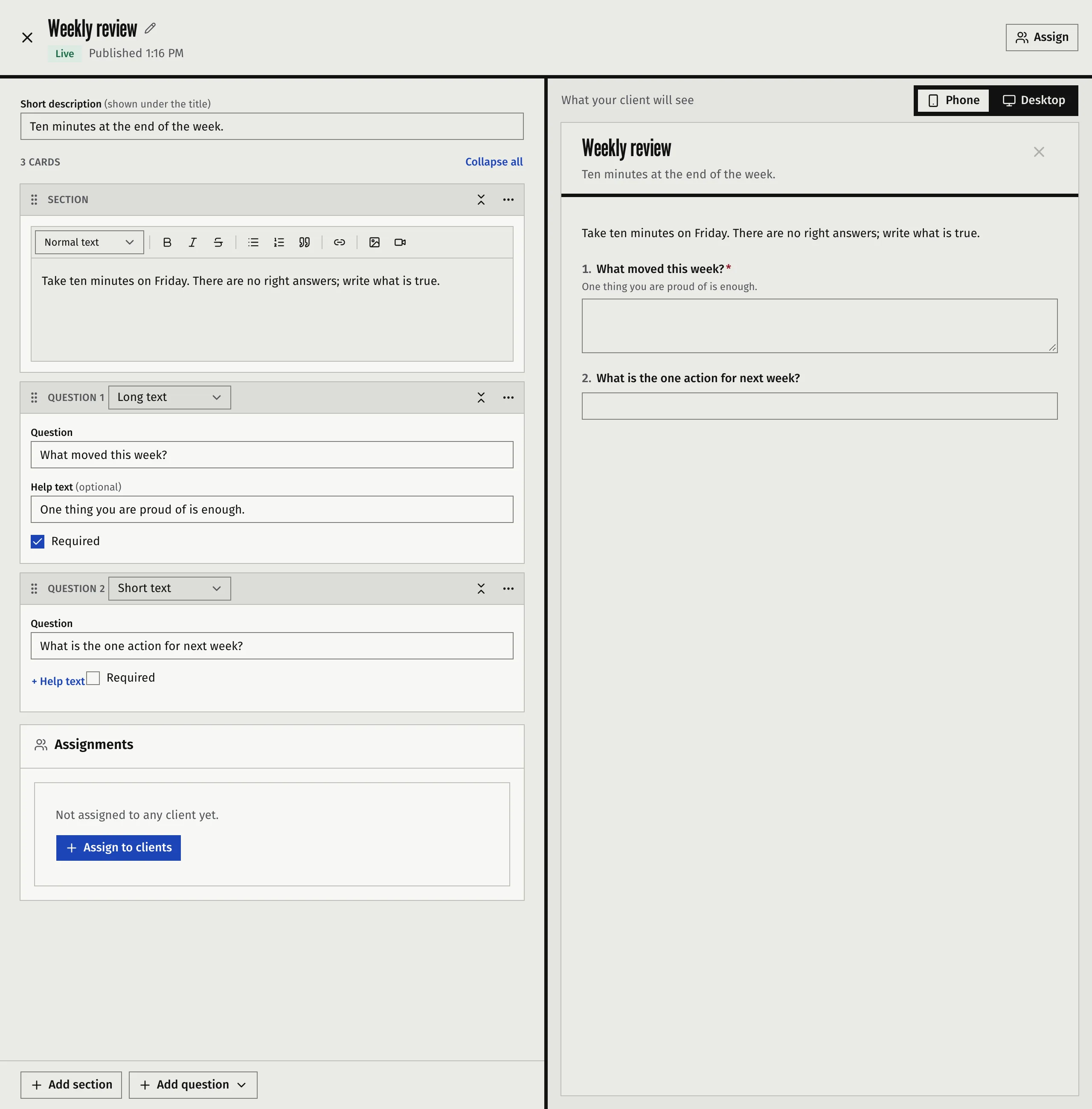
- Press Add section for text that explains, gives an example or sets the scene.
- Press Add question for something your client answers.
- Choose the Type and write the question. Add Help text if the client needs guidance.
- Tick Required for a question the client must answer before they can send the worksheet.
The question types are Short text, Long text, Scale, Star rating, Date, Single choice and Multiple choice.
- A choice question needs at least two options.
- A scale runs from 0 or 1 up to a number from 2 to 10, and you can label both ends.
- A star rating is 1 to 5 stars.
- A worksheet holds at most 200 cards, sections and questions together.
On a wide screen the preview sits beside the editor and updates as you type. Choose Phone or Desktop to see the width your client will have. On a narrow screen, switch between Build and Preview. Answers you type in the preview are not saved.
Publish
Until you publish, a resource is Not live yet. It cannot be assigned, and no client can see it.
- Fix anything the editor marks. It shows how many things are left to fix before publishing.
- Press Publish.
After that, clients see the published version. When you keep editing, Faronto keeps your edits as a draft and shows Changes not live. Your clients keep seeing the published version until you press Publish now again. To throw the draft away, open More actions and choose Discard changes. This cannot be undone.
When you close the editor with unpublished changes, Faronto asks whether to publish them or Keep as draft.
Assign a resource to clients
You can assign from two places.
- From Resources. Open the resource’s row menu and choose Assign to clients, or press Assign in the editor. Tick the clients and press Assign.
- From a client. Open the client’s page, then the Resources tab. Press Assign from Resources, choose the resource and press Assign.
When you assign to one client, you can link the resource to one of that client’s goals with Link to something the client is working toward (optional).
Only published resources can be assigned, and a client who already has the resource is skipped. A resource goes to each client’s current coaching period. Clients always get the published version, never a draft.
Faronto tells each client in their portal and by email. The email names the resource.
What your client sees
The client opens Resources in their portal. A number on the tab shows how many resources are waiting for them.
- An article opens to read. Files open from the same page.
- A worksheet opens as a form. The client’s answers are saved as a draft while they type. When they are done, the client sends the worksheet to you and confirms.
- Once the client’s coaching period has ended, a worksheet opens with their saved answers but can no longer be saved or sent.
- When you publish a new version of an article the client already read, it shows as updated and waits for them again.
On a client’s Resources tab, you see for each resource whether they opened it and, for a worksheet, whether they have not started it, are in progress or have sent it.
Read worksheet answers
Open the client’s Resources tab. A worksheet the client has sent shows the date they sent it. Press View answers to read their answers.
To let the client change their answers, press Ask for changes. You can pick one question, or the whole worksheet, and add a note. The client can edit and send the worksheet again. Their current answers are kept.
Changing a worksheet after clients started it
A client keeps the version of the worksheet they started. Faronto stores that version when they save their first answer. After that, your edits never change their form and never remove their answers.
- Clients who have not started, and clients you assign it to later, see your latest published version.
- Clients who started keep theirs, even after they send it and you ask for changes.
- The editor shows how many clients have the worksheet and how many of them keep their version.
- After you publish, Faronto tells you how many clients now see the new version and how many kept theirs.
If a client has the form open but has not saved an answer yet when you publish, their first save is refused once. The form reloads with your new version, and what they typed stays.
Archive, delete and labels
- Archive hides a resource from every client’s portal. Faronto keeps it for 90 days and shows when it will be deleted. Press Unarchive before then to keep it. Delete Forever removes it at once. If clients have answers on a worksheet, the confirmation says how many, and the answers will no longer be available to you or to them.
- To take a resource away from one client, open the client’s Resources tab and press Remove. For a worksheet that deletes the client’s answers, and you cannot get them back.
- Labels group your resources, for example by topic or method. Only you see them.
Was this article helpful?