Work with goals and actions
Goals say where a client is heading. Actions are the things you or your client agree to do before the next session. You and your client both see them.
Goals
Faronto keeps two levels:
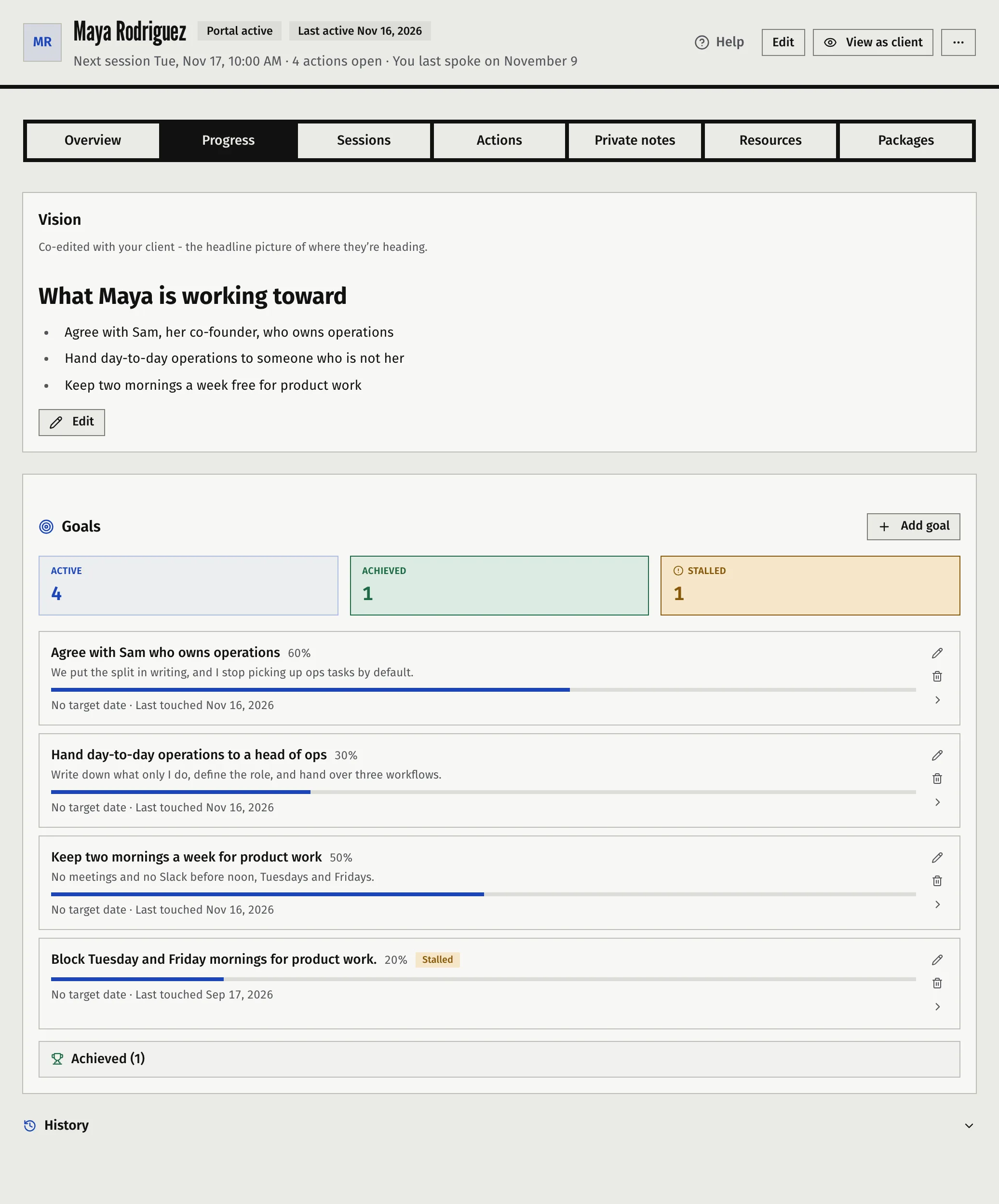
- A vision. One piece of free text about where the client is heading. You write it together, and your client can edit it from their portal too.
- Goals. Specific things you track, each with a title, a target date, a status and a progress percentage.
The words follow your coaching words. Under Settings, then Business, Your coaching words lets you call the goals level goals, outcomes, intentions or priorities, and the vision level vision, north star, purpose or ambition. If you choose I don’t use one, the vision part is hidden everywhere. Buttons such as Add goal take the word you chose. See Set up your practice in Faronto.
Add a goal
- Open the client from Clients.
- Open the Progress tab.
- Press Add goal.
- Enter a Title, and if you want a Description and a Target date.
- Press Create.
A goal you can measure is easier to track than a theme. “Run the team meeting without notes by March” works better than “leadership”.
To change a goal, press Edit. There you can also set the Status to Active, Paused, Achieved or Abandoned, and enter the Progress % from 0 to 100.
The counts at the top show how many goals are Active, Achieved and Stalled. A goal is stalled when it is active and nobody has touched it for 30 days.
Deleting a goal removes it and its progress timeline. Actions linked to it stay but lose the link. You cannot undo it.
Log progress on a goal
You log progress in the session review, so it is tied to the session. See Take notes and review a session. Before the session, tick the goals the session is about in Session focus. See Prepare for a session with the session briefing.
In the review, enter the new percentage and a progress note. When a goal reaches 100%, Faronto asks whether to mark it achieved. Progress is shared with your client.
To see how one goal moved, open its timeline from the Progress tab.
The history
Below the goals, History lists every change in order: goals added, edited, progressed, achieved, reopened or removed, and changes to the vision text. Each entry shows who made it (Coach or Client) and where from: Manual edit, Session review or Portal edit. Open an entry with View revision, or select two and press Compare (…/2) to see what changed in the vision text.
Actions
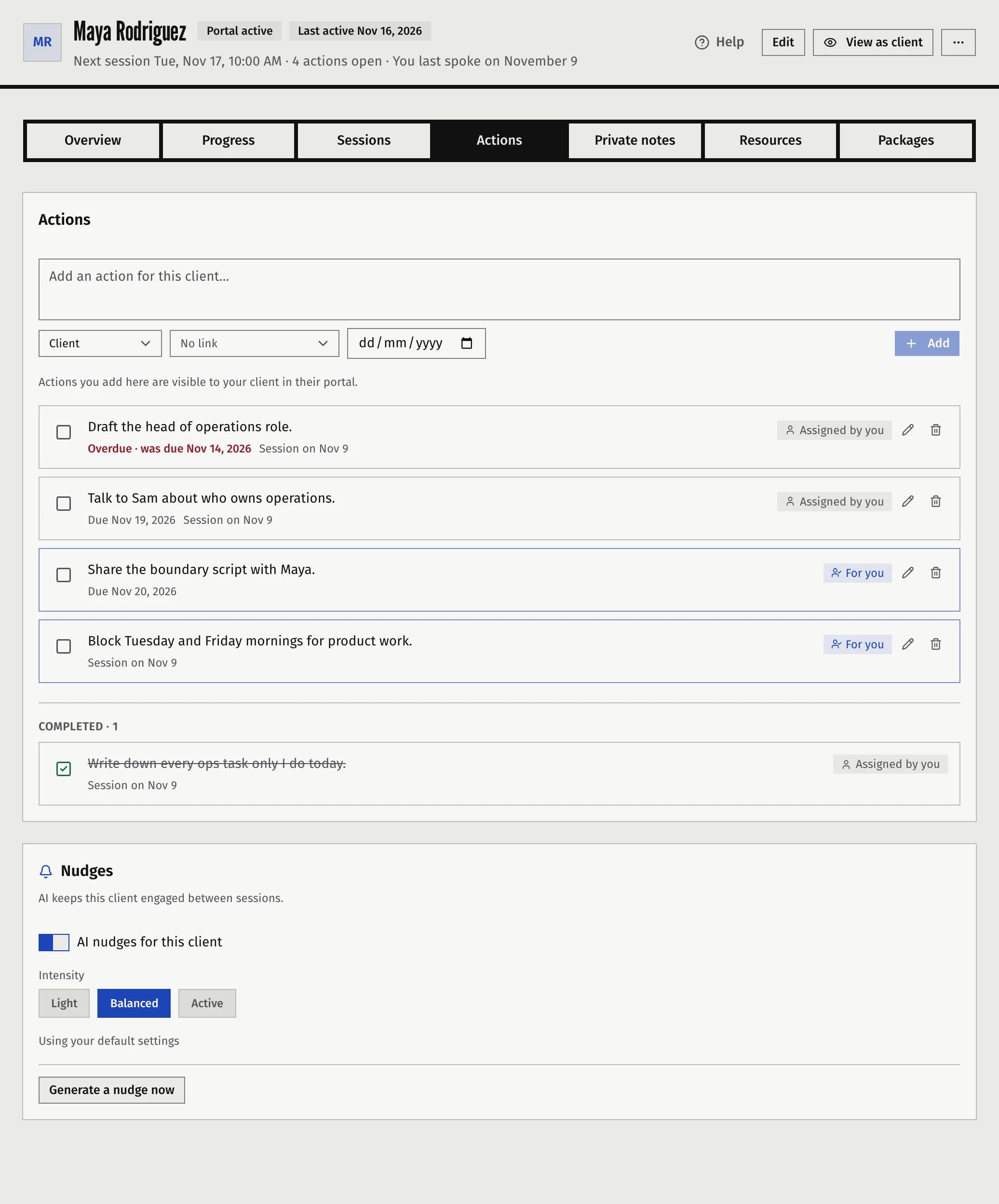
An action is one thing that one of you will do. It has an owner, you or the client, and can have a due date and a link to a goal.
Actions come from four places:
- you, in the session review
- you, any time, on the client’s page
- the AI, when you draft notes from a transcript
- your client, who can add their own in the portal
Add an action
- Open the client from Clients.
- Open the Actions tab.
- Type the action in the box (Add an action for this client…).
- Choose the Assignee: Coach or Client. The default is the client.
- If it has a deadline, set Due.
- To tie it to a goal, choose one under Link this action. Only active goals are offered.
- Press Add.
When your client sees an action
| Where you add it | When your client sees it |
|---|---|
| The Actions tab on the client’s page | At once, in their portal |
| The Actions section of a session review | Once you share that session’s notes |
| Drafted from a transcript | Once you share that session’s notes |
Actions your client adds themselves show in your list, marked Added by client. When your client ticks one off, it appears in your notifications. See Choose your notifications. Once the client’s coaching period has ended, they can no longer tick off, reopen, cancel or edit an action.
Due dates
A due date is a plain date. An action is overdue from the day after its due date, judged on your own calendar day, in the timezone you set. Overdue actions show “Overdue” and the date they were due. An overdue action assigned to a client puts that client in Needs attention. See Why a client shows up in Needs attention.
Finish, reopen or cancel an action
- Press Mark as done.
- If you want, add a closing note under Closing note (optional), then press Mark done.
You can also Edit an action, Cancel action it, or bring it back with Reopen or Restore. Finished actions sit under Completed, and cancelled ones under Cancelled.
The same actions appear in the session review and on the prep screen under Agreed last time. That pane lists the open actions from the last session you held, so you can open the next session with them.
Your own actions
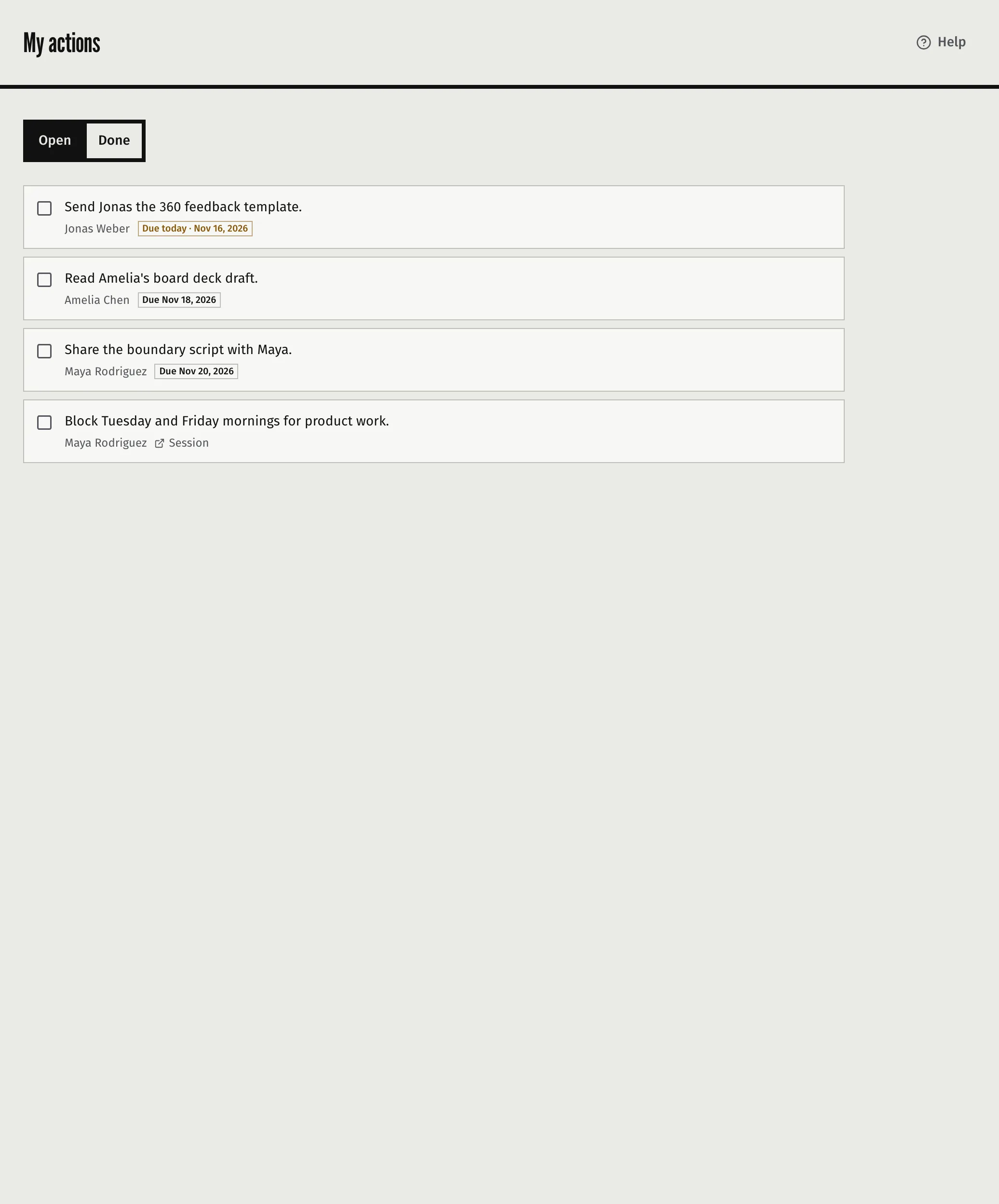
Actions with you as the owner, across all your clients, are collected in one list.
- Open the Dashboard.
- In the Your actions card, press View all.
The page is called My actions. It is not in the side menu. It has two tabs, Open and Done. Each row shows the client, the due date (Due today or Overdue when it applies), the session it came from and the goal it is linked to. Press Mark as done, and you can leave a note on how it went. The list shows up to 100 actions.
Actions that belong to your clients are not in this list. They are on each client’s page.
Cancelled and no-show sessions
You cannot add a new action to a cancelled or no-show session. Actions already on it stay editable, so you can clear what a late cancellation left behind. See Take notes and review a session. An action added on the client’s page belongs to no session, so you can still add one.
Was this article helpful?