Set your availability and booking rules
On this page
Your availability and booking rules decide which times a client sees when they book a session in their portal. They also set when a client can still cancel or move one. They do not limit you: you can always book a client yourself at any time (see Book, move and cancel a session).
Where the settings are
Open Settings, then Booking. It has three tabs:
- Availability: your time zone, weekly hours and one-off changes.
- Booking settings: session length, notice, spacing, limits, locations, the cancellation cutoff and credits.
- Integrations: your calendar. See Connect your Google or Microsoft calendar.
Set your time zone and weekly hours
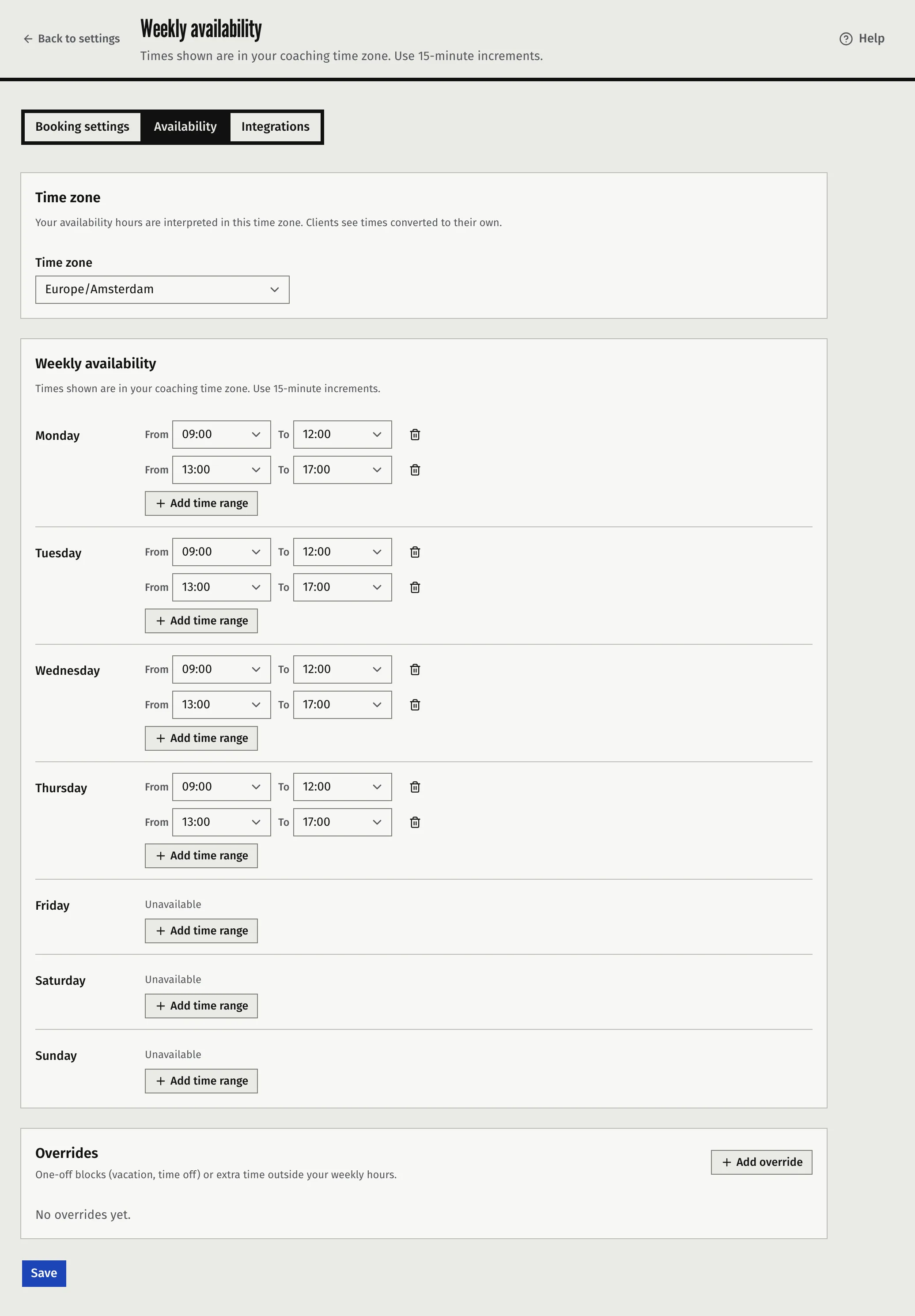
- Open the Availability tab.
- Under Time zone, check your Time zone. It is the same setting as Time zone under Business. Your hours are read in this time zone.
- For each weekday, press Add time range and set From and To. Use as many ranges per day as you need, for example a morning and an afternoon. A day with no range shows Unavailable.
- Press Save.
Times are in steps of 15 minutes. A range must end after it starts, and ranges on the same day cannot overlap. A client can pick a start on the quarter hour, and the whole session must fit inside a range.
Every time in the app is shown in the time zone of the person looking at it. A client sees each of your times converted to their own time zone.
Block time or add extra hours
Use an override for a holiday or a one-off day.
- On the Availability tab, press Add override.
- Set Start and End, each with a date and a time.
- Choose the Type: Block (unavailable) removes that time from your hours. Extra (add hours) adds that time to them.
- Add a Note for yourself if you like. Clients do not see it.
- Press Save.
An override that is a block wins over a range and over an extra. The date and time you type are in your time zone, like your weekly hours. If you change the time zone, an override keeps its clock times too.
Set the rules for client booking
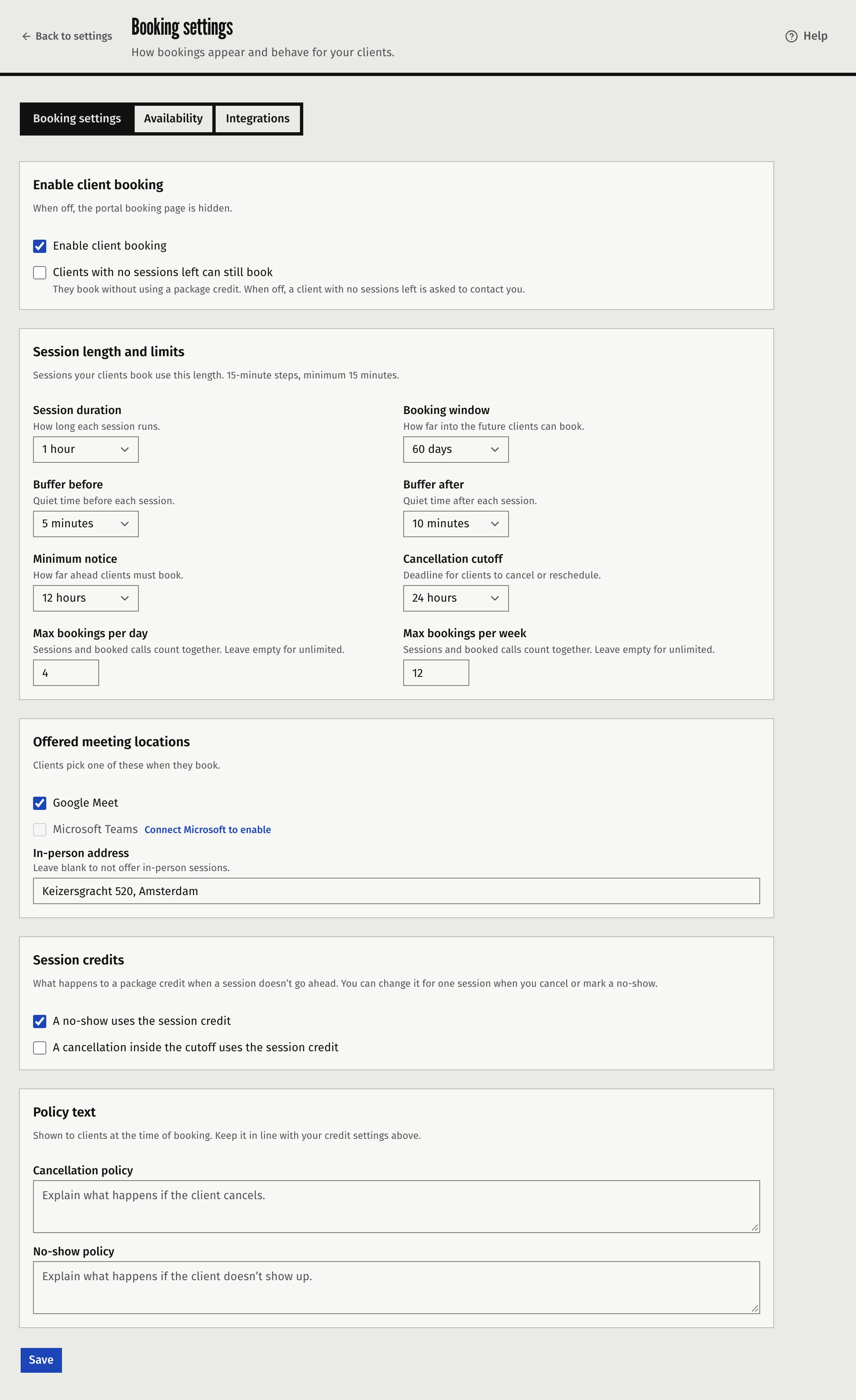
On the Booking settings tab, choose these, then press Save:
| Setting | What it does | Choices |
|---|---|---|
| Session duration | The length of every session a client books. | 15 to 120 minutes, in steps of 15. Starts at 1 hour. |
| Minimum notice | How far ahead a client must book. | No notice required, or 1, 2, 4, 8, 12, 24, 48 or 72 hours. Starts at 24 hours. |
| Booking window | How many days ahead a client can book. | 7, 14, 30, 60 or 90 days. Starts at 30 days. |
| Buffer before and Buffer after | Quiet time kept free before and after a session. | No buffer, or 5, 10, 15, 20, 30, 60, 90 or 120 minutes. Starts at no buffer. |
| Max bookings per day and Max bookings per week | The most bookings in one day or one week. Sessions and booked calls from a booking page count together. | A number from 1 to 99, or empty for no limit. |
| Cancellation cutoff | The last moment a client can cancel or move a session. | 2, 4, 8, 12, 24, 48 or 72 hours before it starts, or No cutoff. Starts at 24 hours. |
Notes on how these work:
- Session length applies to a client who books. When you book a session yourself you choose its length, from 15 minutes to 4 hours.
- Buffers. Between two of your sessions, the gap is the buffer before plus the buffer after. Around an event in your connected calendar, the buffer before applies before the event and the buffer after applies after it.
- Limits. The day and the week are counted in your time zone. These limits stop clients. They do not stop you.
- Your calendar. When a calendar is connected, a time you are busy there is not offered. See Connect your Google or Microsoft calendar.
The cancellation cutoff
Inside the cutoff, a client can no longer cancel or move the session in their portal. They have to contact you. You can still cancel or move it yourself at any time.
Whether the credit comes back when a session is cancelled inside the cutoff, and what a no-show does, are separate settings. They sit under Session credits on the same tab: A no-show uses the session credit and A cancellation inside the cutoff uses the session credit. You can change both for one session when you cancel or mark a no-show. How they work is in Create packages and track session credits.
Let clients without a credit still book
By default a client with no sessions left cannot book. They are asked to contact you. To let them book anyway, tick Clients with no sessions left can still book. Their session then does not use a package credit. A client who still has a credit uses it as usual.
This setting is for clients. When you book a client yourself and they have no credit, you tick Book without a package credit in the booking dialog. See Create packages and track session credits.
Turn on client booking
Tick Enable client booking and press Save. Until it is on, the booking page is hidden in the client portal. You can book a client yourself either way.
Faronto refuses to turn it on until two things are in place:
- A place to meet. One of: Google Meet or Microsoft Teams with a connected calendar set as your primary, or an in-person address. Under Offered meeting locations, tick the places you offer, or fill in In-person address. Leave the address blank and in-person is not offered. You can offer Google Meet or Microsoft Teams, not both, because you have one primary calendar.
- Weekly hours. At least one range on the Availability tab.
If one is missing, Faronto says which, with a link to fix it.
Free calls booked through a booking page use your hours too, even when client booking is off. See Let people book a free call from your page.
Write your policies
Under Policy text you can write a Cancellation policy and a No-show policy. A client sees them on the screen where they confirm a booking, and in the confirmation, reschedule and reminder emails and the calendar invitation. A cancellation email repeats the cancellation policy. If you leave one empty, the confirm screen says there is no policy and the emails leave it out. Faronto does not enforce the text. The cutoff and the credit settings above do, so keep the text in line with them.
What these settings do not do
- They do not stop you from booking a client at any time.
- They do not apply to sessions you book yourself.
- They do not give each client or each kind of session its own length. Every client-booked session has the one length you set.
Was this article helpful?