Connect your Google or Microsoft calendar
On this page
Connect your Google or Microsoft calendar and Faronto does four things. It leaves out the times you are busy when clients book. It puts each session and each booked call on your calendar. It makes the Google Meet or Microsoft Teams link. And it follows you when you move or delete one of those events in your calendar. Everything else in Faronto works without a calendar. You can use only Google or Microsoft: other calendars, such as iCloud, cannot be connected.
Before you start
- You need a Google or a Microsoft account with a calendar.
- You choose one primary calendar. Faronto writes your sessions and booked calls there, and the provider of that calendar decides whether you can offer Google Meet (Google) or Microsoft Teams (Microsoft). You cannot offer both.
- Clients never see what is in your calendar. Faronto uses your other events for two things: leaving those times out, and showing them to you next to your sessions on Scheduling.
Connect a calendar
- Open Settings, then Booking, then the Integrations tab.
- Press Connect Google Calendar or Connect Microsoft / Outlook.
- Sign in with Google or Microsoft and allow the access it asks for. Faronto asks to see and change events on your calendars, to check when you are free or busy, and to list your calendars. For Microsoft it also asks for online meetings, which is how Teams links are made.
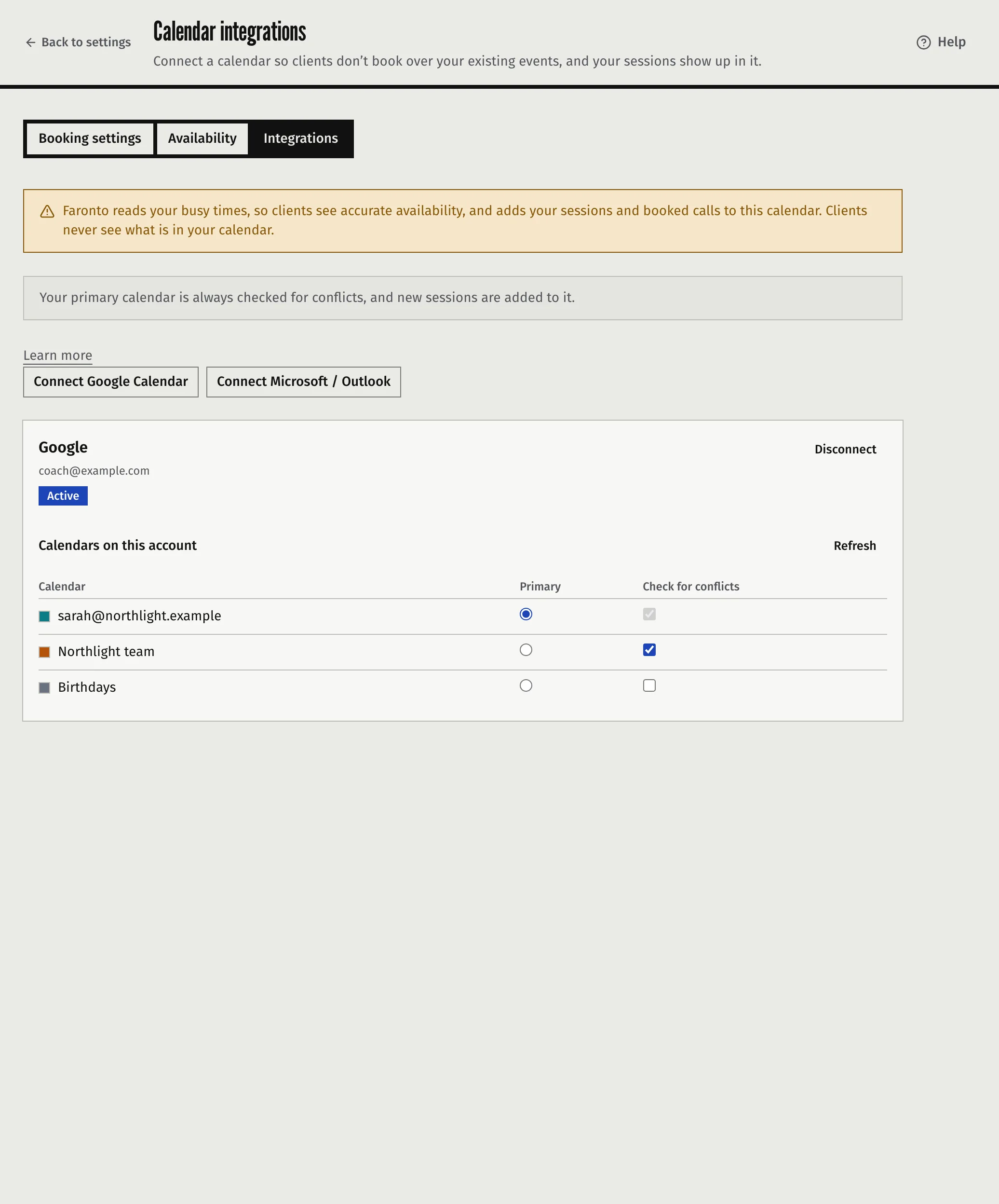
- You return to the Integrations tab. The account shows as Active, with a list of its calendars under Calendars on this account.
- In the Primary column, choose your primary calendar. This step is not done for you.
- Tick Check for conflicts for every other calendar whose busy times should be left out. Your primary is always checked.
If the list is out of date, press Refresh. You can connect more than one account. You have one primary across all of them, and choosing a new one replaces the old.
Meet or Teams links
The provider of your primary calendar decides which video link Faronto can make:
| Your primary calendar is | You can offer |
|---|---|
| A Google calendar | Google Meet |
| A Microsoft calendar | Microsoft Teams |
| None chosen | Neither |
Turn the one you want on under Offered meeting locations on the Booking settings tab. Faronto then makes the link for each session or call that uses it. If you switch your primary to the other provider, switch the matching location on too. For sessions you book yourself, you also have In person and Custom Location, which need no calendar.
What happens to your sessions
With a connected primary calendar:
- A session you book, or a client books, becomes an event in your primary calendar, with the client as a guest. Your calendar sends the client the invitation. Faronto sends no confirmation of its own to the client. When a client books, you also get a Faronto notification by email. A booked call from a booking page does the same. See Let people book a free call from your page.
- A session you move or cancel in Faronto updates or deletes the event. The client is told by your calendar.
- A session you move or delete in your calendar follows in Faronto. Move the event and the session moves. Delete it and the session is cancelled, and the credit goes back to the client’s package. Faronto listens for changes from Google and Microsoft and checks again once a day.
- Your busy times are left out. A client sees only times when none of your checked calendars is busy. This is for clients and booking pages. It does not stop you booking yourself. See Book, move and cancel a session.
Without a calendar, the session lives in Faronto only, and the client and you each get an email with a calendar file. See Book, move and cancel a session.
Disconnect a calendar
- On the Integrations tab, press Disconnect on the account.
- Press Disconnect again to confirm.
After this:
- New sessions and calls are no longer written to that calendar, and its busy times are no longer checked.
- Your sessions stay in Faronto.
- Events Faronto already put in your calendar stay there. Faronto can no longer move or delete them.
- If that was your primary calendar, Google Meet or Microsoft Teams is no longer offered.
- You can connect the account again at any time.
When the connection breaks
If Google or Microsoft stops accepting Faronto, for example when you remove Faronto’s access in your Google or Microsoft account, the account shows Reconnect required or Error. Press Reconnect and sign in again. Until you do, Faronto treats the calendar as not connected: nothing is written to it and its busy times are ignored.
What Faronto does not do
- It does not connect calendars other than Google and Microsoft.
- It does not change or delete events that are not sessions or booked calls.
- It does not let clients see your calendar.
- It does not read your email.
Was this article helpful?