Put your booking page on your website
On this page
Your booking page works on its own: anyone with the link can book a free call. You can share that link anywhere, and you can show the page inside your own website so visitors don’t leave it. Set up your page and booking types first. See Let people book a free call from your page.
Share your booking link
- Open Booking pages.
- Under Your booking page, press Copy link.
- Paste the link where people will see it: your social media bio, your email signature, a button on your website, a message you send.
Your link has the form app.faronto.com/b/<your address>. Press See your page to open it and check it before you share it.
Anyone who opens the link sees your page with your listed booking types.
Share the link to one booking type
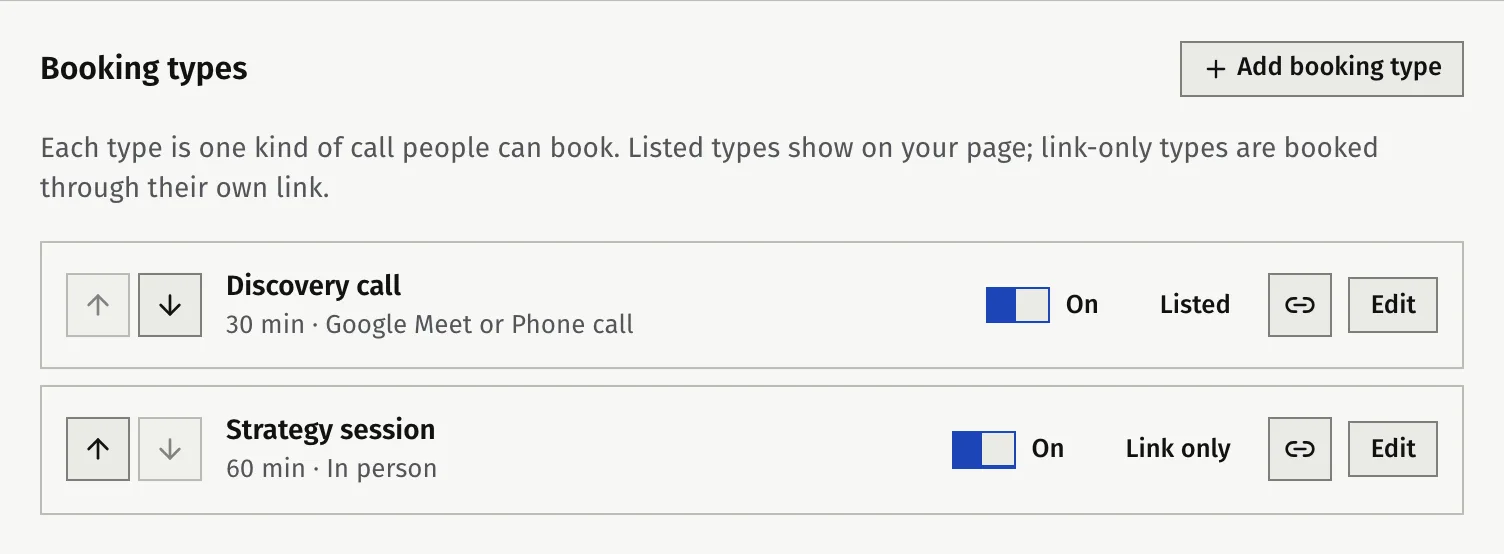
Each booking type has its own link: your link followed by / and the type’s address. It opens straight on the times for that call, without the list of types.
- Open Booking pages.
- On the booking type, press the copy link button.
- Paste it where it belongs. For example, use a “Discovery call” link in an email signature.
A type set to Link only does not show on your page. Only people with its own link can book it. That makes it useful for a call you offer to specific people.
Show your booking page on your website
You can put your booking page on your own website: Wix, WordPress, Squarespace or a site you built yourself. Save your page address first. The code appears only after that.
- Open Booking pages.
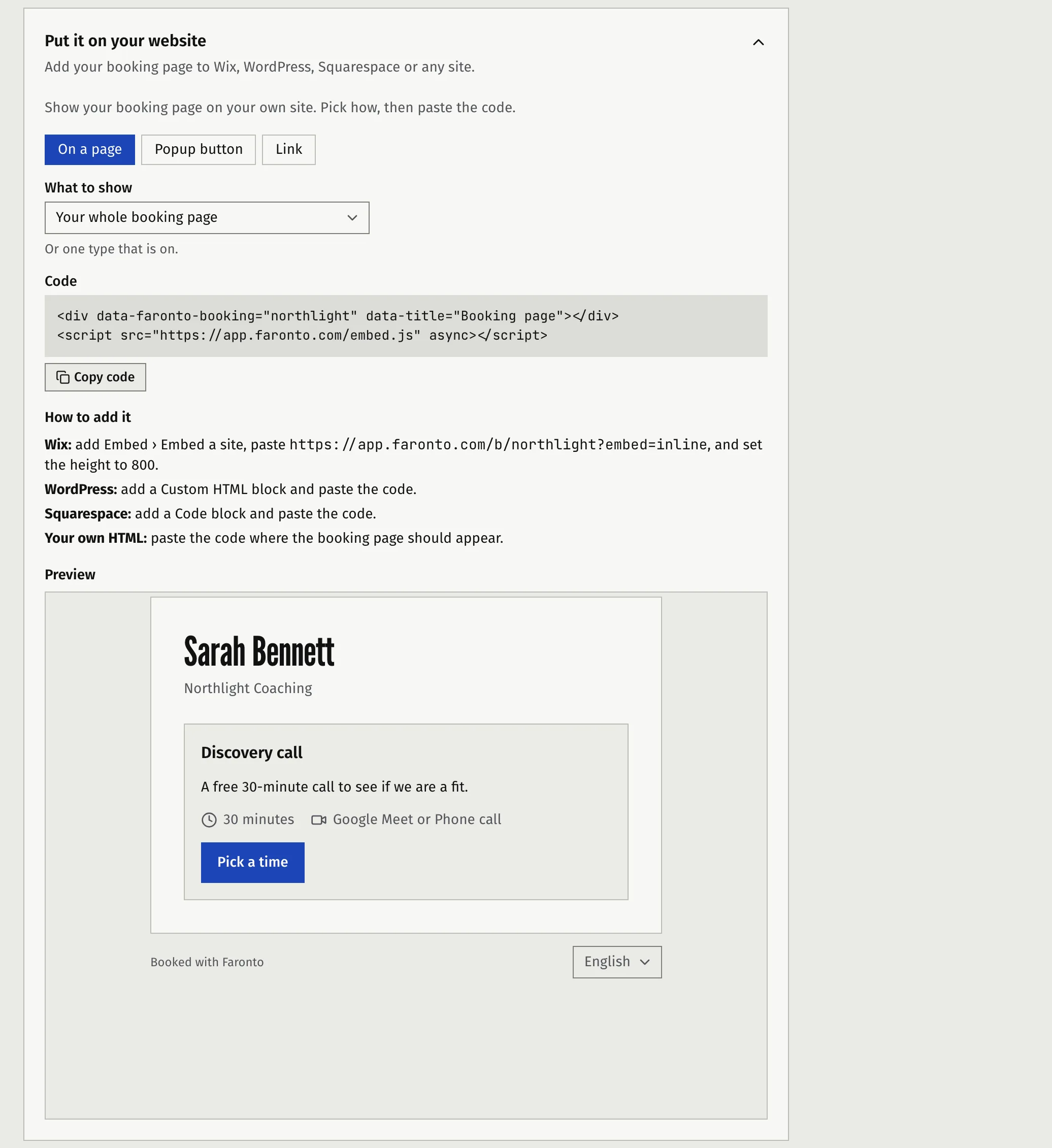
- Below Your booking page, open Put it on your website.
- Under How to show it, choose one:
- On a page. Your booking page sits inside a page of your site.
- Popup button. A button on your site opens your booking page on top of it. Under Button text, write the text on the button. It starts as “Book a call”.
- Link. A plain link that works anywhere: your site, a link-in-bio page, your email signature.
- Under What to show, choose Your whole booking page or one booking type that is on.
- Press Copy code.
- Paste the code into your site. Under How to add it, the screen tells you where:
- WordPress: in a Custom HTML block.
- Squarespace: in a Code block.
- Your own HTML: where the booking page should appear.
- Wix: for On a page, add Embed, then Embed a site, paste the address the screen shows and set the height to 800. A Popup button needs custom code, which Wix allows only on a paid plan. Otherwise use a link.
For On a page, the screen shows a Preview of how it will look on a website.
How it looks and works on your site
- Its height follows its content, so visitors never scroll inside it. On Wix it has the fixed height you set.
- It is light, with a see-through background, so your own site shows around it. You can’t change its colours. The pop-up button is black with white text; you choose only its text.
- Visitors see it in their browser’s language, and can switch language inside it. The words that sit on your site, such as the button text, are the ones you chose.
- It sets no cookies and loads no analytics, so your site’s cookie notice needs no change for it.
- The Faronto mark shows as on your own page: a small “Booked with Faronto” badge on Free, a small link on Starter.
- After booking, the visitor stays on your site and sees the confirmation inside it.
- Your site must use https. On a site without it, the embed shows a link that opens your booking page in a new tab instead.
What visitors see
Visitors don’t need an account. They:
- See your name and your business logo, and your listed booking types.
- Pick a type and a time, in their own time zone.
- Enter their name, email, an optional phone number and answers to your questions.
- Get a confirmation and an email with a calendar invite and a link to change or cancel.
See Let people book a free call from your page for what happens on your side.
Was this article helpful?