Let people book a free call from your page
On this page
A booking page is a web page where anyone can book a free call with you, for example a discovery call. They don’t need an account. They pick a time in your hours, and the booking lands in Faronto as a contact and a planned meeting.
Set your page address
- Open Booking pages.
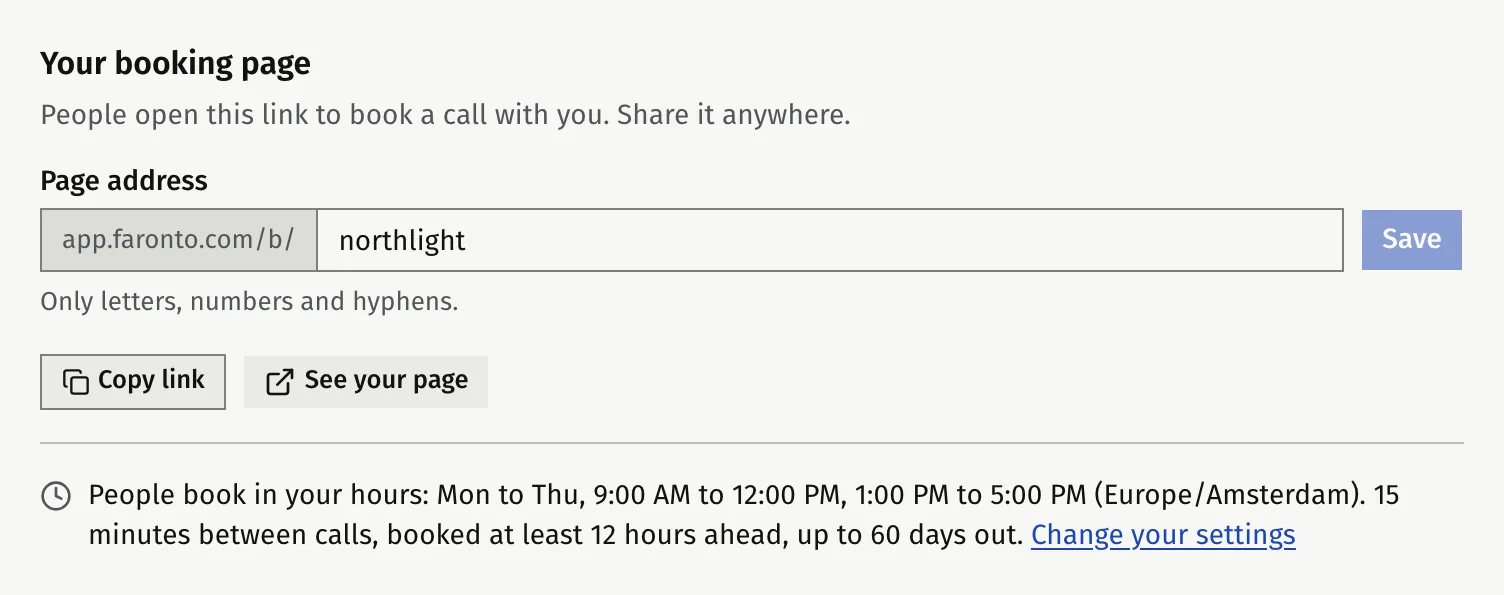
- Under Your booking page, enter your Page address. Faronto suggests one from your name. Use 3 to 60 letters, numbers and hyphens, with no hyphen at the start or end.
- Press Save.
Your page lives at app.faronto.com/b/ followed by your address. Press Copy link to copy it, or See your page to open it.
Some words are kept for Faronto and can’t be used, such as support, help and admin. If someone already uses your address, choose another.
Check your hours
People book only inside your weekly hours. The page shows them as “People book in your hours: Mon to Thu, 9:00 AM to 5:00 PM (Europe/Amsterdam)” together with your buffer, your minimum notice and how far ahead people can book. These come from Settings, Booking. Press Change your settings to change them.
If you haven’t set your hours, nobody can book. Faronto shows You haven’t set your hours yet, so nobody can book. Press Set your hours.
A booked call counts toward your daily and weekly limits together with your sessions. It also blocks that time for clients. People can book a call from your page even if client booking is switched off in Booking.
Add a booking type
A booking type is one kind of call people can book. You can start with a ready-made one.
- Quick start. Under Booking types, press Create it to create a free 30-minute Discovery call with one question: “What would you like to talk about?” You can change anything later.
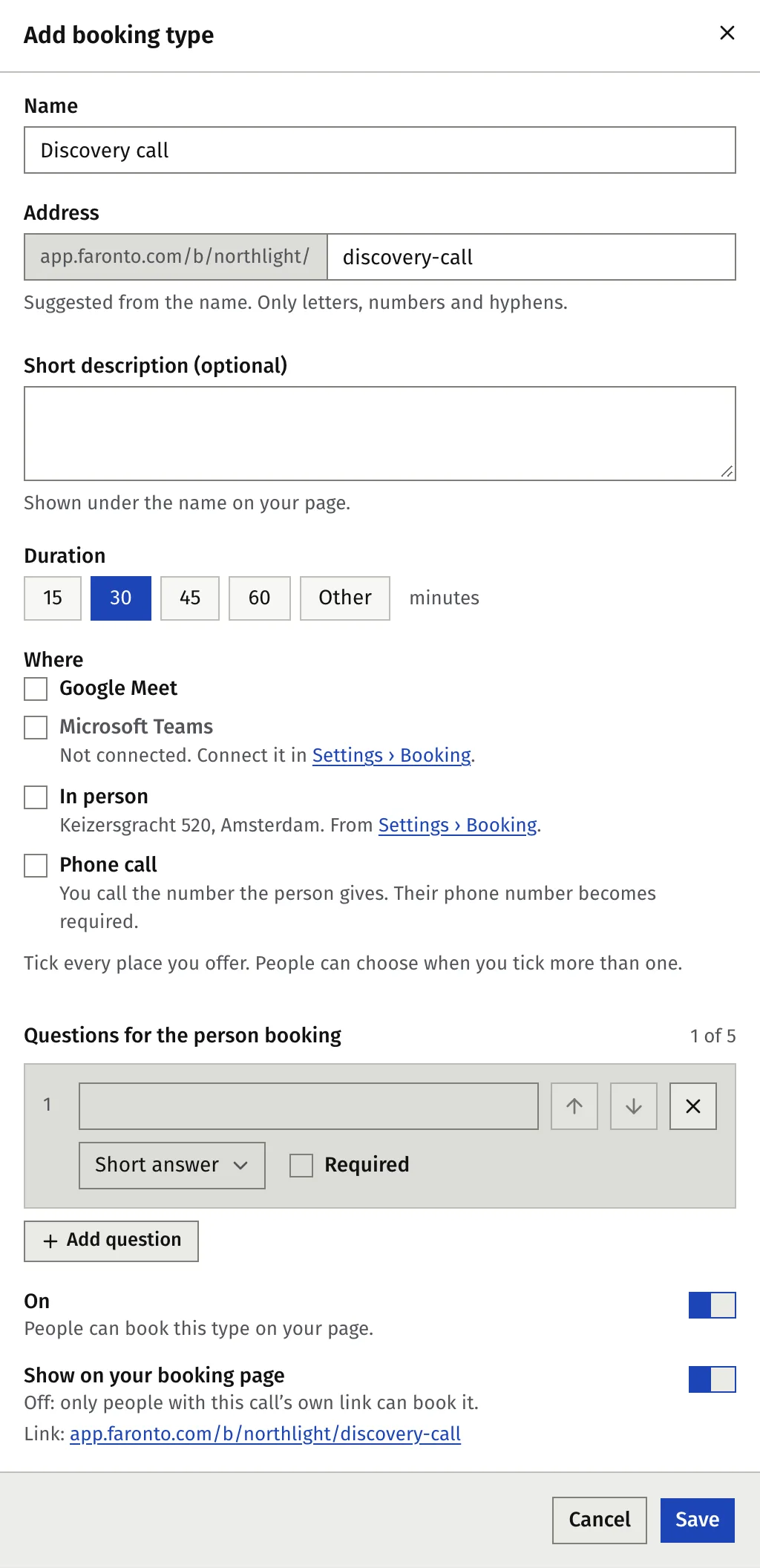
- Your own. Press Add booking type or Add your own and fill in:
- Name.
- Address, the end of this type’s own link.
- Short description (optional), shown under the name on your page.
- Duration: 15, 30, 45 or 60 minutes, or Other from 15 to 240.
- Where. Tick every place you offer. If you tick more than one, the person chooses.
- Questions for the person booking. You can add up to 5. Each is a short or a long answer, and each can be required.
- On. Off means nobody can book this type.
- Show on your booking page. Off means only people with this call’s own link can book it.
Each type shows as Listed (on your page) or Link only (only through its own link). Press the copy link button on a type to copy its link. Use the arrows to change the order.
Places
You can offer Google Meet, Microsoft Teams, In person and Phone call.
- Google Meet needs a connected Google calendar, and Microsoft Teams a connected Microsoft calendar, set as your primary calendar in Booking, Integrations. Faronto then makes the meeting link for each call. You can offer one of the two, not both. Also tick Google Meet or Microsoft Teams under Offered meeting locations in Booking, Booking settings, or the place stays greyed out in the booking type.
- In person uses the address you set in Booking.
- Phone call is always available. You call the number the person gives, so their phone number becomes required.
The Free plan
On Free you have one active booking type. If you go back to Free from Starter, the other types are turned off and keep their settings. See What’s in Free and Starter.
What the person sees and receives
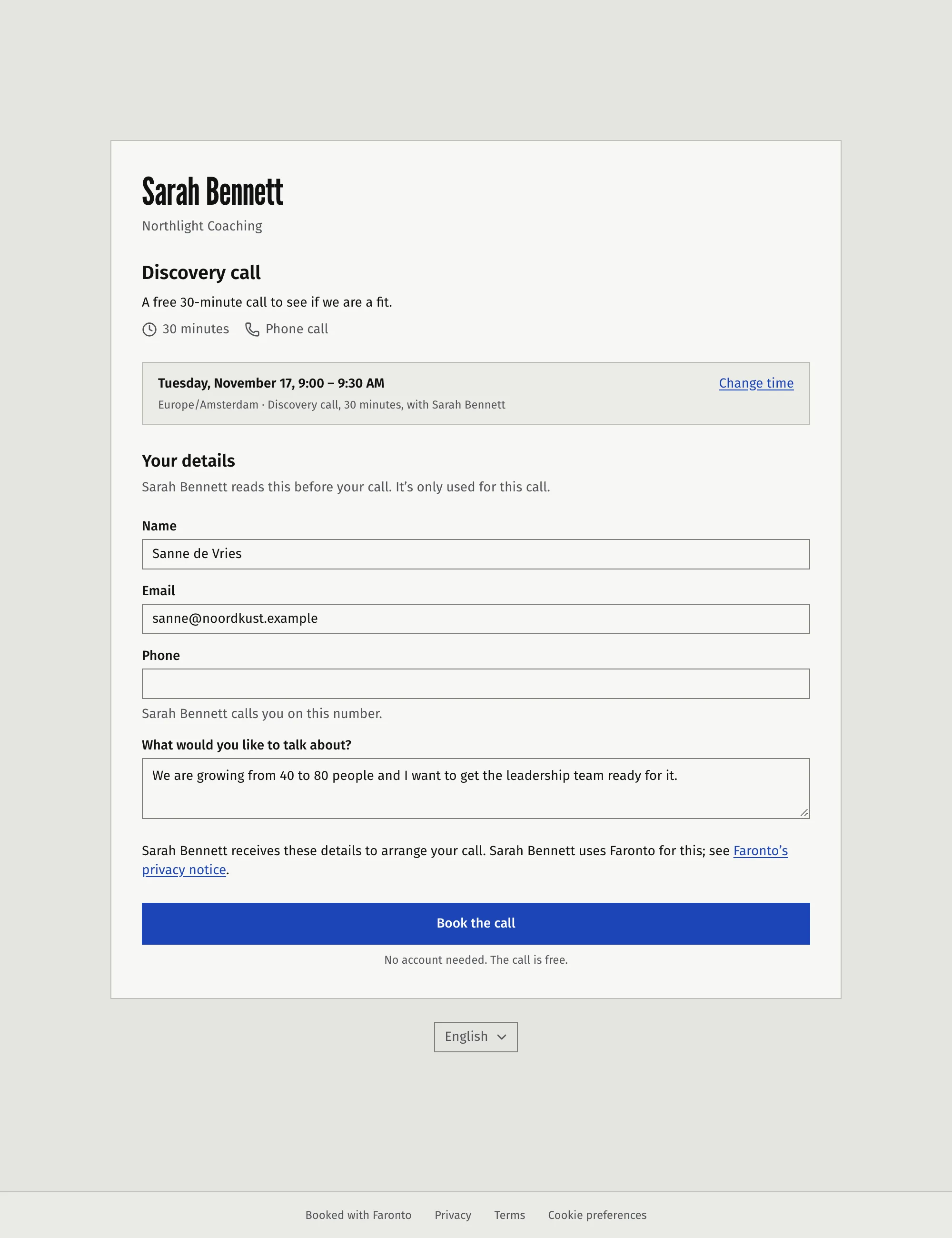
The person opens your page, picks a type and a time, and fills in their details. They see times in their own time zone.
- Your page. It shows your name and your business logo, not your photo. Each listed type is a card with a Pick a time button. A link-only type opens straight on its times.
- Pick a time. They see only times inside your hours. With a connected calendar, Faronto also leaves out the times you are busy there.
- Details. Your details: name, email, phone (required for a phone call), the place if you offer several, and your questions. The form says “No account needed. The call is free.”
- Book. They press Book the call.
After booking, the person sees a confirmation with the time, how to join or the address, and Add to calendar. Faronto emails them the same details with a link to change or cancel the call, and sends a reminder a day before and an hour before. The calendar invite comes from your Google or Microsoft calendar, or, without one, with Faronto’s email. They can move the call or cancel it without an account, and you are told.
On the Free plan, your page shows a small “Booked with Faronto” badge. On Starter it is a small link in the footer.
With or without a connected calendar
Booking pages work with or without a Google or Microsoft calendar connected in Booking, Integrations. They work differently, though:
| Google or Microsoft calendar connected | No calendar connected | |
|---|---|---|
| Times people can book | Your hours, minus the times you are busy in your calendar | Your hours only |
| Where the call goes | Scheduling in Faronto, and an event in your calendar with the person as a guest | Scheduling in Faronto only |
| The person’s calendar invite | Sent by your Google or Microsoft calendar | Attached to Faronto’s confirmation email |
| Video call | Google Meet or Microsoft Teams, with the link made for you | Not offered: choose Phone call or In person |
| When the person moves or cancels | Faronto moves or deletes the event in your calendar | Faronto sends them an updated or cancelled invite |
| You move or delete the event in your calendar | Faronto moves or cancels the booking to match | Not applicable |
| Your email from Faronto | A short note, only if Booking changes is on in Notifications | Always, with a calendar file to add the call to your own calendar |
In both cases, Faronto sends the person the confirmation and the reminders, and you get a notification in Faronto. See Connect your Google or Microsoft calendar.
Where a booking lands
- You are told. You get a notification in Faronto, and an email as the table above shows.
- On your calendar. The call appears in Scheduling as Growth · call or Growth · meeting, and in your Google or Microsoft calendar if you connected one.
- As a contact. If the email matches a contact you already have, that contact is used. Faronto only fills in their phone number if it was empty. If not, Faronto adds a new contact at the In conversation stage with a Warm relationship, no source and no marketing consent. Archived contacts who book again are restored, except people you archived as Asked not to be contacted.
- On the timeline. The call is a planned meeting. It becomes the contact’s next action unless you already set one. Their answers to your questions are saved with it. If the booking is cancelled, the timeline says Booking cancelled.
The person is not a client. They have no portal. Set the source on the contact yourself if you want it counted in Where clients come from.
Move or cancel a booked call
A call someone booked on your page is on the contact’s timeline, tagged Booked online, and as a Growth block in Scheduling.
- Open the call from either place.
- Press Reschedule and choose a new date and time, or press Cancel the booking and then Cancel the call.
You can move or cancel a call until its end time. The person is emailed about the move or the cancellation, and a cancelled time is free again for booking.
What booking pages do not do
- They do not take payment. The call is free.
- They do not create an account or a client.
- They do not add people to a mailing list. The contact has no marketing consent.
Was this article helpful?