Export your data or delete your account
You can download a copy of everything you have in Faronto, and you can delete your account. Both are under Settings, then Data and account. Export first if you want to keep anything.
Export your data
- Open Settings, then Data and account.
- Under Export your data, press Request export.
- Wait for the email. Faronto builds the archive and emails you when it is ready, usually within a few minutes.
- Press Download. The screen shows the date the download stops working.
The download is a .zip file. You can request one export every 24 hours. The link works for 72 hours. After that, request a new one.
What the export holds
Each kind of data is a separate JSON file, a format other software and spreadsheets can read. Your uploaded files come as the originals.
- You and your practice: your account, your business settings, your booking settings, your availability, your packages, and your referrals.
- Clients: their details, goals and progress history, actions, sessions, notes (including private notes), summaries, agendas and transcripts, the Resources you assigned with their answers, and the consent records of their portal.
- Growth: your contacts, each contact’s timeline, tags, the people you hid from Today, your booking pages and the calls booked on them.
- Messages: the nudges and reminders Faronto queued or sent for you, and your in-app notifications.
- Files: the files in your Resources, and the photos and logos.
- AI: your AI settings and a log of each time AI was used. If you connected an AI Assistant: what you allow it, and the apps connected, with when each was connected and last used. No sign-in details are included.
- Your history: the terms you accepted, and a file of your own actions in Faronto, including those your AI Assistant made.
If a client asks you for their data, it is in these files: each client’s records carry the client’s id, so you can filter by it. Sign-in details for your calendar and other connected accounts are removed. A very large library can take longer than one export allows. If files are missing, the archive lists them in a file called _skipped.json so you can get them from the app.
The contacts file you can export in Growth is separate: a spreadsheet of your contacts, made for sending to other tools. See Keep track of the people you know.
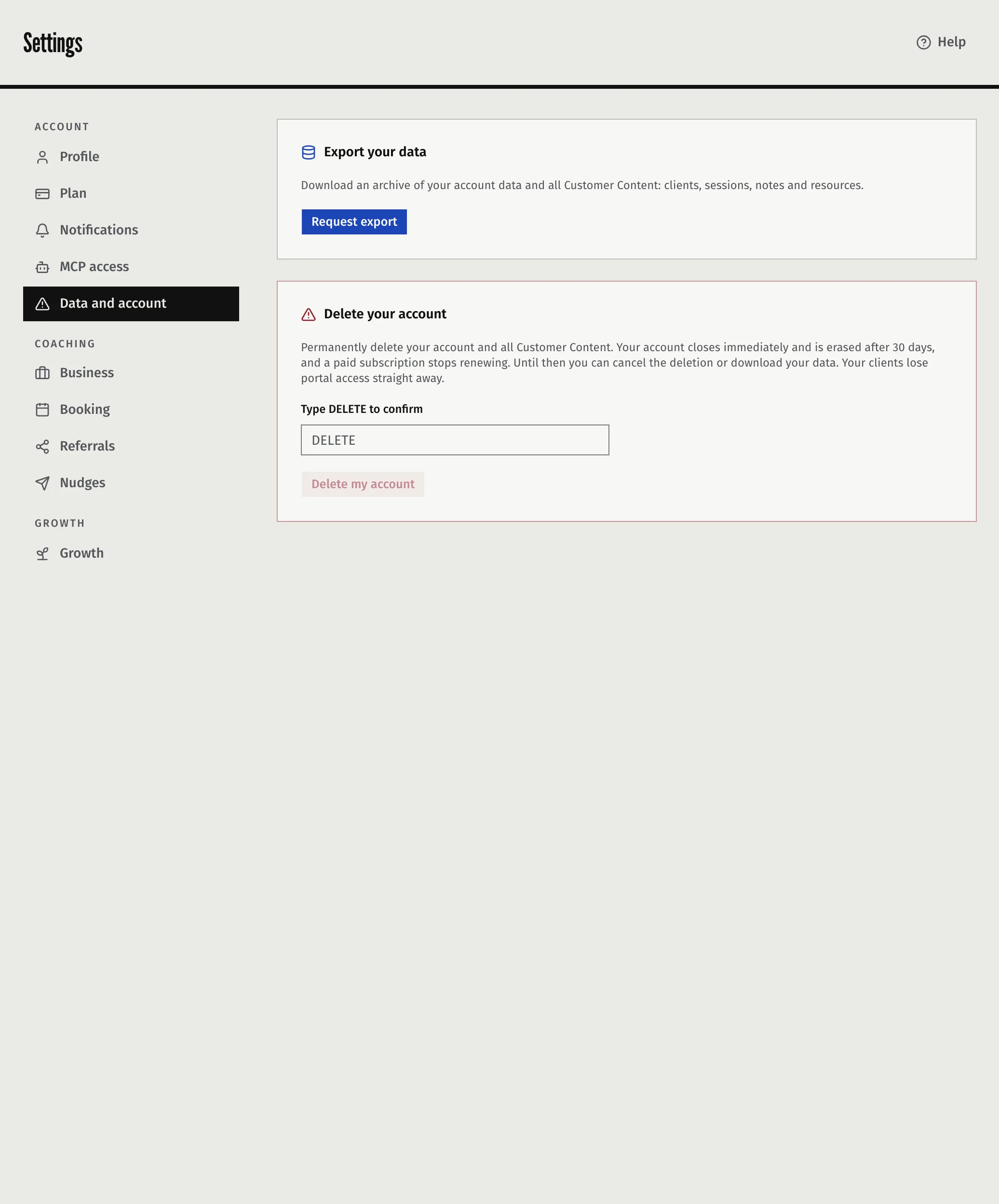
Delete your account
Deleting your account closes it at once and erases it after 30 days.
- Open Settings, then Data and account.
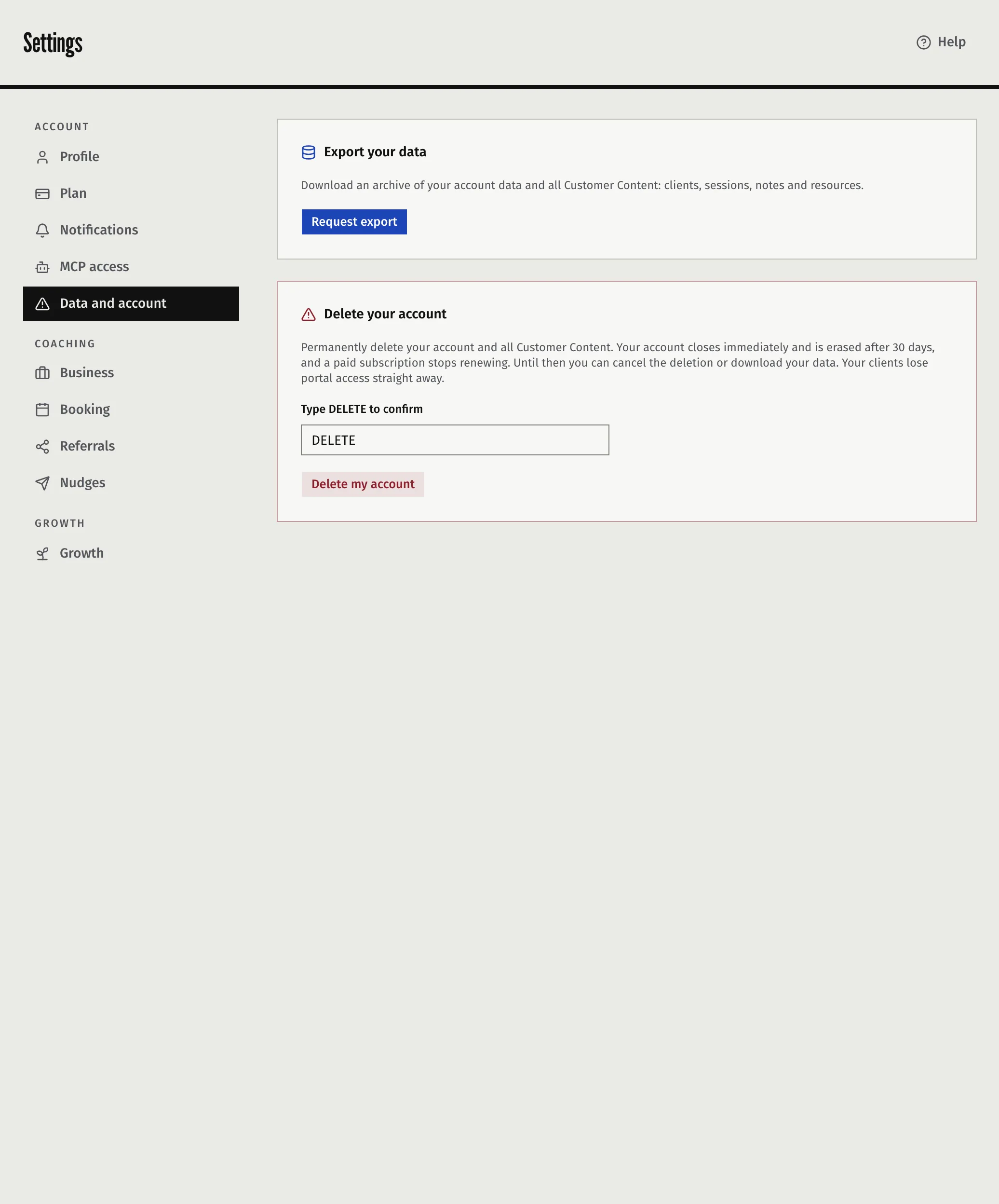
- Under Delete your account, type DELETE in the box labelled Type DELETE to confirm.
- Press Delete my account.
Faronto takes you to a screen titled Your account is scheduled for deletion and emails you the date of erasure.
What happens next
| When | What happens |
|---|---|
| Now | You cannot use the app, and your clients can no longer open their portal. A paid plan stops renewing. |
| Days 1 to 30 | You can change your mind or export your data. |
| Day 30 | Faronto erases your account and everything in it. This is final. |
On the pending screen you can:
- Press Cancel deletion. Your account and all your data come back right away, your clients can open their portal again, and a paid plan renews again. After erasure starts, you can no longer cancel.
- Open Export your data first and download an archive before it is deleted.
What is erased
On day 30 Faronto erases your clients and everything about them, your contacts and booking pages, your Resources and files, your sessions, notes and transcripts, your settings, and the record of your own actions, including those of an AI Assistant. Your clients’ portal sign-ins are removed with them. Faronto emails you once the erasure is done. It does not email your clients, so tell them yourself before you delete.
Some things stay:
- Records in your own accounts with other providers, such as events Faronto added to your calendar. Faronto does not delete them. Remove them there.
- Data the law requires Faronto to keep, such as accounting records.
- Backups, which Faronto keeps on a rolling 30-day window.
The Privacy policy, section 10, sets out how long each kind of data is kept.
If your free account goes quiet
A Free account with no activity for 6 months is scheduled for deletion the same way. Faronto emails you, sends one reminder 7 days before erasure, and shows the pending screen the next time you sign in. Press Keep my account to keep the account. Activity includes you signing in, a client visiting their portal, or a session booked ahead. A paid account is never deleted this way.
Was this article helpful?