Import your contacts from LinkedIn, your phone or a spreadsheet
Importing fills Contacts with the people you already know in one go. You choose a file, check what Faronto will do with it, and only then import.
Faronto reads your file in your browser and does not keep it. To check for duplicates it sends the contact details to Faronto. Only the people you import are saved.
Get your file
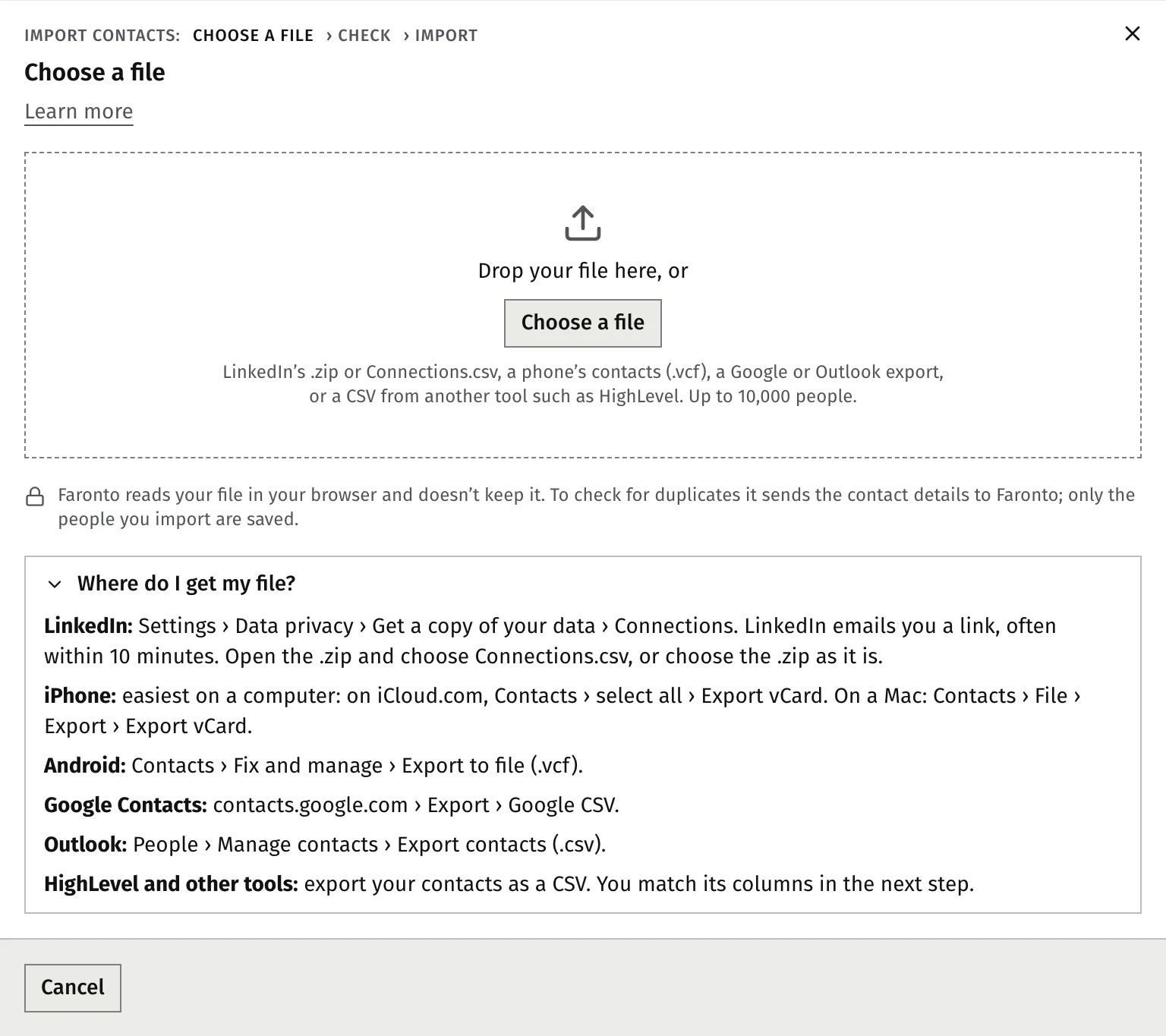
Faronto accepts a .csv file, a .vcf file (a phone’s contacts) or LinkedIn’s .zip. A file can hold up to 10,000 people and be up to 50 MB.
- LinkedIn. In LinkedIn, open Settings, Data privacy, Get a copy of your data, and choose Connections. LinkedIn emails you a link, often within 10 minutes. Open the .zip and choose Connections.csv, or upload the .zip as it is.
- iPhone. This is easiest on a computer. On iCloud.com, open Contacts, select all and choose Export vCard. On a Mac, open Contacts, then File, Export, Export vCard.
- Android. Open Contacts, then Fix and manage, then Export to file (.vcf).
- Google Contacts. On contacts.google.com choose Export, then Google CSV.
- Outlook. Open People, then Manage contacts, then Export contacts (.csv).
- HighLevel and other tools. Export your contacts as a CSV. You match its columns in the next step.
In Excel, use File, Save as, CSV.
Import the file
- Open Contacts.
- Press Import and export, then Import contacts….
- Drop your file in the window, or press Choose a file.
- Faronto shows the steps: Choose a file, Match columns, Check, Import. A phone file (.vcf) skips the column step.
Match the columns
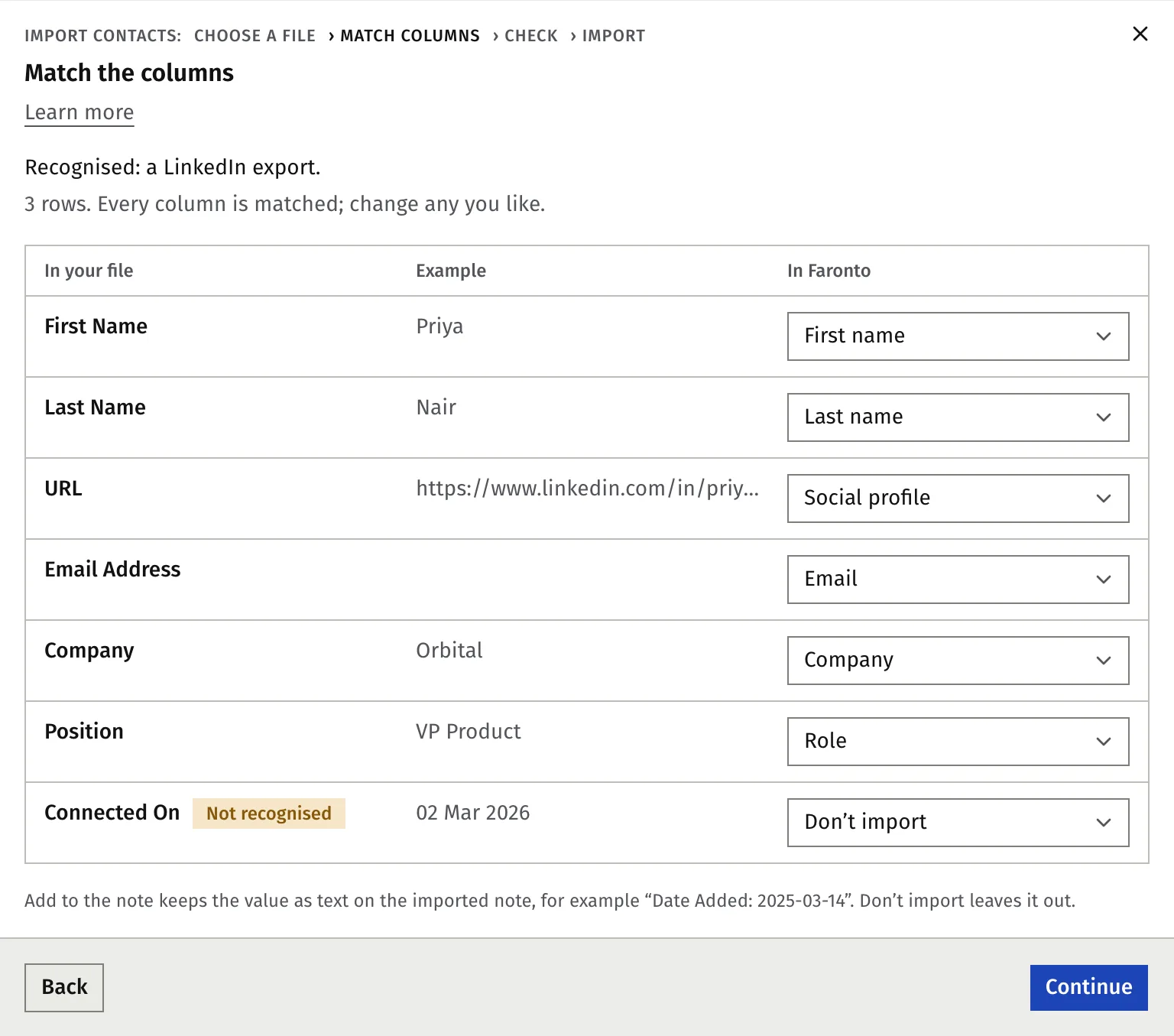
For a CSV, Faronto shows each column of your file next to the Faronto field it will fill. For a LinkedIn, Google or Outlook file, it recognises the format and matches every column. Change any you like.
- Make sure one column is matched to Name. Continue stays off until you have.
- For a column you don’t want, choose Don’t import.
- To keep a value as text, choose Add to the note. It goes into the contact’s note.
- Where a column holds values such as a source or a stage, match the values below it.
- Press Continue.
A referral source from a file sets the source only. It does not set who referred the person.
Check before you import
Faronto compares your file with the contacts you already have and tells you what will happen.
- Will be imported: new people, and people linked to a client of yours (no client is created). If an email matches one of your coaching clients, the contact is linked to that client. No client is created.
- Skipped: people already in Contacts, people with no name, and people listed twice in the file.
Faronto counts someone as already in Contacts when the email or a profile link matches, or the phone matches under the same name. Two people can share a phone number, so a shared number under a different name imports as a new contact.
When a person has only the same name as someone in Contacts, Faronto asks you. Choose Same person, Someone else or Not sure. If you leave it, the person is skipped and nothing changes.
Optional: tick Add missing details to the … already in Contacts. It fills only empty fields on people already in Contacts. It never overwrites anything, and Undo does not take it back.
Consent from a file
Everyone you import starts with no marketing consent. If your file has a consent column, you choose once:
- Don’t import consent.
- Import the … who agreed. You state How did they agree? and tick I have a record of this consent for each of them. Neither choice is selected for you.
A withdrawal in your file always applies, including to people who are already in Faronto.
Consent is only a record. Faronto sends no email to your contacts. To use the people who agreed in a newsletter tool of your own, see Keep track of the people you know.
Choose the settings for this import
Under Apply to this import, set:
- Relationship, how often you keep in touch. A LinkedIn file starts as Cold, which means no reminders, because most connections are distant ties. Other files start with no relationship set.
- Source, where these people came from.
- Stage, which starts as Contact.
- Tag, a suggestion such as “LinkedIn import 6 Nov 2026” that helps you find this import later.
Rows that carry their own relationship, source or stage in the file keep it.
Then press the import button. Its label shows the number of contacts. The import takes about a minute for 5,000 people. Keep the window open. If the connection drops or you press Stop, use Retry the rest. Nobody is imported twice.
After the import
The last screen counts what happened and offers Pick who to keep in touch with and, if there are any, Review … possible duplicates.
People with no relationship wait in the To sort · … filter. Select the ones who matter, for example everyone who is a CIO, and give them a closer relationship. Today starts suggesting them once they have one. See Who to get back to: Today.
Undo an import
You can undo an import for 7 days. Contacts shows a strip, Your latest import, with Undo this import.
- Open Contacts and press Undo this import.
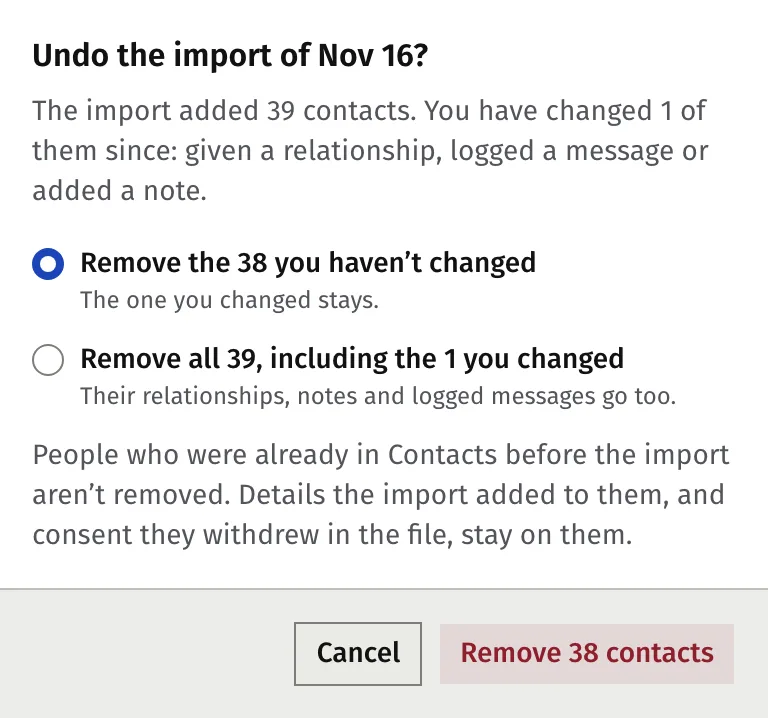
- Choose what to remove: Remove the … you haven’t changed, or Remove all …, including the … you changed.
- Press the confirm button. Its label shows the number of contacts.
People you changed after the import (gave a relationship, logged a message, added a note) stay when you choose the first option. A contact that took part in a merge always stays, and so does a contact with a confirmed call still to come. Tags that the import created go once no contact uses them. People who were already in Contacts are never removed. After 7 days the import cannot be undone.
Tip: Not sure about a file? Import it, look through the people, and undo within 7 days if it is wrong.
Was this article helpful?