Take notes and review a session
On this page
After a session you write the review: notes for your client, notes only for you, the actions you agreed and progress on goals. Marking the session complete shares the notes and actions with your client.
Your sessions happen outside Faronto, in your video tool or in person, so there is no notes screen during a session. Faronto does not join, record or transcribe it. You write the review afterwards, or you bring a transcript and let Faronto draft from it.
Open the review
- On the Dashboard, the Up next pane shows Write the review while it is fresh when a session has ended without notes. It stays there for 7 days.
- In This week, a session that needs its review is marked Review due. Open it.
- On the client’s page, open the session under Sessions.
The screen is called Post-Session Review.
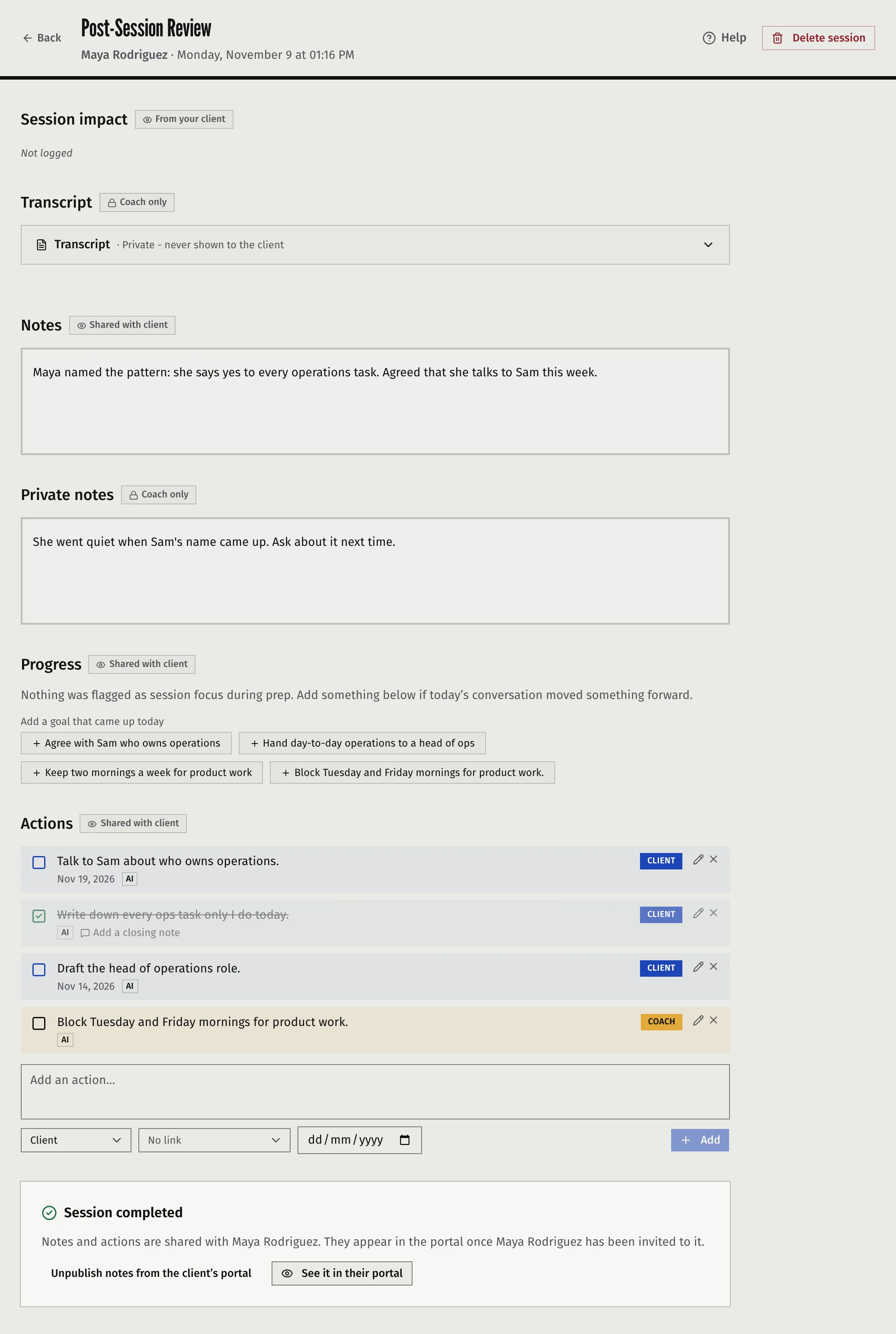
Who sees each section
The review has these sections, in this order. Each carries a label that says who can see it.
| Section | Who sees it |
|---|---|
| Session impact | From your client |
| Transcript | Coach only |
| Notes | Shared with client, once you share the session |
| Private notes | Coach only |
| Progress | Shared with client |
| Actions | Shared with client |
Session impact sits above the others once the session is complete. It shows how much the session helped, as your client rated it from 1 to 5, and reads Not logged until they rate it. You cannot change it.
Nothing is visible to your client until you mark the session complete or share it. See “Mark the session complete and share it” below.
Write the notes
- Under Notes, press Add notes.
- Write the summary you want your client to read.
- Press Save.
To change the notes later, click them.
Add the actions
Under Actions, type the action, choose who it is for (Coach or Client), set Due if it has one, and press Add. See Work with goals and actions.
Log progress on goals
Under Progress, the goals you ticked as focus in Prepare for a session with the session briefing are listed. Enter the new percentage and a note, then press Save. To log a goal you did not plan to cover, use the link at the bottom. See Work with goals and actions.
Draft the notes from a transcript
You can have Faronto’s AI write the notes and actions from a transcript. A transcript comes from you: Faronto has no way to record a session or to fetch a recording. Use whatever tool you record and transcribe with, then bring the result in one of two ways.
- Open the Transcript section.
- Either press Upload file and select a .txt, .docx, .vtt or .srt file. Or press Paste text, paste the text and press Save transcript.
- Wait for Transcript saved.
- Press Generate notes from transcript.
- Read the notes and actions that appear, and edit them.
What you get. The AI writes the Notes to your client, in the second person and in the client’s coaching language. It has three parts: the goals or topics discussed, the key takeaways and the actions. It also creates one action for each item agreed in the session. Each gets an owner, and a due date only when a date was discussed. The AI reads the transcript and the titles and progress of the client’s active goals. It does not read your private notes.
What it replaces. Generating again replaces the whole Notes and every action the AI made earlier. Actions you added yourself stay.
Limits.
- A file can be up to 4 MB. For a longer recording, paste the text instead.
- Pasted text can be up to 500,000 characters.
- Faronto keeps the first 200,000 characters of a transcript and cuts the rest.
Replace or delete. Replace swaps in another file. Delete removes the transcript after you confirm. Actions already made from it stay.
On Free, drafting from a transcript uses one of your 2 AI uses a day. See What’s in Free and Starter. With Enable AI features off, Generate notes from transcript is not shown and Faronto does not draft notes from a transcript. You can still store one.
Who can see a transcript
Only you. It is never shown to your client. The screen shows only the file name and size, never the text. Faronto records each time a transcript is opened, saved or deleted, as a security log for your account. Your AI Assistant can read transcripts and private notes only if you give it that access, under Private notes & transcripts. See Choose what your AI Assistant can see and change.
Keep private notes
Use Private notes for anything you want to remember and nobody else to see.
- Press Add private notes.
- Write.
- Press Save.
- Who sees them. Only you. They never appear in the portal or in an email to your client.
- What the AI does with them. The session briefing, the notes drafted from a transcript and nudges do not read them. Your AI Assistant can read them only with the access described above.
- Where to find them. Each client’s page has a Private notes tab that collects them across sessions.
- Size. Up to 50,000 characters.
Mark the session complete and share it
At the bottom is the Mark session as complete card.
- Check the line that says what will be shared.
- Leave the checkbox that offers to email your client ticked to send them the email. The box is ticked by default for a session your client booked, or one that ended in the last 48 hours. It is not ticked for a session you entered after the fact.
- Press Mark session as complete.
If you have unsaved edits in the notes or private notes, Faronto stops you and asks you to save first.
What happens next:
- The session is marked completed. Your notes and actions appear in your client’s portal. If you have not invited them yet, they appear once you have.
- Your client gets a short email with a link, once. Sharing again later does not email them again.
- If you have no notes and no actions, the session is still marked complete, but nothing is shared and nothing is emailed.
Afterwards you can pull the notes back with Unpublish notes from the client’s portal or put them back with Share notes with the client’s portal. Neither sends an email. See it in their portal shows you the portal page your client sees.
Cancelled and no-show sessions
A cancelled or no-show session is read-only, apart from private notes and actions that already exist.
| Cancelled or no-show session | |
|---|---|
| Private notes | You can write and change them. This is the place to record why it fell through. |
| Actions already there | You can tick off, edit and delete them. |
| A new action | Not possible |
| Notes | Shown, read-only, only if notes were written before |
| Transcript and Progress | Hidden |
| Draft from a transcript, mark complete, share | Not possible |
Actions already on the session stay editable because they remain in your client’s list. This is how you clear one left behind by a late cancellation.
Was this article helpful?