Prepare for a session with the session briefing
On this page
The session briefing is a short note to yourself about one upcoming session. Faronto can draft it from what you have already recorded about the client, or you can write it yourself. Only you see it.
Open the prep screen
- Open the Dashboard.
- On the Up next pane, press Prep. Or open the session from This week.
You can also open it from the Next session card on the client’s page, with Prep.
The screen is called Session Prep. Once the session’s start time has passed, it shows a line that points you to the review. See Take notes and review a session.
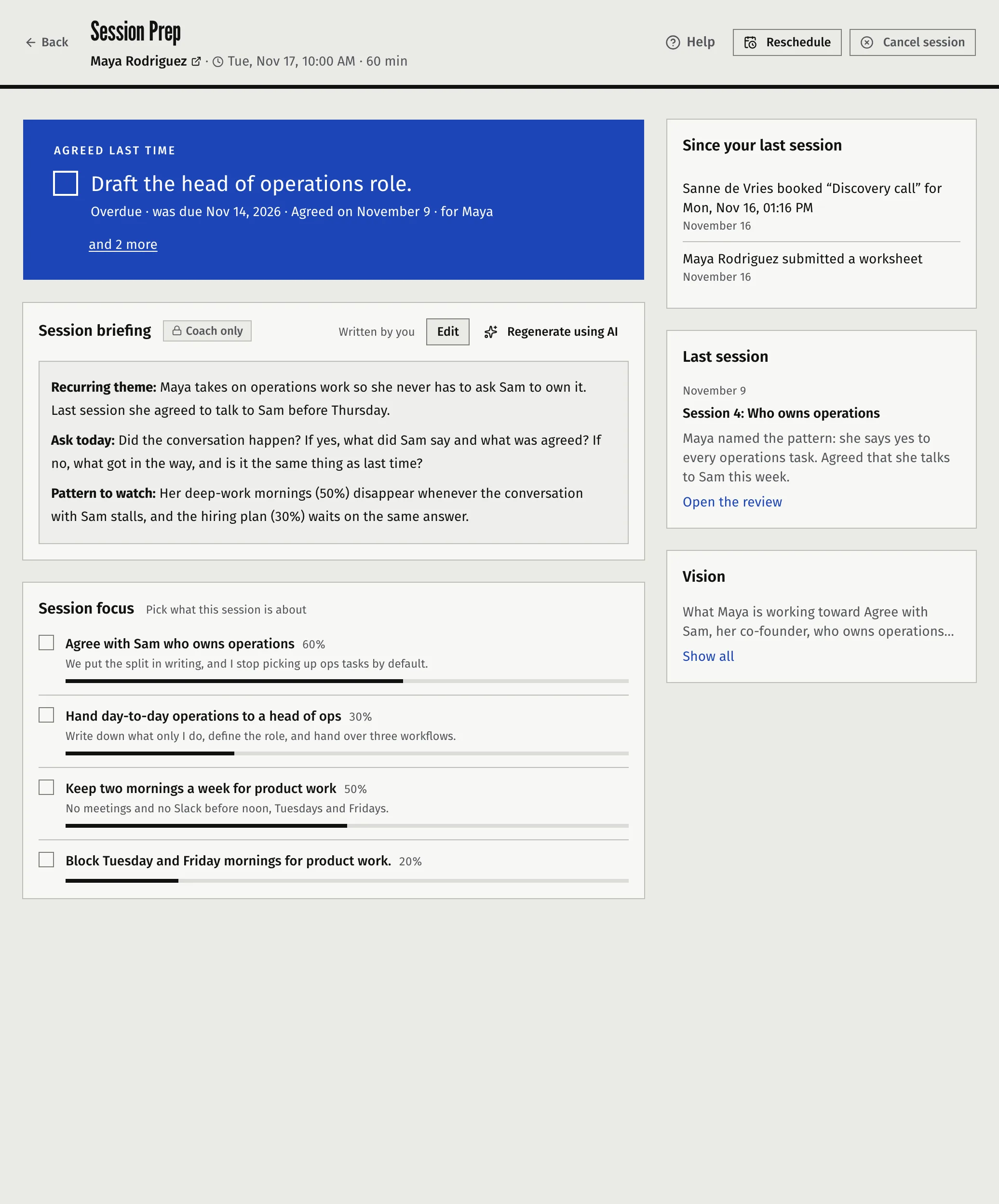
What the screen shows
| Panel | What it holds |
|---|---|
| Session briefing | Your briefing, marked Coach only. Written by you or drafted by Faronto’s AI. |
| Agreed last time | The open actions from the last session you held. If none are open, the most urgent open action from any session, under Still open. You can tick actions off here. |
| Session focus | Your client’s active goals. Tick the ones this session is about. |
| Since your last session | What your client did in the portal since the last session. |
| Last session | The date, your client’s rating, the title and the first lines of the notes you shared, with a link to Open the review. |
| Your vision word | The first two lines of the client’s vision, with Show all. Hidden when you chose “I don’t use one” for your coaching words. |
The briefing is the only panel that uses AI. Every other panel is built from what is already in Faronto.
Write the briefing yourself
- In the Session briefing card, press Write briefing.
- Write in the editor. It handles headings, lists and bold.
- Press Save.
The card then says Written by you. To change it later, press Edit or click the text. A briefing can hold up to 50,000 characters.
Have Faronto draft it
- Under Session Prep, tick the goals this session is about in Session focus.
- In the Session briefing card, press Generate using AI.
- Wait for Briefing generated.
- Read the draft. Press Edit to change it, then Save.
The card then says the briefing was drafted by Faronto’s AI, with the date.
What the draft is built from. For this client, in their current coaching engagement:
- the client’s bio and vision, if you use a vision
- their active goals, with target dates, progress and the ones you ticked as focus
- the progress notes from your most recent sessions, up to three
- the open actions, yours and the client’s
- your session notes from up to the last five sessions that have notes, shared or not
It uses the client’s first name only. It does not read your private notes, a transcript, your email or anything outside Faronto. The draft has up to five sections: client snapshot, last session recap, open actions, goal progress and suggested focus areas. It leaves out a section that has nothing to report. It is written in the client’s coaching language.
There is no box for extra instructions. The goals you tick as focus are how you steer it.
Redraw. Regenerate using AI replaces the whole briefing, including your edits. Faronto asks first (Regenerate briefing?) and you cannot undo it.
What counts toward your AI uses
On Free, drafting and redrawing a briefing each use one of your 2 AI uses a day. Editing and saving by hand use none, and a draft that fails does not use one. The 2 are shared with notes from a transcript and Draft in Growth, and 6 tries of any outcome within 24 hours also stop drafting. Starter has no daily limit. See What’s in Free and Starter.
With or without AI
The switch is Enable AI features under Settings, then Business.
| AI features on | AI features off | |
|---|---|---|
| Write a briefing yourself | Yes | Yes |
| Generate using AI and Regenerate using AI | Shown | Gone. Faronto also refuses to draft one. |
| A briefing drafted earlier | Shown | Still shown, and you can still edit it |
| The other panels (agreed last time, focus, since your last session, last session, vision) | Shown | Shown, unchanged |
With AI off the empty card reads “No briefing written yet. Sketch one yourself.”
Cancelled and no-show sessions
Faronto does not draft a briefing for a session that was cancelled or marked as a no-show, and it uses no AI use on one. See Book, move and cancel a session.
What the briefing is not
- It is never shown to your client, in the portal or by email.
- Faronto does not join or listen to your session. The briefing comes only from what you have entered.
Was this article helpful?