Let Faronto draft a message in your voice
On this page
Draft writes a short first message to a contact in your voice, using Faronto’s AI. You edit it, copy it and send it yourself. Faronto never sends anything, to the contact or to anyone else.
Before you start
Draft needs AI features switched on for your practice. If you don’t see the Draft buttons, open Settings, then Business, and switch on Enable AI features. With AI off, Draft is hidden everywhere.
Write a draft
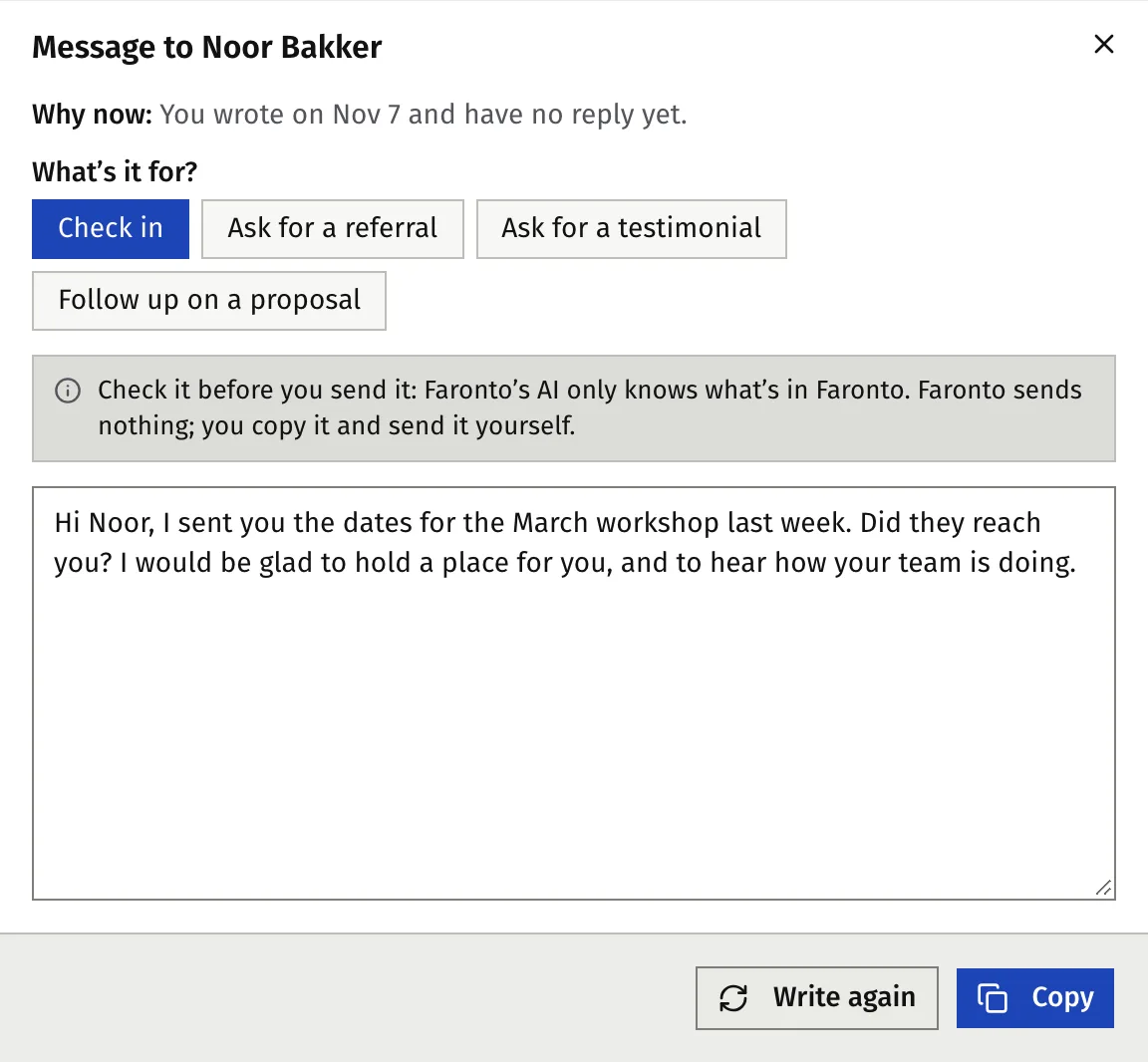
- Press Draft on a row under Today, on a Dashboard row, or press Draft message on the contact’s page.
- Read Why now:. It tells you why this person is on your list.
- Check What’s it for?. Faronto picks the most likely purpose from the reason. Change it if you want something else:
- Check in
- Ask for a referral
- Ask for a testimonial
- Follow up on a proposal
- Press Write. Nothing is written until you do.
- Read the message. You can edit the text in place. Press Write again for a new version.
- Press Copy, then send it yourself from your own email, LinkedIn, WhatsApp or phone.
- Press Log in the message that appears, or log it on the contact, so the contact is up to date. See Log a message, call or meeting.
Check the text before you send it. Faronto’s AI only knows what is in Faronto. The draft is 2 to 5 short paragraphs, opens with the person’s first name and ends with your first name.
If a try fails, press Try again. A try that fails does not use up an AI use. After 6 tries of any outcome within 24 hours, Faronto stops a free account for a while.
What Faronto’s AI sees
To write the message, Faronto’s AI gets:
- the person’s first name, role and company
- the reason shown under “Why now”
- your last five entries on their timeline, in full: what kind, when, who sent it, the summary and the text you saved, such as a pasted email, a message thread or your meeting notes (up to 3,000 characters each)
- for a coaching client: something they reached in the last 3 weeks, and how many sessions are left on their package
- your first name
- your tone and how you describe your writing under Your voice
It never gets their email address or phone number: Faronto removes both from everything it sends. A pasted email can still include their full name or other people’s names. Faronto’s AI is told to use your notes to understand the person, never to quote them.
Faronto is told not to invent facts, so a draft may be thin when the timeline is thin.
Teach it your voice
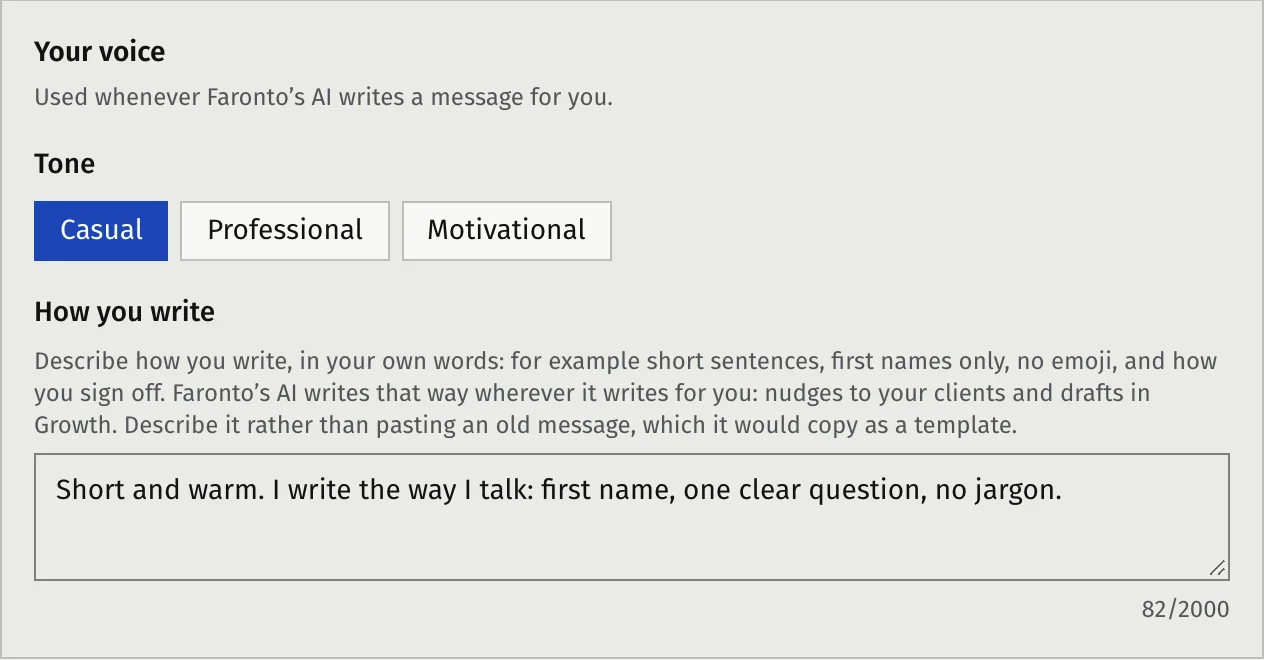
Draft writes the way you tell it to under Settings, Business, Your voice. This section appears only when AI is on.
- Choose a Tone: Casual, Professional or Motivational.
- Under How you write, describe how you normally write: for example short sentences, first names only, no emoji, and how you sign off. Describe it rather than pasting an old message, which Faronto’s AI would copy as a template.
- Press Save profile.
The nudge instructions you set for client nudges do not apply to Draft.
Language
A draft for a contact is written in your own language. A draft for a coaching client is written in that client’s coaching language.
Uses on the Free plan
On Free, Draft shares 2 AI uses a day with session briefings and transcript notes. Draft shows how many are left, in the form “… of … AI uses left today (free plan)”. When they are gone, you get new ones the next day, or you can upgrade for no daily limit. See What’s in Free and Starter.
Was this article helpful?